


LinkedIn Live has changed the way professionals connect: one live stream at a time.
In today’s digital-first business landscape, engagement is everything. According to LinkedIn, live videos get 24x more comments and 7x more reactions than native video uploads. That’s a massive opportunity for brands, creators, and thought leaders to build trust, spark conversations, and grow communities in real-time.
But while the power of LinkedIn Live is undeniable, many professionals struggle with a critical pain point: “How do I access LinkedIn Live, schedule an event, and go live successfully without technical hiccups?”
This step-by-step guide breaks down everything you need to know about going live on LinkedIn, including platform eligibility, scheduling a live event, using third-party tools, and promoting your live stream effectively.
What is LinkedIn Live and Why It Matters for Your Brand?
LinkedIn Live is a video broadcasting feature that allows eligible users to stream live video content directly to their LinkedIn page or profile. It’s ideal for product launches, webinars, panel discussions, or thought leadership sessions.
Unlike traditional videos, a LinkedIn live event allows for real-time engagement. Viewers can comment, react, and share the stream as it unfolds, creating a dynamic two-way interaction between you and your audience.
Benefits of LinkedIn Live:
- Reach a professional audience in real-time.
- Build trust and authority in your niche.
- Boost visibility through algorithmic preference for live content.
- Drive event-based lead generation through calls to action.
Reddit users say LinkedIn Live offers real-time engagement and visibility, while podcasts provide evergreen content, making the choice depend on your goals and audience behavior.
Is LinkedIn Live a paid feature?
No, LinkedIn Live is free, but you need to use a third-party broadcast tool (some of which may be paid) to stream your video content.
How do I access LinkedIn Live? Who Is Eligible?
Not every LinkedIn user can go live by default. To gain access, you must meet the access criteria to create and host LinkedIn Lives.
Access criteria:
- You must have a LinkedIn profile or page with a history of original content.
- Your profile/page should follow LinkedIn’s Community Guidelines.
- You must have more than 150 followers or connections.
- Your page or profile will go through a review by LinkedIn.
If you meet the criteria, you’ll see the option to “Go Live” when creating an event. If not, you can apply for access through LinkedIn Help.
Reddit users say that even with a large following, going live on a LinkedIn company page requires meeting specific platform criteria and getting approval, which some find unexpectedly restrictive.
Step-by-Step Guide: How to Go Live on LinkedIn
Step 1: Create an Event on LinkedIn
Go to your LinkedIn profile or page and click “+ Create Event.”
- In the event format dropdown, choose “LinkedIn Live”.
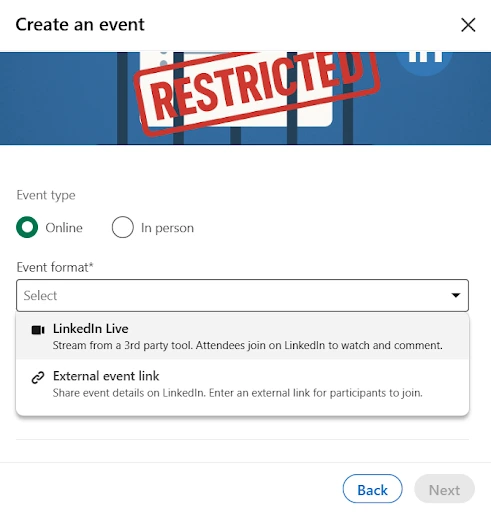
- Fill in event details: title, description, date, and time.
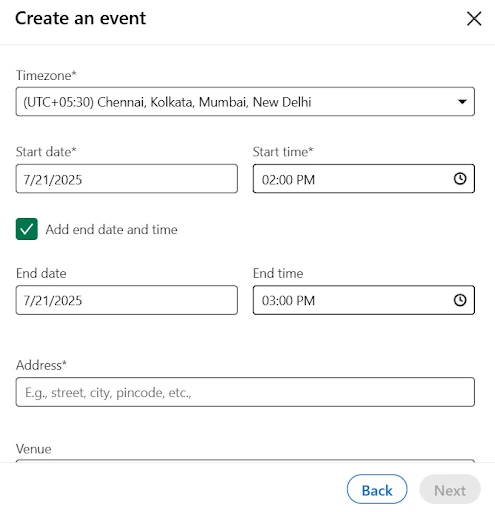
- Choose whether this is a scheduled live or spontaneous session.
- You’ll also need to indicate your level of expertise with streaming and choose a third-party streaming tool.
Step 2: Select a Broadcast Tool or Streaming Software
To stream live on LinkedIn, you need a third-party broadcast tool or streaming platform because LinkedIn doesn’t have a native broadcasting interface. For instance, we chose the StreamYard tool. Log in to your StreamYard account and navigate to “Destinations” > “Add a Destination.”
Select LinkedIn Page or LinkedIn Profile, depending on where you want to stream.
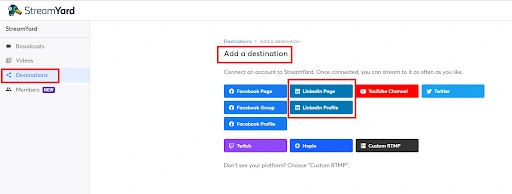
Authorize the connection by logging into LinkedIn and clicking “Allow” when prompted.
Step 3: Create a New Broadcast
Go to “Broadcasts” > “Create a Broadcast” > “New Broadcast.”
Choose your LinkedIn Page or Profile as the streaming destination.
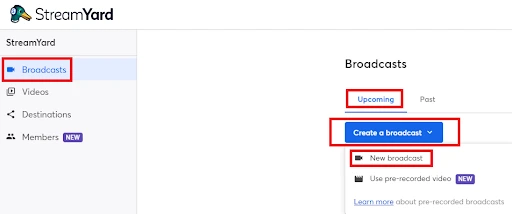
Step 4: Schedule Your Broadcast
After selecting your destination, add your broadcast details.
Check the “Schedule for later” option.
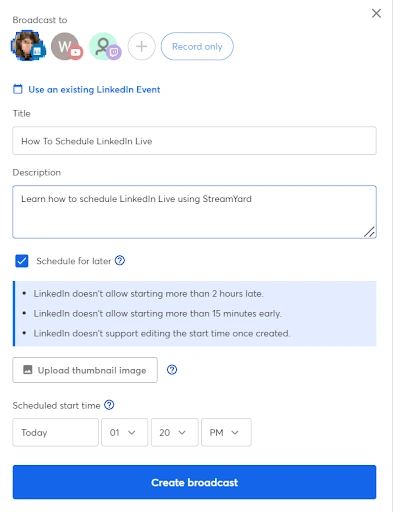
Upload a thumbnail image and set the scheduled start time.
Pro Tip: Use StreamYard’s multistream feature to broadcast simultaneously on platforms like Facebook, YouTube, Twitter, and LinkedIn.
Step 5: Go Live
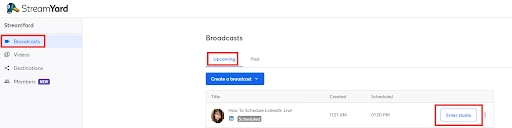
When you’re ready, go to “Upcoming” broadcasts and click “Enter Studio” for your scheduled LinkedIn Live session.
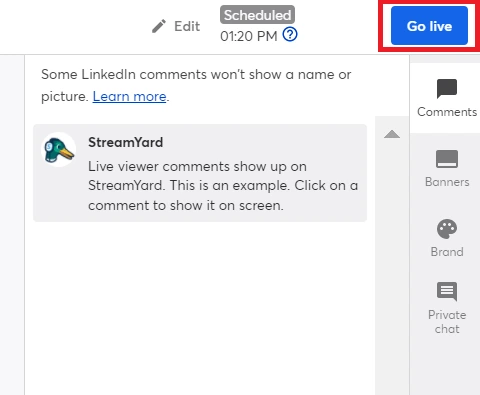
Inside the studio, test your camera/mic settings, choose your preferred layout, and click “Go Live” in the top-right corner.
Third-Party Tools and Preferred Partners for Streaming
To stream on LinkedIn Live, you must use a third-party broadcast tool or streaming software. These tools connect to LinkedIn via RTMP ingest, enabling you to broadcast live video content to your LinkedIn page or profile with full control over video production.
LinkedIn officially recommends several preferred partners to ensure a stable, high-quality streaming experience. Let’s explore the top tools and how they help in hosting effective LinkedIn Live events:
1. StreamYard – Best for Ease of Use and Browser-Based Streaming
StreamYard is one of the most popular third-party streaming tools and a LinkedIn preferred partner.
How it helps:
- No downloads required — it runs directly in your desktop browser by visiting StreamYard.
- Supports multistreaming to LinkedIn, YouTube, Facebook, and more.
- Add brand elements like logos, banners, and overlays to your live video.
- Easily bring in guests, screen share, and manage comments live.
- Perfect for users with little to no experience in broadcasting.
Great for: Webinars, interviews, fireside chats, and product demos.
2. Zoom – Best for Professional Webinars and Virtual Meetings
Zoom, a familiar name in virtual communication, offers seamless integration with LinkedIn Live via Zoom Meeting or Webinar features.
How it helps:
- You can stream directly from LinkedIn by connecting your Zoom account and enabling the “Live on Custom Live Streaming Service” option.
- Simplifies the transition from internal meetings to external live broadcasts.
- Ideal for panel discussions, remote speaker sessions, and hybrid events.
Great for: Corporate webinars, multi-speaker presentations, and virtual events.
3. Restream – Best for Simulcasting Across Platforms
Restream allows you to broadcast your LinkedIn Live event to multiple platforms simultaneously, such as YouTube, Facebook, and Twitter.
How it helps:
- Centralized dashboard to manage chats, schedules, and analytics across all platforms.
- Compatible with various streaming software or encoder tools like OBS, XSplit, etc.
- Provides detailed analytics to evaluate cross-platform performance.
- You can also schedule your live and promote it through customized messaging.
Great for: Content creators, influencers, and marketers who want to maximize reach across platforms.
4. Switcher Studio – Best for Mobile and Multi-Camera Production
Switcher Studio is a mobile-first streaming solution that allows you to produce high-quality live video content using iPhones or iPads.
How it helps:
- Supports multi-camera switching, on-screen graphics, and real-time editing.
- Allows remote guests and screen sharing.
- Integrates with LinkedIn Live via RTMP ingest.
- Especially useful for on-the-go live productions and field reporting.
Great for: Events, trade shows, vlogs, and product walkthroughs.
5. OBS Studio (Open Broadcaster Software) – Best for Advanced Users and Custom Streams
OBS Studio is a free, open-source broadcast tool known for its flexibility and customization options.
How it helps:
- Offers advanced control over your production workflow for streaming.
- Create scenes with multiple video/audio sources, transitions, and real-time overlays.
- Requires manual setup of stream URL and stream key from LinkedIn.
- Works flawlessly with LinkedIn’s custom stream setup.
Great for: Experienced broadcasters, tech-savvy creators, and complex live productions.
6. Socialive – Best for Enterprise-Grade Production and Remote Guest Management
Socialive is designed for enterprise teams that need professional-grade production features and scalability.
How it helps:
- Cloud-based platform with remote guest management.
- Centralized control room for live and on-demand video content.
- Easy repurposing of live sessions into bite-sized clips.
- Offers post-production tools within the platform.
Great for: Large teams, corporate communications, and marketing departments.
Choosing the Right Streaming Tool
| Tool | Best For | RTMP Support | Multistream | Guest Support | Ease of Use |
|---|---|---|---|---|---|
|
StreamYard |
Simplicity & browser-based streaming |
Yes |
Yes |
Yes |
5/5 |
|
Zoom |
Professional webinars & meetings |
Yes |
No |
Yes |
4/5 |
|
Restream |
Streaming to multiple platforms |
Yes |
Yes |
Yes |
4/5 |
|
Switcher Studio |
Mobile live streams & on-the-go shoots |
Yes |
Yes |
Yes |
3/5 |
|
OBS Studio |
Full control & advanced setups |
Yes |
Yes |
Via plugin |
3/5 |
|
Socialive |
Enterprise live production |
Yes |
Yes |
Yes |
4/5 |
Whichever tool you choose, ensure it supports RTMP streaming and provides easy access to insert your Stream URL and Stream Key, which you can get from your LinkedIn custom stream page. This is essential for connecting your stream to LinkedIn Live successfully.
Reddit users have been vocal about recent struggles with LinkedIn Live streaming. Many of them report streams consistently failing shortly after going live, with tools like Restream, StreamYard, and Ecamm all encountering errors.
Go Live on LinkedIn: Spontaneous Streaming Option
Want to go live spontaneously without scheduling an event? You can do that too using third-party software.
- Open your broadcast tool.
- Connect LinkedIn as a destination via RTMP ingest.
- Start your live video, and it will appear in the feed of your LinkedIn followers.
This option is great for behind-the-scenes, Q&As, or breaking news updates.
Tips to Boost Engagement During a LinkedIn Live Stream
Here’s how to keep your audience hooked from start to stream complete:
- Promote the scheduled LinkedIn Live event using newsletters, posts, and reminders.
- Use high-quality cameras and mics for a professional appearance.
- Begin your stream with a strong hook or introduction.
- Ask viewers to comment and interact live. The more engagement, the better the reach.
- End with a clear CTA (subscribe, download, connect).
How LinkedFusion Helps Track and Scale Your LinkedIn Live Events
While going live is powerful, getting the right people to attend your LinkedIn Live event is what drives real ROI. That’s where LinkedFusion, a LinkedIn automation tool, plays a crucial role.
Here’s how LinkedFusion can support your LinkedIn Live strategy:
- Automated Invitations: Use LinkedFusion to automatically send personalized connection requests and event invitations to your target audience before your scheduled LinkedIn Live event.
- Pre-Event Reminders: Set up drip messaging campaigns to remind attendees one hour before your scheduled start time or a day before the live event, increasing your show-up rate.
- Audience Targeting: Leverage LinkedFusion’s advanced filters to connect with decision-makers, industry professionals, or niche groups most relevant to your live stream topic.
- Post-Event Follow-Ups: After the stream is complete, automate your follow-up messages using templates to drive further engagement, share key takeaways, or direct traffic to the recording of your LinkedIn live video.
- Analytics: Track engagement, response rates, and conversions driven by your LinkedIn Live promotions, all within LinkedFusion’s dashboard.
By combining LinkedIn Live’s real-time video engagement with LinkedFusion’s automation, you’re not just going live; you’re building a repeatable, scalable system to grow your LinkedIn audience, nurture leads, and drive measurable business outcomes.
How to Promote Your Scheduled LinkedIn Live Event
Promote before the live event:
- Share a post with a “Set Reminder” link to your scheduled live.
- Email your audience and invite them to attend your live video.
- Use LinkedIn Ads to boost event visibility.
Promote during and after the event:
- Encourage viewers to share the stream.
- Clip highlights from the stream and repurpose as posts.
- Add the recording to your LinkedIn page or profile.
What Is an Example of an ICP?
Here’s an ideal customer profile example for a B2B SaaS product:
- Industry: Fintech
- Company Size: 100–500 employees
- Annual Revenue: $5–20 million
- Geography: United States, Canada
- Pain Points: Manual data entry, regulatory compliance challenges
- Decision-Maker: CTO, Head of Operations
By using this ICP template, sales teams can automate LinkedIn outreach specifically to profiles matching these criteria, improving both efficiency and results.
Final Thoughts: Ready to Go Live on LinkedIn?
Going live on LinkedIn is one of the most powerful ways to connect, educate, and inspire your professional network in real time. Whether you’re hosting a webinar, panel discussion, or product launch, LinkedIn Live streaming can dramatically improve your content visibility and engagement.
Start small. Practice often. And before you know it, you’ll be a LinkedIn live broadcaster your audience can’t wait to watch.