Before beginning the integration process, ensure you have:
An active LinkedFusion account with admin access
An active Insightly CRM account with admin privileges
API credentials for both platforms (available in account settings)
Integration Steps
This step-by-step guide will walk you through the process of connecting LinkedFusion with Insightly CRM to synchronize your LinkedIn activities with your customer relationship management system.
Step 1: Generate API Keys
In Insightly:
Log in to your Insightly account
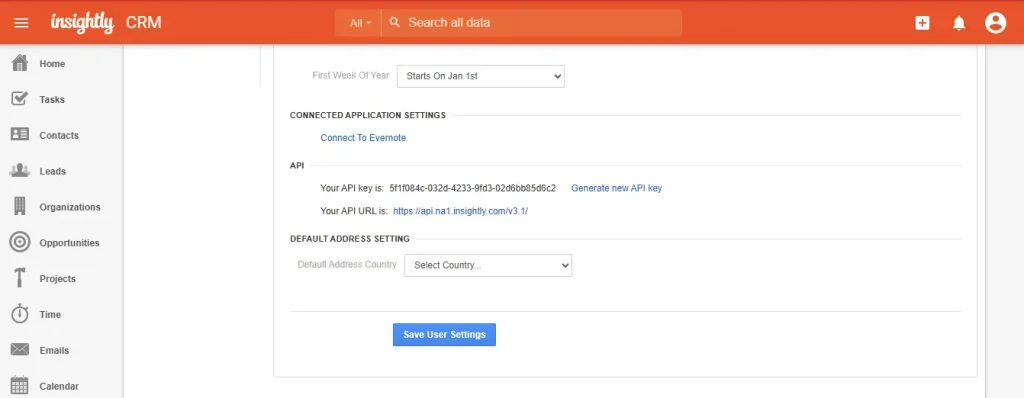
Go to Admin > User Settings
Navigate to API Keys
Generate a new API key and copy it
Note your Insightly instance URL
Step 2: Connect the Platforms
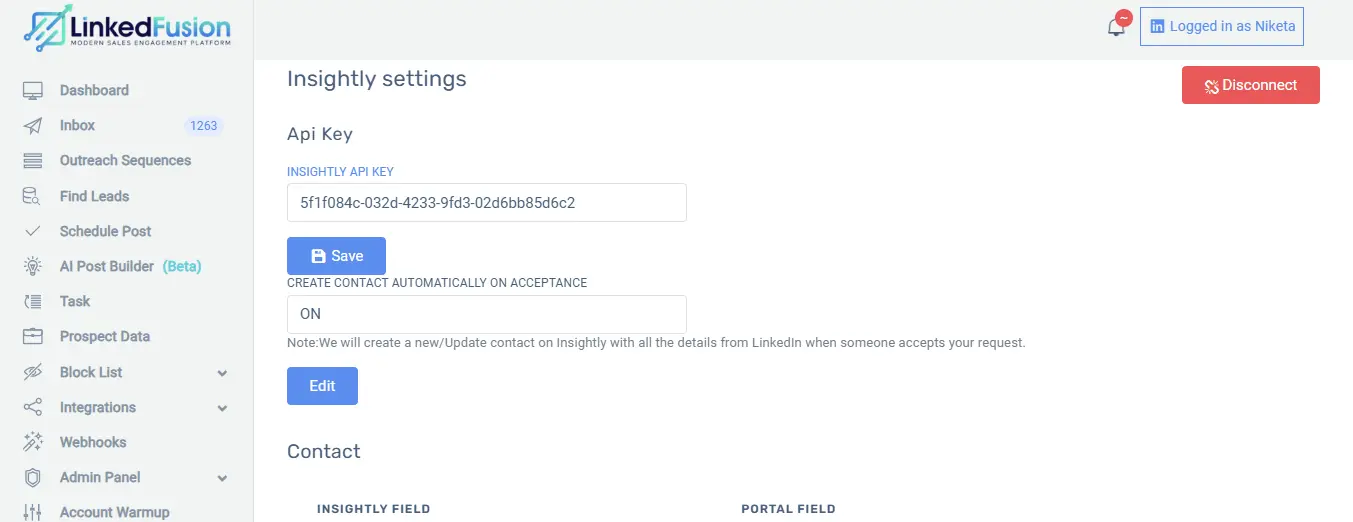
In LinkedFusion, navigate to Settings > Integrations
Scroll down and find “Insightly” in the CRM integrations section
Copy paste the Insightly API key in
LinkedFusion & save it. Your Insightly CRM is now successfully connected with LinkedFusion.
Step 3: Configure Field Mapping
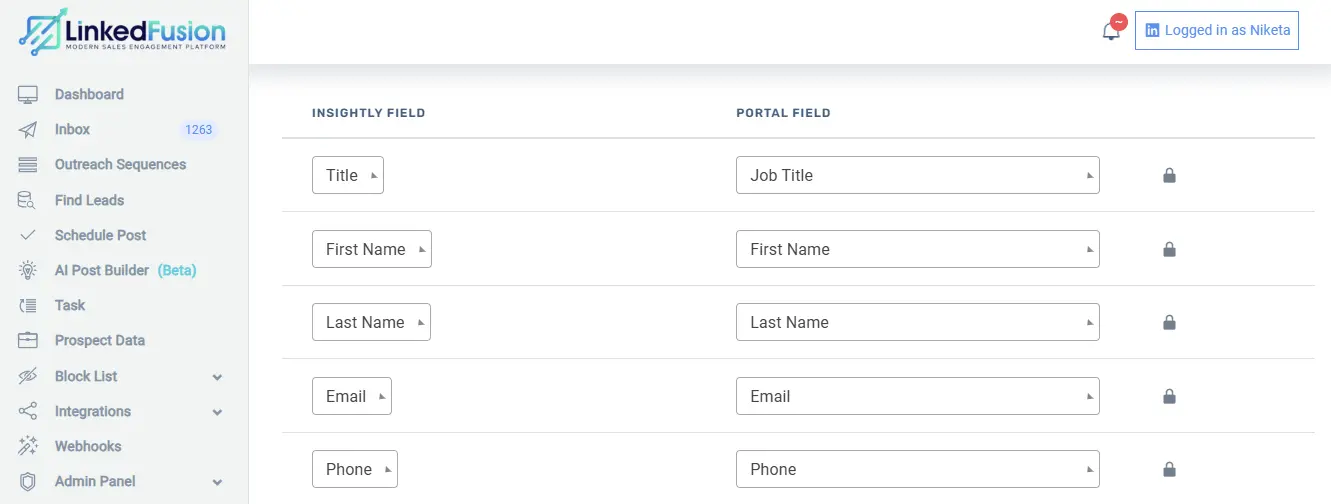
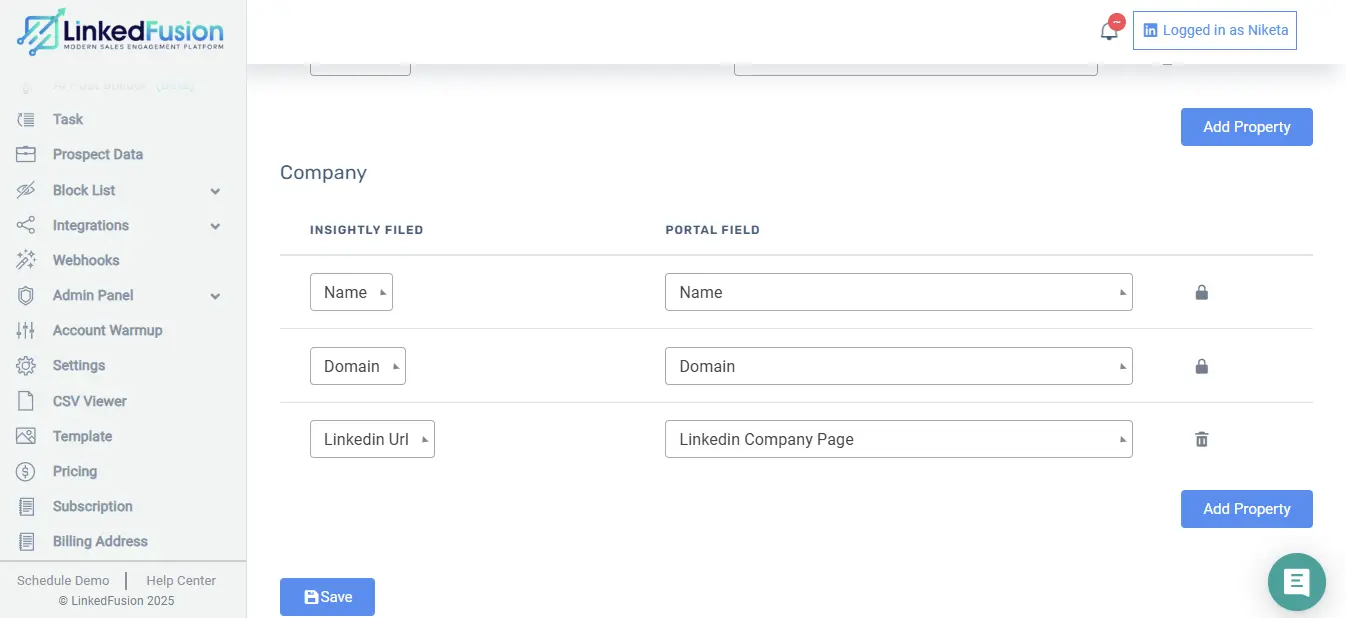
After successful connection, you’ll be directed to the field mapping screen
Map LinkedFusion contact fields to their corresponding Insightly fields:
First Name → First Name
Last Name → Last Name
Company → Organization Name
Position → Job Title
Email → Email Address
Phone → Phone
LinkedIn URL → Social: LinkedIn
Configure any custom field mappings you require
Click “Save Mapping”
Step 4: Test the Integration
Create a test contact in LinkedFusion
Wait for the sync interval or click “Sync Now”
Verify the contact appears in Insightly with correct information
Send a test message in LinkedFusion
Confirm the interaction is logged in Insightly
Troubleshooting Common Issues
Connection Failures
If you encounter connection issues:
Verify API credentials are correct
Check that your Insightly account has API access enabled
Ensure your firewall isn’t blocking API connections
Confirm you have the necessary permissions in both platforms
Data Not Syncing
If data isn’t appearing in Insightly:
Check sync frequency settings
Verify field mapping configurations
Ensure required fields are completed in LinkedFusion
Review any error logs in the integration dashboard
Duplicate Records
If you see duplicate records:
Check your duplicate handling rules in Step 4
Review how email matching is configured
Consider running a one-time cleanup of duplicate records