

Key Takeaways
- InMail is a paid feature for messaging people outside your network.
- Messages can only be sent to 1st-degree connections, unlike InMails.
- InMail credits are limited and unused credits are refunded after 90 days.
- Track InMail and message success using LinkedIn analytics.
- Use InMails for cold outreach and messages for existing connections.
If you’ve ever tried to reach out to someone on LinkedIn, you’ve probably wondered, “Should I use LinkedIn InMail or just send a regular message?” It’s a pretty common dilemma, especially when you’re looking to make meaningful connections or land that next big opportunity. So let’s break it down, and by the end, you’ll know exactly when to hit “Send InMail” and when to just drop a quick message.
LinkedIn InMail vs Regular Messages: Key Differences
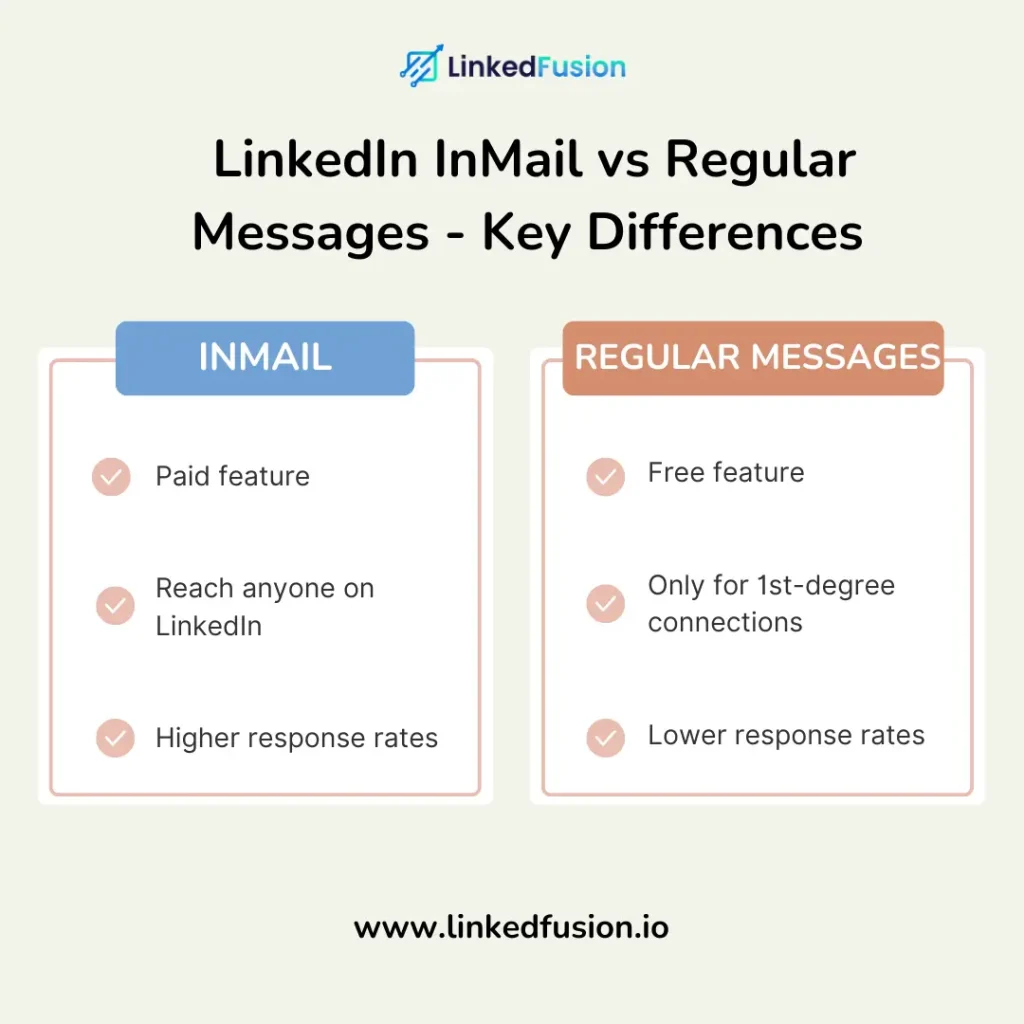
So, what’s the real deal between LinkedIn InMail and regular messages? I mean, they both let you reach out to someone on LinkedIn, but they do it in different ways, and those differences can make or break your outreach game.
What is LinkedIn InMail?
InMail is a premium messaging feature on LinkedIn that permits users to send direct messages to individuals outside their immediate connections, making it useful for networking and outreach. Users with LinkedIn Premium accounts receive a monthly quota of InMail messages, which typically have higher response rates compared to standard messages. This tool is particularly beneficial for recruiters and sales professionals seeking to connect with potential candidates or leads.
LinkedIn InMail is like your VIP pass to message anyone on LinkedIn, even if you’re not connected. Think of it as LinkedIn’s way of saying, “Go ahead, talk to that person you’ve never met before.” The catch? It’s a premium feature. Yep, you gotta pay to play here. But the good news is that LinkedIn InMails come with some perks that regular messages just can’t match.
- Reach: InMail allows you to message LinkedIn members you’re not connected with, opening up your outreach to a broader audience.
- Credibility: Let’s be real—receiving an InMail can feel more legitimate than a regular message. It shows that you’re serious enough to use LinkedIn’s paid feature.
- Response Rate: LinkedIn claims that InMails has a higher response rate. People tend to read and respond to InMails faster because they stand out in the inbox.
How many InMails can I send on LinkedIn per day?
There is no strict daily limit on how many InMails you can send on LinkedIn, but the total number of InMails you can send per month depends on your subscription plan. For example, LinkedIn Premium Career offers 5 InMails per month, while higher-tier plans like Recruiter allow up to 1,000 InMails per day.
What is a LinkedIn Message?
Now, on the flip side, you’ve got your regular LinkedIn messages. You can send these messages to anyone you’re already connected with—your 1st-degree connections. Simple, straightforward, and free (unless you’re using certain features).
- Limitations: Regular messages are limited to your network. You can’t just cold-message anyone unless you send them a connection request first.
- Familiarity: These messages come from people who are already in your circle, so the barrier to a response might be lower since there’s already some level of familiarity.
LinkedIn InMail vs Message: Which is Better for Outreach?
InMail and messages on LinkedIn serve different purposes: InMail is a premium feature that permits users to send direct messages to professionals who are not in their connections, making it ideal for outreach and networking. Standard messages can only be sent to first-degree connections, which limits their reach. InMail typically offers higher visibility and response rates, making it an important tool for professionals seeking to connect with potential leads or collaborators. It’s a more targeted approach that can get you in front of the right people, even if you’re not connected yet.
But if you’re keeping things casual and just trying to nurture relationships within your network, stick to regular messages. It’s more about maintaining those existing connections rather than branching out.
QUICK TIP!
InMail can be sent to anyone on LinkedIn without requiring a connection, but remember that private messages have a more personalized feel and may be better for nurturing existing relationships.
LinkedIn InMail vs Sponsored Messages: A Comprehensive Comparison
If you’re diving deep into LinkedIn’s messaging options, you might stumble across Sponsored Messages. So, what’s the scoop on these?
What Are LinkedIn Sponsored Messages?
Sponsored Messages are like the big brother of LinkedIn InMail, designed specifically for businesses looking to advertise directly in someone’s LinkedIn inbox. Imagine a banner ad, but instead, it’s a message that pops up right in front of you while you’re scrolling through LinkedIn. Businesses often implement them to promote products, services, or events.
- Paid Promotion: Unlike LinkedIn InMails, Sponsored Messages are purely promotional. They’re a way for companies to pay their way into someone’s inbox.
- Targeting: These messages are sent to a specific audience based on targeting criteria like job title, industry, and more. It’s like putting your message on a billboard but in a more personal space.
LinkedIn Connection Request vs InMail: Which One Should Salespeople Prefer?
When it comes to outreach, salespeople often debate between using LinkedIn Connection Requests or InMail messages, and both have distinct advantages.
Connection Requests are ideal for building long-term relationships. They’re free (within limits), feel more personal, and allow for follow-up messaging once accepted. If your goal is to grow a warm network and engage in ongoing conversations, a well-crafted connection note followed by value-driven content is a smart social selling move.
InMail, on the other hand, lets you message anyone—even if you’re not connected. It’s great for reaching decision-makers at scale, especially when paired with a compelling sales pitch. However, it’s limited by credits and requires a more direct, concise message to stand out in a busy inbox.
So the question is: What is the difference between a LinkedIn connection request and InMail? Use connection requests when relationship-building matters, and InMail when time-sensitive outreach or account-based targeting is the priority.
LinkedIn InMail vs Sponsored Messages: Cost and ROI
When comparing LinkedIn InMail and Sponsored Messages, it’s essential to consider the cost and ROI. LinkedIn InMails are generally less expensive and more personal, making them ideal for one-on-one outreach. Sponsored Messages, on the other hand, are designed for scale—they reach more people but at a higher cost.
- LinkedIn InMail Cost: InMails typically come with LinkedIn Premium or LinkedIn Sales Navigator, giving you a set number of credits each month.
- Sponsored Inmail Cost: The costs vary based on factors such as audience targeting, campaign objectives, and bidding strategies. Typically, advertisers can expect to pay on a cost-per-send basis, ranging from $0.30 to $1.00 per InMail message sent. Additionally, LinkedIn offers flexible pricing options, allowing advertisers to set budgets and optimize campaigns for better performance.
In terms of ROI, it depends on your goals. If you’re looking for personal, high-touch outreach, LinkedIn InMail is the way to go. But if you need to get a message out to the masses, Sponsored Messages can be worth the investment.
What is the difference between InMail and message ads?
The key difference between LinkedIn InMail and Message Ads lies in their purpose and functionality. InMail is a premium feature that allows individuals to send personalized messages directly to users outside their network, typically for professional outreach or networking. Message Ads, on the other hand, are part of LinkedIn’s advertising platform, designed for businesses to send targeted promotional messages to a defined audience, often including a call-to-action like visiting a website or filling out a lead form. While InMail focuses on one-on-one communication, Message Ads are better suited for large-scale marketing campaigns.
LinkedIn InMail vs Focused Inbox: Understanding the Impact
LinkedIn recently rolled out the Focused Inbox feature, and it’s been shaking things up. If you’re wondering how this affects your LinkedIn InMail and message strategy, let’s break it down.
What Is LinkedIn Focused Inbox?
LinkedIn’s Focused Inbox is all about prioritizing the messages that matter most. It’s LinkedIn’s way of filtering your inbox so that important messages—like those InMails you’ve been sending—get noticed.
- Inbox Prioritization: Focused Inbox categorizes your messages into “Focused” and “Other,” so messages that LinkedIn thinks are important are more visible.
- InMail Visibility: If you’re sending InMails, this feature can work in your favor by pushing your message to the “Focused” section of someone’s inbox, making it more likely to be read.
LinkedIn InMail vs Focused Inbox: How to Ensure Your Message is Seen
With Focused Inbox in play, you want to make sure your LinkedIn InMail doesn’t get lost in the shuffle. Here’s how:
- Timing: Send your LinkedIn InMail when your recipient is most likely to be active. This increases the chance it lands in the “Focused” tab.
- Subject Lines: Craft compelling subject lines that grab attention right away. It’s your first (and sometimes only) shot at getting noticed.
- Personalization: The more tailored your LinkedIn InMail is, the more likely it is to be categorized as important and make it into the Focused Inbox.
LinkedIn InMail vs Message: What’s Best for LinkedIn Outreach?
So, you’re all set to take your LinkedIn outreach to the next level, but now you’re faced with the million-dollar question: Should you go with LinkedIn InMail or just stick with regular messages? Let’s dive into the nitty-gritty of it, so you can pick the best tool for the job and start making those connections.
Pricing Overview of LinkedIn InMail and Messages
Let’s talk cash. When it comes to LinkedIn outreach, knowing what you’re paying for—and what you’re getting in return—is crucial.
- LinkedIn InMail Pricing: LinkedIn InMail is a premium feature, so yeah, it’s gonna cost you. You usually get a certain number of InMail credits each month, depending on your LinkedIn Premium or Sales Navigator plan. Every time you send an InMail message, one of those credits is used. The good news? If your InMail doesn’t get a response within 90 days, LinkedIn will credit it back to your account. Sweet, right?
- Regular LinkedIn Messages: On the flip side, regular LinkedIn messages are totally free. You can send these to anyone you’re connected with, no strings (or dollars) attached. But remember, you can’t just send a message to anyone on LinkedIn—only your 1st-degree connections. So if you’re trying to reach someone new, you’ll need to send a connection request first.
In short, if you’re trying to reach people outside your network, LinkedIn InMail is worth the investment. But if you’re focusing on nurturing existing connections, stick with regular messages and save those InMail credits for when you need them.
Following Up on LinkedIn InMail vs Messages
You’ve sent your LinkedIn InMail or message—now what? The follow-up is where the magic happens, so let’s make sure you do it right.
- InMail Follow-Ups: When you send an InMail message, you’re already showing up in someone’s inbox with a bit more weight. Following up on an InMail is key to keeping the conversation going. A quick “Hey, just checking in to see if you had a chance to review my message” can work wonders.
- Message Follow-Ups: For regular LinkedIn messages, your follow-up game needs to be just as strong. The trick here is timing—don’t bombard them, but don’t wait too long either. A good rule of thumb is to follow up within a week. Keep it light and casual, and always offer something of value to keep the conversation rolling.
Whether you’re using LinkedIn InMail or regular messages, don’t forget to follow up. It’s easy to send one message and hope for the best, but persistence (without being pushy) is often what seals the deal.
LinkedIn InMail Analytics: Measuring Success
Alright, so you’ve been sending out LinkedIn InMails and messages, but how do you know if they’re actually working? That’s where LinkedIn’s analytics come into play.
- Tracking Your LinkedIn InMail Success: LinkedIn gives you some pretty sweet tools to track how well your InMails are performing. You can see who opened your message, and how many people responded, and even track the overall success rate of your LinkedIn outreach campaigns. This is super helpful if you’re A/B testing different InMail templates or just trying to figure out what resonates with your audience.
- Measuring Regular Message Performance: Unfortunately, regular LinkedIn messages don’t come with the same level of analytics as InMails. However, you can still gauge success by tracking response rates manually. Keep an eye on who’s replying and how quickly, and adjust your messaging accordingly.
In the end, LinkedIn InMail gives you more data to work with, making it easier to refine your outreach strategy. But don’t let the lack of analytics for regular messages stop you—sometimes, it’s all about testing, tweaking, and trying again until you find what works.
QUICK TIP!
Adjust your message preferences settings to control who can send you InMails or messages, ensuring you manage your LinkedIn inbox effectively.
How to Send Unlimited InMails on LinkedIn
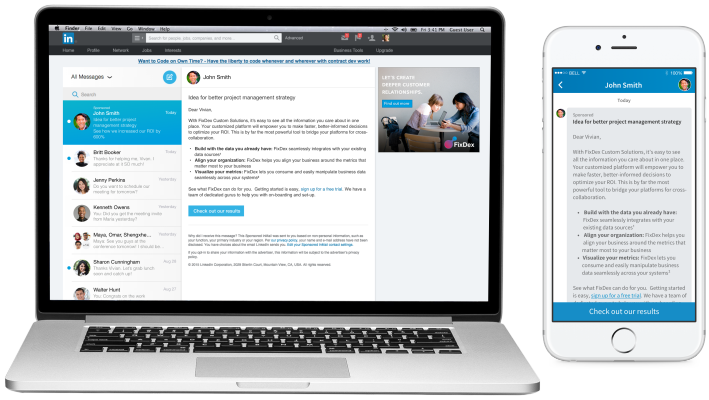
We know that you’re pumped up to start using LinkedIn InMail for all your outreach needs, but you’re worried about running out of those precious InMail credits. Don’t sweat it—we’ve got some tips to help you send unlimited InMails on LinkedIn (well, almost).
What does 5 InMails per month mean on LinkedIn?
First things first, let’s make sure you’re getting the most bang for your buck when it comes to LinkedIn InMail credits.
- Upgrade to LinkedIn Premium or Sales Navigator: The easiest way to get more InMail credits is to upgrade your LinkedIn account. With LinkedIn Premium or Sales Navigator, you get a set number of InMail credits every month. Depending on your plan, this could be anywhere from 5 to 50 credits, so choose the plan that fits your outreach needs.
- Leverage Unused Credits: LinkedIn’s cool like that—they’ll credit your InMail back if you don’t get a response within 90 days. So if you’re strategic about who you’re messaging and how you’re crafting your InMail, you can maximize the number of messages you send without burning through all your credits.
- Use LinkedIn Groups: Here’s a hack—if you and your target are in the same LinkedIn group, you can message without using any InMail credits. Join groups related to your industry, and you’ll have a whole new pool of people you can message directly.
How to Send an InMail on LinkedIn: Step-by-Step Guide
Whether you’re trying to reach out to a recruiter, connect with another LinkedIn member, or just want to send a DM to an individual who isn’t in your network, LinkedIn InMail is a solid option. Here’s how to do it step-by-step, with some pro tips sprinkled in to help you maximize your efforts.
Step 1: Access Your LinkedIn Premium Account
First things first—make sure you have a LinkedIn Premium account. LinkedIn InMails are a premium feature, meaning that anyone with a free account can’t send them. If you’re serious about your outreach, it’s worth investing in LinkedIn Premium or Sales Navigator. These accounts come with several InMail message credits, which allow you to send InMails to people on LinkedIn whom you’re not connected with.
Step 2: Search for the LinkedIn Member You Want to Contact
Once you’re logged into your premium account, search for the LinkedIn user you want to message. You can do this by typing their name into the LinkedIn search bar. When you find their LinkedIn profile, click on it to open their page.
Step 3: Click the “Message” Button
On the LinkedIn profile of the person you want to contact, you’ll see a “Message” button. If you’re not connected with this LinkedIn member, clicking this button will prompt you to send a LinkedIn InMail message. This is where having those InMail credits comes into play. If you’re running low on credits, consider whether this contact is worth using one on, or if you can find another way to connect with them, like sending a LinkedIn connection request first.
Step 4: Craft Your InMail Message
Now that you’ve got the LinkedIn InMail feature open, it’s time to craft your message. Here’s where you need to be strategic. You want to directly message another LinkedIn member with a clear, concise, and engaging InMail that makes them want to respond. Remember, LinkedIn users are bombarded with messages every day, so make sure yours stands out.
- Personalization: Start with a personalized greeting. Mention something specific about their LinkedIn profile or a mutual interest. This shows that your InMail message isn’t just a generic copy-paste job.
- Value Proposition: Quickly get to the point and explain why you’re reaching out. Whether you’re offering a solution, asking for advice, or trying to set up a meeting, be clear about the value you’re bringing to the table.
- Call to Action: End with a simple and direct CTA. Something like “Could we set up a 15-minute call next week?” or “Would love to connect and discuss this further” works well.
Step 5: Send Your LinkedIn InMail
Once you’ve crafted the perfect InMail message, go ahead and hit “Send.” LinkedIn will notify you when the person opens your message, and if they don’t respond within 90 days, you’ll get that InMail credit back. This is one of the best LinkedIn features, as it helps you manage your credits effectively and ensures you’re not wasting them on people who aren’t interested.
7 Best Practices for LinkedIn InMail Messages
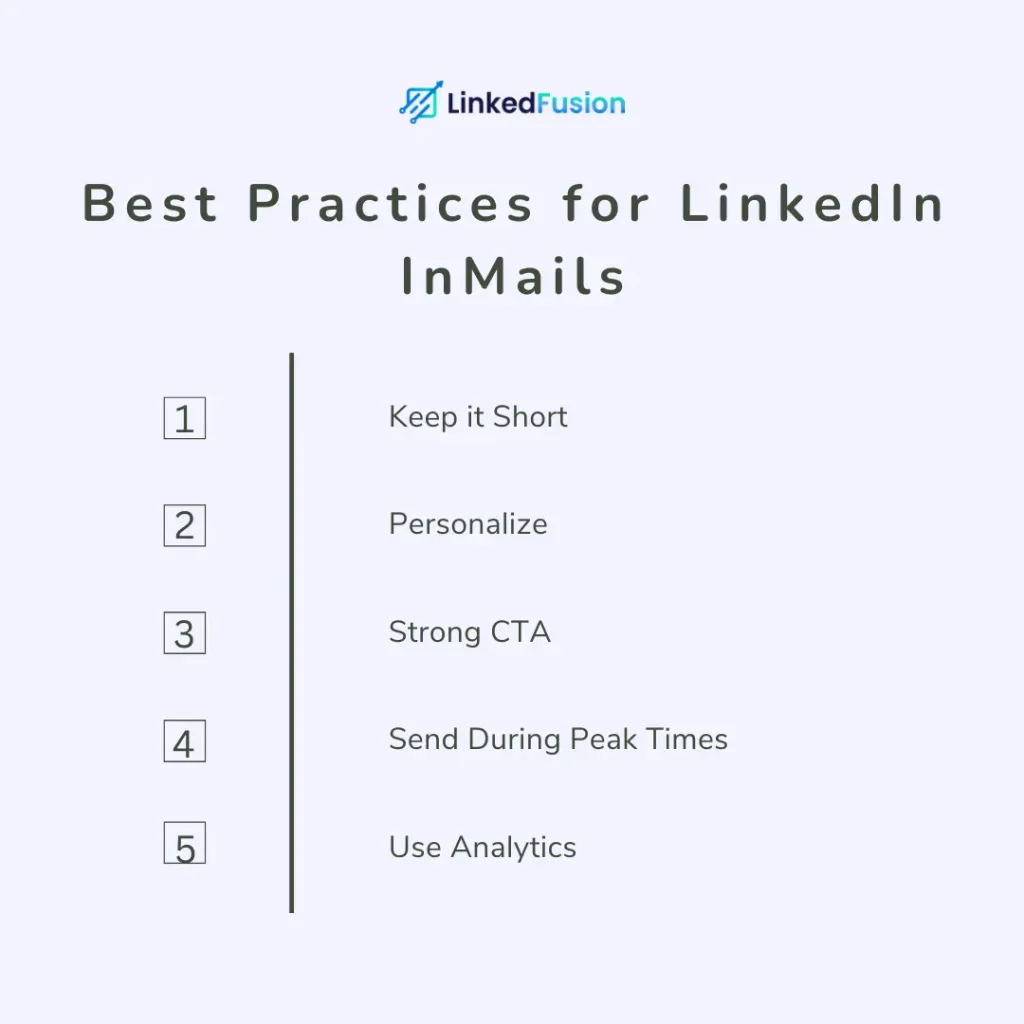
- Keep It Short: InMail messages should be concise. LinkedIn members appreciate direct and to-the-point communication, so avoid lengthy explanations.
- Personalize Your Message: Tailor each InMail based on the recipient’s LinkedIn profile. LinkedIn recruiters find that personalized messages get higher response rates.
- Include a Clear CTA: Every InMail should have a clear and actionable Call to Action (CTA). Whether it’s scheduling a meeting or requesting feedback, ensure the recipient knows exactly what you’re asking for.
- Send During Peak Times: To increase visibility, send InMails during business hours. LinkedIn recently changed its algorithm to prioritize messages sent when recipients are most active, so timing is crucial.
- Leverage LinkedIn’s Analytics: Use LinkedIn’s tools to track how many InMails were opened and responded to. LinkedIn help resources can guide you in analyzing these metrics to refine your outreach strategy.
- Follow Up, But Sparingly: Send one follow-up InMail if you don’t get a response. LinkedIn InMails vs regular messages allow for a polite reminder, but don’t overdo it.
- Test Different Approaches: A/B testing can help you find out what resonates with your audience. Experiment with different CTAs, message lengths, and personalization strategies to make your messages more effective.
Conclusion
Successfully using LinkedIn InMails is all about strategy. Whether you’re reaching out to a LinkedIn recruiter, a potential client, or a new connection, following these best practices will help you get the most out of your premium LinkedIn feature. LinkedIn members can see when you’ve taken the time to personalize and thoughtfully craft your messages, which can make all the difference in whether they respond. Remember, every InMail message you send is an opportunity to build a meaningful connection within the LinkedIn network.
FAQ's
What’s the difference between LinkedIn InMails and regular messages?
InMail messages can be sent to anyone on LinkedIn without requiring a connection, making them ideal for cold outreach. Regular messages, however, can only be sent to your 1st-degree connections.
How do LinkedIn InMail credits work?
InMail credits are credit-based and part of LinkedIn’s premium features. Many InMail credits are given monthly based on your plan, and every InMail message that doesn’t receive a response within 90 days gets credited back to your account.
Can LinkedIn members see if I’ve opened their InMail?
LinkedIn recently changed its features to allow users to see when an InMail has been opened, providing valuable feedback on your outreach.
Is it better to use LinkedIn InMails or regular messages?
It depends on your goal. Use LinkedIn InMails to reach out to another LinkedIn member who isn’t a connection. For existing connections, regular messages work well within your LinkedIn network.
How can I make my LinkedIn InMails more effective?
Make your messages concise, and personalized, and include a clear CTA. Utilize LinkedIn help resources and analytics to continuously improve your messaging strategy, and test different approaches to see what works best.