

When it comes to B2B sales, LinkedIn Sales Navigator is like your sales Swiss Army knife—it’s got everything you need to find, connect with, and convert the right prospects. But here’s the kicker: it’s all about how well you use Sales Navigator’s advanced search filters to cut through the noise and zero in on those people who actually matter for your pipeline. From the folks following your company’s LinkedIn page to recent profile viewers, the right filters help you find those warm leads without the grind of endless cold outreach.
With LinkedIn Sales Navigator filters, you’re not just refining your search; you’re unlocking the potential of LinkedIn’s vast network for targeted prospecting. In this guide, we’ll cover why these filters are essential and break down specific search filters to help you narrow down your results to fit your ideal customer profile (ICP). So, buckle up, because this tool can seriously amp up your lead gen game.
Why LinkedIn Sales Navigator Search Filters Are Essential for Sales Success
Sales Navigator’s search filters are a game-changer for anyone who’s done their fair share of lead hunting. Think of them as the ultimate cheat sheet for lead generation. Instead of combing through hundreds of profiles, you can quickly filter LinkedIn profiles down your search results to find exactly who you’re looking for.
So, what are the filters in LinkedIn Sales Navigator and why are they such a big deal? Simple: they save you time and make your prospecting more precise. When you’re targeting leads, the last thing you want is to reach out to someone who has zero interest or isn’t in the right role. That’s where Sales Navigator’s advanced search filters come in, letting you narrow down your search to the people who match your ICP or buyer persona perfectly.
And here’s the pro move: if you’ve set up your ICP and lead lists on LinkedIn, these filters can work wonders. By setting up lead and account filters based on factors like company size, seniority, and job function, you’re setting yourself up for success. This way, you’re not just reaching out to random people; you’re hitting up leads who are way more likely to engage.
Key LinkedIn Sales Navigator Lead Filters to Help You Find the Right People
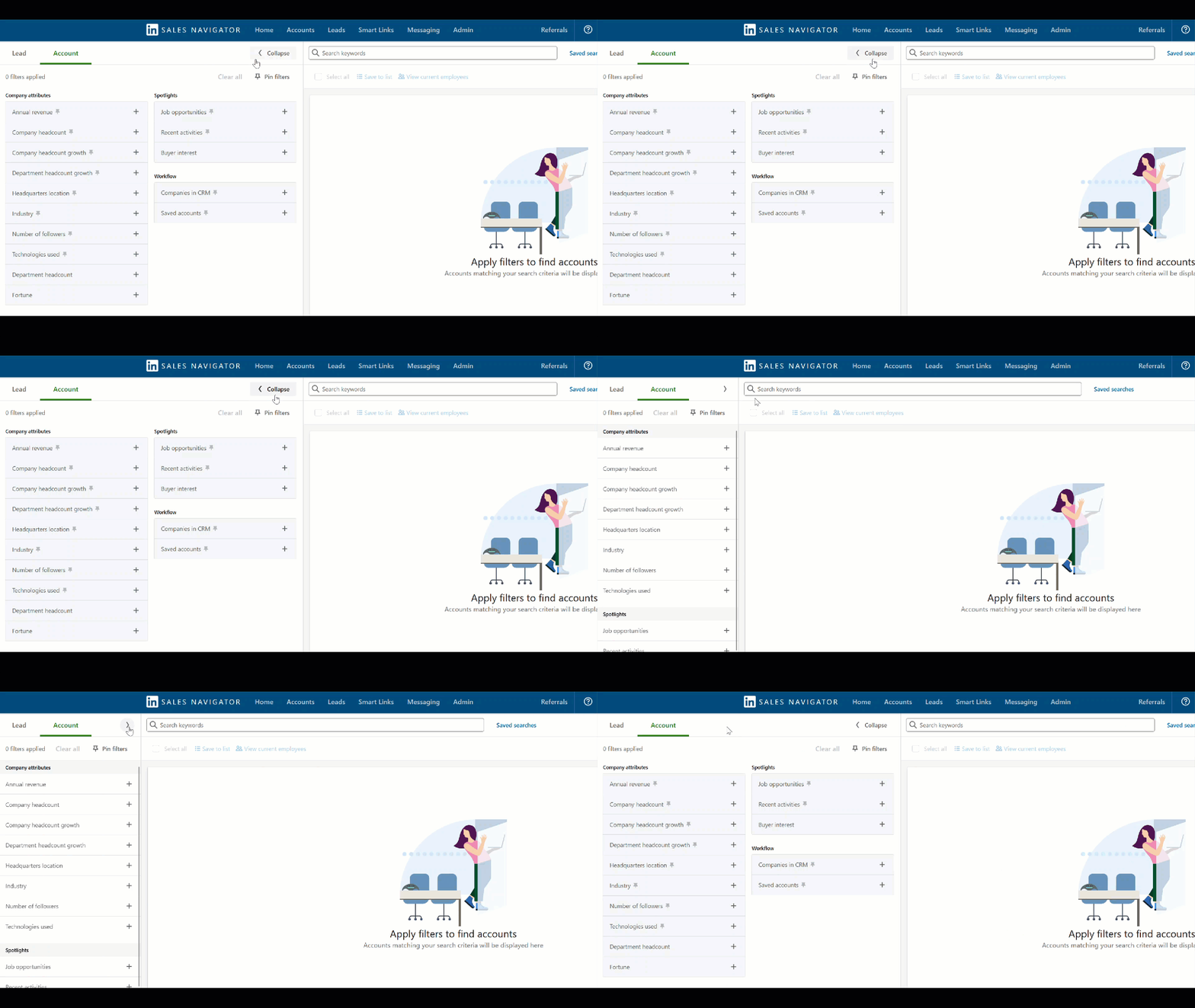
If you’re wondering which filter is best for LinkedIn profile targeting, here are several powerful ones. LinkedIn Sales Navigator offers a ton of lead filters to help you get right to the good stuff. Let’s dive into a few essential ones that’ll help you quickly build a killer lead list:
TeamLink Connections
Want to find warm introductions? This filter’s got you. TeamLink Connections lets you see leads that share connections with your team, making it easy to ask for a referral. Whether it’s an old colleague or someone in your network, this Sales Navigator filter can turn cold calls into warm handshakes.
Following Your Company
Imagine reaching out to leads who already follow your company’s LinkedIn page. These people are more likely to respond because they’re already aware of your brand. The Following Your Company filter is a great way to narrow down your search to leads with a high chance of engagement.
Past Customer
This filter is like a shortcut to warm leads. People who’ve done business with your company in the past are familiar with your services. Use the Past Customer filter to reconnect and target leads who already understand your value, making them prime candidates for upselling or re-engagement.
Changed Jobs
New role, new opportunities! The Changed Jobs filter shows you who recently started a new job, which could mean they’re looking to bring fresh solutions into their new gig. It’s the perfect moment to reach out and introduce yourself.
Viewed Your Profile Recently
Here’s a little LinkedIn hack: if someone’s viewed your profile, there’s a solid chance they’re curious about you. People can see who viewed their LinkedIn with Sales Navigator and you can use that insight for outreach! You’re reaching out when interest is fresh, which is perfect for striking up a conversation.
Posted on LinkedIn
Engage with people who are active and sharing on LinkedIn. With this filter, you can focus on leads who recently posted on LinkedIn, giving you an excuse to connect over something they’re passionate about. Engaging with their recent post can be a natural conversation starter.
LinkedIn Sales Navigator Account Filters for Finding Ideal Companies
When you’re working with Sales Navigator, it’s not just about finding individual leads; sometimes you’re looking for the right companies to target. When you want to move beyond individuals and focus on accounts, here’s how to filter open profiles on LinkedIn Sales Navigator using account filters. These filters help you create a custom account list, focusing on companies that align with your sales goals.
Keyword Filter
This one’s your bread and butter. The Keyword Filter allows you to filter companies by specific keywords, helping you pinpoint organizations in particular industries or with unique attributes. Whether it’s “SaaS,” “healthcare,” or “finance,” this filter will help you find companies that match your interests.
Company Attributes Filters
These filters are a powerhouse for narrowing down the companies you want to target. You can set criteria based on Annual Revenue, Company Headcount Growth, Headquarters Location, and more. Let’s say you’re only interested in mid-sized companies growing fast, you can easily set these parameters to get a list of ideal accounts.
Spotlight Filters
Spotlight filters are like the cherry on top for prospecting. These filters highlight accounts with specific activities, like job openings or recent media mentions. If a company just announced an expansion or a new hire, you can bet they might be open to new solutions. Use this filter to get the latest updates on target companies and engage at the perfect moment.
Workflow Filters
Keep your lead and account lists organized by using workflow filters. This feature lets you save leads and track interactions over time. Think of it as your personal assistant on Sales Navigator, helping you refine your search results as you go.
Advanced Sales Navigator Search Techniques to Refine Your Lead and Account Searches
Want to go deeper with LinkedIn Sales Navigator filters? Take your Sales Navigator game to the next level; it’s worth exploring these advanced techniques. With these methods, you can fine-tune your search criteria and manage larger lead lists more effectively.
Boolean Search on LinkedIn Sales Navigator
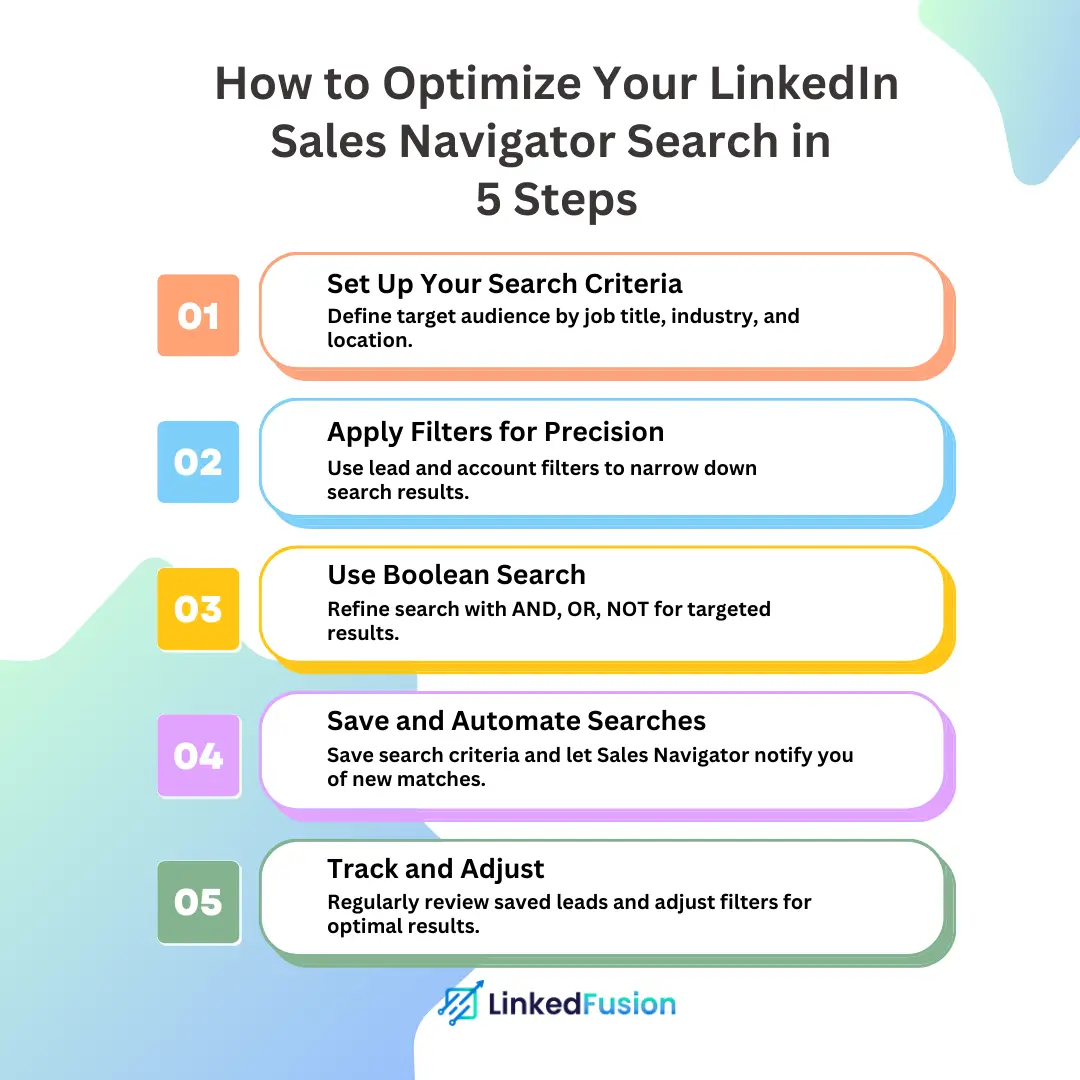
Want to get super-specific with your search? Boolean search lets you mix and match keywords with operators like AND, OR, and NOT to create complex queries. It’s perfect for dialing down your search to an exact match.
Saved Searches
Once you’ve nailed down the perfect search filter setup, save it! Saved Searches let you quickly return to specific criteria without setting it all up again. This can be an ultimate time-saver, especially if you’re targeting the same industries or roles.
Account-Based Searches
If you’re aiming to connect with companies rather than individuals, account-based searches are the way to go. Use LinkedIn’s automation tools to help manage these accounts, keeping your prospecting organized and efficient.
Blacklists
Blacklists help you filter out companies or contacts that don’t match your criteria, keeping your lead list focused. It’s great for cutting down on irrelevant contacts and narrowing your search results to the leads that actually matter.
CSV Uploads
Got a big list? Upload it. With CSV uploads, you can import a large volume of contacts and manage them within Sales Navigator. This feature is gold for anyone handling mass outreach or managing a large team.
Building a Targeted LinkedIn Sales Navigator Strategy Using Lead and Account Filters
Creating a targeted approach with Sales Navigator isn’t just about using filters—it’s about using them smartly based on your ideal customer profile (ICP). What are the filters in LinkedIn Sales Navigator that really move the needle across industries? By aligning lead and account filters with your ICP, you can refine your search results and focus only on the accounts and prospects that match your target audience.
Let’s break down some practical strategies for different industries to see how you can get the most out of Sales Navigator filters.
B2B SaaS Sales: Search for Companies Using LinkedIn Company Pages and Account Filters
If you’re in B2B SaaS, you know the gold is in finding companies that need scalable solutions. Start by using account filters like Company Headcount and Technologies Used to narrow down to prospects that match your product’s scale. The LinkedIn Company Pages filter can help you identify companies that match your ICP criteria, and you can dig deeper by setting filters for specific departments—like engineering or IT—that are more likely to need SaaS solutions.
Healthcare Providers: Use Filters for Geography, Industry, and Growth Criteria
For those targeting healthcare providers, it’s essential to be precise since the industry is vast and varies by location. Use geographic and industry filters to find leads in specific areas or types of care, like clinics, hospitals, or specialized practices. By refining your search criteria with growth filters (such as Company Headcount Growth), you can zero in on healthcare organizations that are expanding and may be open to new tools or partnerships.
E-commerce Growth: Leverage Department and Company Size Filters to Find Growing Brands
E-commerce companies, especially in growth mode, often seek partners for marketing, technology, or logistics solutions. With Sales Navigator, use department filters to focus on marketing or customer service departments where growth typically happens first. Combine this with Company Headcount and Annual Revenue to pinpoint businesses on the rise, and voilà—you’ve got a lead list full of e-commerce brands primed for expansion.
How to Maximize LinkedIn Sales Navigator with Ideal Customer Profiles (ICP) and Buyer Personas
The real magic of LinkedIn Sales Navigator shines when you align it with ideal customer profiles (ICPs) and buyer personas. When you know your target inside out, Sales Navigator’s advanced search filters help you match those criteria perfectly. Here are some examples of how different industries can narrow down their results using ICPs and buyer personas:
Lead Generation Agencies: How Account and Lead Filters Can Help Narrow Down Results
For lead generation agencies, it’s crucial to identify high-quality leads for their clients. Use account filters like Company Type and Seniority to pinpoint businesses needing lead-gen services. Combine with Lead Filters for specific roles, such as Marketing Director or VP of Sales, to reach decision-makers. This strategy saves time by narrowing down your search to leads who are ready to buy and in a position to make purchasing decisions.
SaaS Sales Teams: Using Advanced Search Filters for Targeted Account Searches
SaaS teams aiming to reach fast-growing companies can rely on advanced filters to get it right. Use account filters for Headcount Growth and Technologies Used to find companies that match the needs your software fulfills. If you’re offering a solution for specific departments, add filters like Department Headcount to find well-sized teams likely needing SaaS support. This targeted approach helps you refine your lead list without a lot of experimenting.
Recruitment Agencies: Ideal Search Filters for Finding Clients
Recruitment agencies are all about matching talent with opportunity. Use geographic and industry filters to locate businesses hiring in your niche sectors. Pair with filters like Company Growth to spot organizations expanding or with recent job postings. This strategic targeting not only gets you closer to companies needing recruitment services but also positions you as a resource for their growing talent needs.
Wrapping Up: Sales Navigator’s Advanced Search Filters for Optimized Lead Generation
So, which filter is best for LinkedIn profile prospecting? With LinkedIn Sales Navigator’s advanced search filters, you can pinpoint companies and individuals who fit your specific criteria, from job function to growth metrics, down to who’s recently viewed your profile. This level of targeting can streamline your outreach, helping you focus on high-potential leads while saving time and effort.
The takeaway? Sales Navigator’s search filters unlock a world of precision prospecting—one that becomes even more powerful when combined with your ideal customer profiles and buyer personas. So, test, tweak, and refine your filters. The more you tailor your search, the better your results will be, turning your lead gen game from a shot in the dark to a calculated strategy. Give it a go, and watch your lead quality skyrocket!
FAQ's
How do filters on Sales Navigator help narrow down leads?
Sales Navigator filters match your ideal customer profile by targeting LinkedIn profiles containing keywords, followers of a company’s page, and recent posts.
How do I set up account lists on the Sales Navigator homepage?
On the Sales Navigator homepage, create account lists to track companies and integrate your CRM.
How can I use advanced search filters to match my ideal customer profile?
Use advanced search filters like company size, location, and recent LinkedIn posts for targeted leads.
How does Sales Navigator automatically help find leads?
Sales Navigator automatically includes lead suggestions based on saved filters and displays default pins.
Can LinkedIn automation tools enhance Sales Navigator searches?
LinkedIn automation tools can streamline Sales Navigator by managing manually saved profiles, aligning with LinkedIn’s guidelines.