
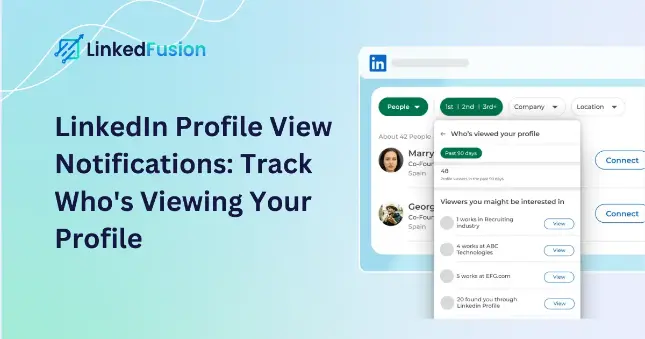
Have you ever wondered who’s been keeping a tab on your LinkedIn profile? Understanding LinkedIn profile view notifications can give you valuable insights into your network connections and potential opportunities. In this stepwise guide, we’ll explore everything you need to know about LinkedIn profile view notifications, from checking who viewed your LinkedIn profile to leveraging these insights for professional growth.
Does LinkedIn show who viewed your profile?
Yes, LinkedIn shows who viewed your profile—but only partially.
Free users can see limited viewers, while Premium users get full insights. If someone uses Private Mode, their identity remains hidden.
How to Check Who Viewed Your LinkedIn Profile
Curious about who’s been visiting your profile? LinkedIn makes it relatively simple to discover your profile visitors, though the level of detail varies based on your LinkedIn account type.
For Free LinkedIn Members
If you use a standard LinkedIn account, you can still see who viewed your LinkedIn profile, but with some limitations:
- You can view only the last 5 people who checked out your LinkedIn profile
- Some visitors may appear anonymously as “LinkedIn Member” or with limited information like “Someone in the Marketing Industry”
- You’ll only see profile visitors from the past 90 days
To check your profile visitors with a free LinkedIn account:
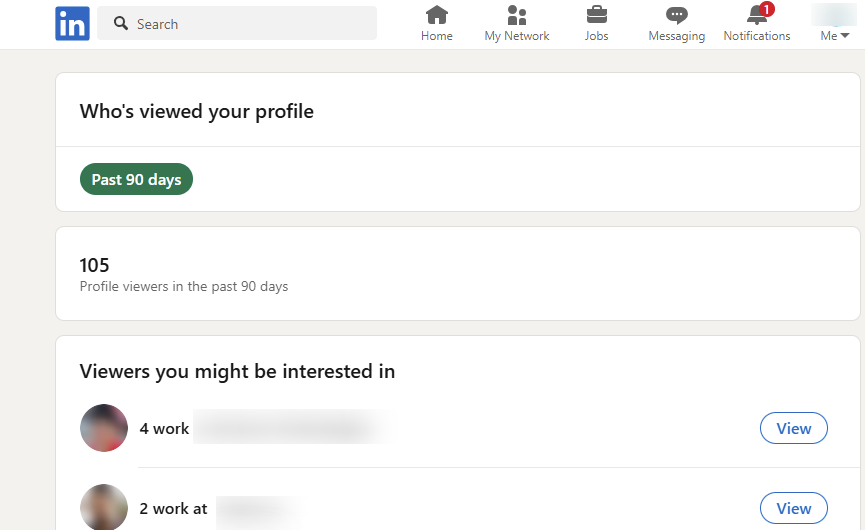
- Click on the “Me” icon on your LinkedIn homepage
- Select “View Profile”
- Scroll down to “Analytics” and click on the number of LinkedIn profile views
For LinkedIn Premium Users
Premium subscribers enjoy enhanced visibility into who’s viewing their LinkedIn profile:
- See a complete list of who viewed your LinkedIn profile in the past 90 days (Premium Business and Career users can see up to a year back)
- Filter viewers by company, industry, or location
- Access analytics about viewer demographics (companies, industries, locations)
- Identify important viewers like industry leaders or recruiters
Even with Premium, you still won’t be able to see users who browse in Private Mode, as LinkedIn keeps their information confidential. Does LinkedIn tell you who viewed your profile? It depends on your privacy settings and subscription level.
Understanding LinkedIn Profile Viewer Settings
LinkedIn offers various privacy settings that affect how your LinkedIn profile views appear to others. A common question many users ask is, “Can people see if you view their LinkedIn?” also people may ask is “Can people see when you view their linkedin?”The answer is yes, people can see if you view their LinkedIn profile, depending on your privacy settings is set to Public Mode, showing your name, headline, and visit time in their “Who’s Viewed Your Profile” section. However, if you browse in Private Mode, your visit remains anonymous, and they won’t be notified. LinkedIn Premium users can access more detailed viewer insights, but Private Mode browsing remains hidden from everyone.
Profile Viewing Options Explained
LinkedIn provides three main settings for how you appear when viewing someone’s LinkedIn profile:
- Your Name and Headline (Public Mode): The most transparent option where viewers see your job title, full name, and profile picture in their “Who’s Viewed Your LinkedIn profile” section. Great for networking, as it often encourages reciprocal LinkedIn profile views
- Private Profile Characteristics: A middle-ground option that shows generic information like job title and industry (e.g., “Someone in the Marketing Industry” or “VP of Marketing in the Internet Industry”)
- Private Mode: Complete anonymity where your visit appears only as “LinkedIn Member” with no details attached. Perfect if you’re wondering, “Can you view a LinkedIn profile without the person knowing?”
The Privacy Trade-off
It’s important to understand that your viewing privacy settings affect what you can see as well:
- If you browse in Private Mode with a free account, you’ll forfeit access to seeing who viewed your LinkedIn profile entirely
- Premium users can browse privately while still retaining access to their profile viewers list, a significant advantage
To adjust your LinkedIn profile viewing settings:
- Click your profile icon and choose “Settings & Privacy”
- Go to “Visibility” > “Profile viewing options”
- Choose your preferred option
Ways to Maximize Your LinkedIn Profile Visibility
Want to attract more LinkedIn profile views? Optimizing your LinkedIn profile for visibility is crucial for networking success and professional opportunities.
1. Optimize Your Profile for LinkedIn’s Search Engine
Like any search engine, LinkedIn uses algorithms to determine LinkedIn profile visibility in search results:
- Strategic Keyword Placement: Include relevant industry terms and skills throughout your LinkedIn profile, especially in your headline, summary, and experience sections
- Complete Every Section: LinkedIn rewards fully completed profiles with better visibility. Add your work experience, education, skills, volunteer work, and accomplishments
- Professional Photo and Background: Use a high-quality headshot and customize your banner to create a professional first impression
- Customize Your LinkedIn URL: A personalized URL improves SEO for your LinkedIn profile within LinkedIn and on Google
2. Increase Your Activity Level
Being active on LinkedIn significantly boosts your LinkedIn profile visibility:
- Regular Content Posting: Share industry insights, articles, and updates for maximum post visibility
- Engage With Other LinkedIn Users: Comment on and share posts from your network
- Join Relevant Groups: Connect with like-minded professionals
- Use Hashtags Strategically: Reach audiences beyond your immediate connections
Free vs. Premium: Profile View Notification Differences
Knowing the differences between free and premium LinkedIn accounts can help you decide if upgrading is worth it.
Free Account Limitations
With a standard LinkedIn account:
- You can only see the last 5 people who viewed your LinkedIn profile
- You have limited filtering options for profile viewers
- You lose access to viewer information in Private Mode
- You can only see viewers from the past 90 days
Premium Account Advantages
LinkedIn Premium offers enhanced features:
- See a complete list of who viewed your LinkedIn profile in the past 90 days (or up to a year with Business and Career plans)
- Access detailed analytics about viewer demographics
- Filter viewers by company, industry, or location
- Retain the ability to see who viewed your LinkedIn profile even in Private Mode
Can I tell who has viewed my LinkedIn profile? With Premium, you’re far more likely to get a detailed answer.
Strategic Ways to Leverage Your Profile Viewers List
Don’t just passively check who viewed your LinkedIn profile. Use this information to advance your professional goals.
For Job Seekers
When you notice recruiters or hiring managers viewing your LinkedIn profile:
- Send a personalized connection request acknowledging their visit
- Express interest in their company or open positions
- Share relevant content that showcases your expertise
Do people also viewed on LinkedIn mean they looked at your profile? Not necessarily. It refers to similar profiles, but it may still indicate relevance in your niche.
For Sales and Business Development
Your LinkedIn profile viewers list can be a goldmine:
- Identify Potential Clients: A view from someone in your target market may signal interest
- Personalize Your Outreach: Reference their company or recent posts
- Timing Matters: Follow up quickly while your LinkedIn profile is still top of mind
Cost ReductionFor Networking
Strategic follow-up can help you grow your LinkedIn account:
- Send personalized connection requests
- Reference shared interests or mutual connections
- Keep messages brief and professional
Common Questions About LinkedIn Profile View Notifications
Yes, LinkedIn sends notifications when someone views your profile, depending on privacy settings:
- You’ll receive in-app notifications
- LinkedIn may also send email notifications about profile views
- These notifications only occur when the viewer isn’t using Private Mode
LinkedIn does not specifically notify you about repeat visits from the same person. However, each visit counts as a separate view in your analytics. If you have a Premium account, you may notice the same person appearing multiple times in your viewers list over time
While generally accurate, LinkedIn profile views should be taken with some caution. Occasional discrepancies can occur, and the data isn’t always perfect. Focus on trends in your profile views rather than exact numbers.
If you prefer not to receive notifications when others view your profile:
- Click on your profile icon and select “Settings & Privacy”
- Navigate to “Communications” > “Notifications”
- Find the “Profile viewing options” setting and adjust accordingly

Yes, LinkedIn notifies users when you view their profile, provided you are not browsing in Private Mode. Each profile view generates a separate notification, even for repeat visits, as long as your settings are public. However, if you use Private Mode, your visit remains anonymous.
Conclusion
LinkedIn profile view notifications provide valuable insights into who’s interested in your professional background. By understanding how these notifications work and strategically leveraging this information, you can enhance your networking efforts, identify opportunities, and optimize your LinkedIn profile.
Whether you’re using a free or Premium LinkedIn account, regularly checking who viewed your LinkedIn profile and acting on it can significantly increase your LinkedIn profile views and professional reach.
Still wondering, “Can someone see if you view their LinkedIn?” This guide has you covered.
Ready to take your LinkedIn profile to the next level? Contact LinkedFusion for expert guidance on optimizing your LinkedIn profile and generating quality leads.