

Have you ever experienced such a situation – You send out a LinkedIn message, maybe to a potential client or a networking contact, and then… nothing. Radio silence. You’re left wondering, “Did they even see it?” Well, good news! LinkedIn read receipts are here to save you from all that second-guessing.
With LinkedIn’s read receipt feature, you can see if the recipient has read your message and if they’re even in the process of typing a response (thanks to the typing indicator). But before we dive into how all this works, let’s break down what read receipts and typing indicators are and why they matter for you.
Key Takeaways
- Turning on read receipts lets you know when your messages are being read on LinkedIn.
- You can easily turn off the read receipt in your settings for more privacy.
- When read receipts are displayed, it indicates the user has read your message.
- LinkedIn is an excellent tool for tracking message engagement through read receipts.
- You can always later turn the feature back on if you wish to turn it off temporarily.
Does LinkedIn have read receipts?
Yes, LinkedIn does have read receipts. When you send a message through LinkedIn’s messaging feature, you can see if the recipient has read your message, indicated by a small “seen” status below the message. However, this feature is only available for users who have a premium account or for messages in LinkedIn InMail.
Now, let’s talk about the typing indicator. Ever notice those three little dots bouncing while someone is typing? That’s the typing indicator in action, giving you a heads-up that a response is on its way. It helps smooth out communication by letting you know when the other person is actively replying, so you’re not left hanging.
This combo of read receipts and typing indicators can be a game changer, especially when you’re doing outreach or prospecting on LinkedIn.
How LinkedIn Message Read Receipts and Typing Indicators Work
Alright, now that we’ve covered what LinkedIn read receipts are, let’s talk about how they actually work. When you send a message on LinkedIn, and the recipient opens it, a small icon appears in your chat window, showing you that your message has been read. No more guesswork!
The same goes for the typing indicator. As soon as the person starts typing a reply, you’ll see those familiar bouncing dots. This way, you’re not left wondering if the person is going to reply or if you’re still waiting in the queue.
However, it’s worth mentioning that not all LinkedIn users may have read receipts enabled. That brings us to the popular question: Can you turn off read receipts on LinkedIn? The answer is yes, and here’s how.
Turning LinkedIn Read Receipts and Typing Indicators On or Off
how to know if linkedin message is read?
We know you might have a query to ask, ‘How to know if linkedin message is read?’ To know if a LinkedIn message has been read, you can enable the read receipts feature in your settings. Once activated, a small icon will appear in your chat window when the recipient opens your message, indicating it has been read. Additionally, a typing indicator will show if the recipient is composing a response.
While these features can be super helpful, not everyone loves having their every move tracked. So, if you’re feeling a little creeped out by read receipts or just want to fly under the radar, LinkedIn gives you the option to turn them off.
How to Turn LinkedIn Read Receipts On or Off on Desktop
Go to Settings & Privacy: From your LinkedIn homepage, click on your profile picture in the top-right corner and select “Settings & Privacy.”
Navigate to Communications: On the left-hand sidebar, choose the “Communications” tab.
Turn Read Receipts Off or On: Scroll down to the “Read receipts and typing indicators” section. Here, you’ll be able to toggle the feature on or off, depending on your preference.
How to Turn LinkedIn Read Receipts On or Off on Mobile
Open the LinkedIn App: Head to the LinkedIn app on your mobile device and tap on your profile picture.
Access Settings: Tap on “Settings” and then scroll down to “Communications.”
Toggle Read Receipts: Just like on desktop, you’ll find the option to turn your read receipts and typing indicators on or off here.
Boom! It’s that simple. Whether you’re team “keep them on” or “turn them off”, LinkedIn’s got your back with flexible settings.
Why Use LinkedIn Message Read Receipts?
Okay, so why should you even bother turning on LinkedIn read receipts in the first place? It all boils down to improving your communication, especially when you’re hustling with outreach and prospecting.
How LinkedIn Read Receipts Can Improve Your Prospecting Message
Think of this as your secret weapon. When you’re doing cold outreach or following up with a lead, knowing whether they’ve read your message can be super handy. If someone has opened and read your message but hasn’t responded, you know it’s time to send a follow-up or rethink your pitch.
It’s like playing poker – sometimes, seeing that “read” notification can give you insights into the other person’s thought process. No reply? Maybe you need to switch up your approach. A quick response? You’re probably hitting the mark.
Enhancing Communication with LinkedIn Messages
Here’s the deal: enabling read receipts and typing indicators makes communication smoother and less awkward. You won’t need to guess if someone saw your message or if you should be expecting a reply. The read receipt gives you that transparency, and the typing indicator lets you know they’re actively engaging.
LinkedIn Messaging Experience Updates: Read Receipts and Typing Indicators
LinkedIn is constantly tweaking and improving its messaging features, and if you’re someone who lives in their LinkedIn message center, these updates are a game-changer. Two key updates that pair beautifully with LinkedIn read receipts are the Focused Inbox and Message Suggestions. Together, they help you keep your inbox clean and your responses sharp.
Focused Inbox for Better LinkedIn Message Management
LinkedIn’s Focused Inbox is like your personal assistant. It organizes your incoming messages into two categories: “Focused” and “Other.” The Focused Inbox prioritizes messages that LinkedIn thinks are more relevant to you, like important outreach or connections from people you’ve interacted with. Meanwhile, less urgent messages, like promotions or random invites, get shuffled into “Other.”
How does this connect with LinkedIn message read receipts?
It helps you prioritize where to engage first. If you see that someone has read your message in the Focused Inbox, you know it’s time to jump in and respond. On the flip side, if a message sits unread in “Other,” you can decide whether it’s even worth your attention. This feature is all about efficiency, letting you manage LinkedIn read receipts and keep your messaging game strong.
Message Suggestions and Nudges
Ever sit there thinking, “Should I follow up on that message?” Well, LinkedIn message suggestions have your back. These handy nudges suggest what to say next or even remind you to follow up if your last message hasn’t gotten a response. Combine this with read receipts, and you’re golden—you can see if the person has already read the message and then decide if it’s time to nudge them or back off.
For example, LinkedIn might suggest a quick follow-up like, “Just checking in to see if you had a chance to look at my message.” If you’re doing a lot of outreach or LinkedIn lead generation, these message suggestions and nudges can keep things on track without making you feel like you’re being overly pushy.
How can you turn on the LinkedIn message Read Recipients and typing indicator?
Are you interested in learning whether your LinkedIn connection has seen your messages?
So that you can view the message of your read receivers, we will then make it simple for you to locate the read recipients.
Let’s see how you can do that:
- Click on the “Settings and Privacy” from your LinkedIn account.
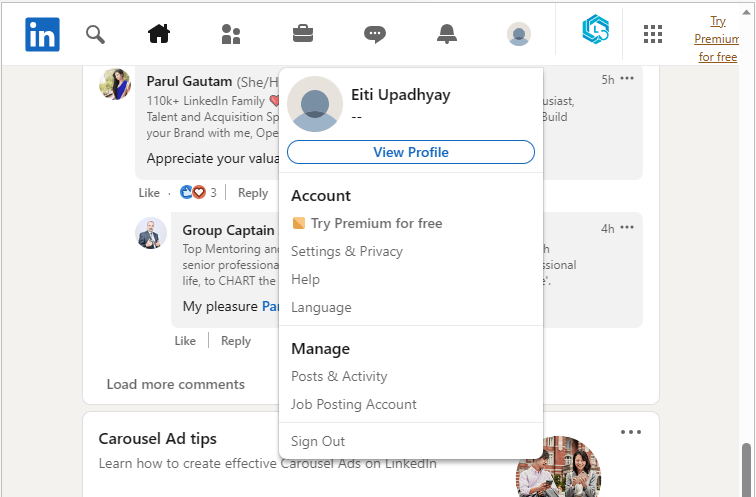
There Go to the “Data Privacy” section.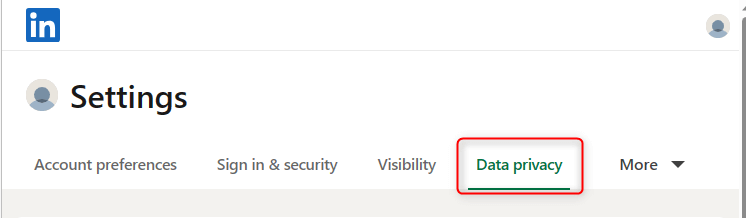
Click on the “Read recipients and typing indicators”.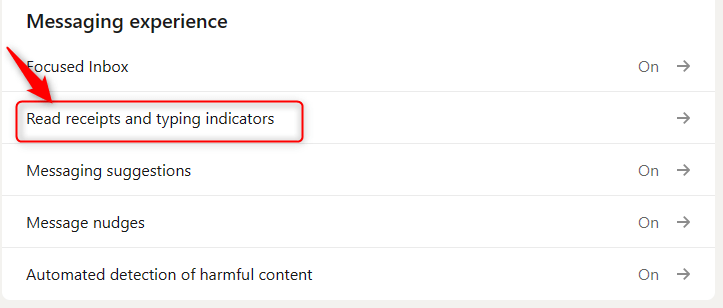
Turn on the “Delivery indicators”.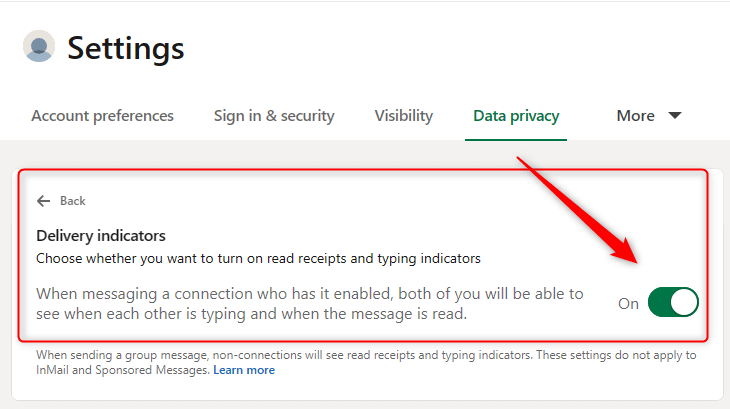
Now that you know about how to enable the read receipts, it’s important to know that adjusting your read recipients based on your conversation and time effort.
As there can be chances that you can see your recipients messages and not reply to them. This might give them wrong signals. So it’s best to see that your read and recipient is turned off in cases where you cannot reply to the recipients.
Another option to this is that you choose LinkedFusion, as you can set an automated follow-up entirely so that you don’t even have to send them on your own manually. With the help of the automation you can also adjust the time based on your requirement.
How to Manage LinkedIn Message Read Receipts Effectively
Using LinkedIn read receipts and typing indicators can be super helpful, but you’ve got to know how to manage them like a pro. If not, it’s easy for your LinkedIn inbox to turn into a mess of unread, half-read, and forgotten messages. Here are some top tips for keeping your message center organized and your communication on point.
Prioritize Your Responses: If someone has read your message but hasn’t responded, use that as your cue to follow up (just don’t be too aggressive about it!). Read receipts help you figure out where to focus your energy, so you’re not wasting time on cold leads.
Use Typing Indicators as a Cue: Seeing those three dots bouncing around? That’s your clue that the other person is typing a response. Give them some space and don’t bombard them with more messages while they’re working on their reply.
Keep Track of Who’s Active: Read receipts show you who’s engaging with your LinkedIn messages and who’s letting your message sit unread. This can be a great way to filter out who’s worth pursuing in your networking efforts.
Can you see who reads your posts on LinkedIn? No. LinkedIn doesn’t provide read receipts for posts. You can see likes and comments, but not who viewed a post unless it’s a story or video with viewer analytics.
5 Best Practices for Using LinkedIn Message Read Receipts
-
Include Just One Clear “Ask” Per LinkedIn Message
When you’re sending out a LinkedIn message, especially to someone new, don’t overwhelm them with multiple requests. Stick to one clear “ask,” whether it’s scheduling a meeting or asking for a referral. This makes it easier for the person to respond, and when you see that read receipt pop up, you’ll know they’re thinking it over. By keeping it simple, read receipts become a powerful tool—you can track if they’ve read the message and plan your follow-up accordingly. -
Follow Up Based on LinkedIn Message Read Receipts
When someone has opened and read your message but hasn’t replied, don’t stress! Give it a couple of days and then follow up politely. Use read receipts to your advantage here—knowing the recipient saw your message lets you tailor your follow-up without seeming desperate. A simple, “Hey, just checking in!” can be all it takes to keep the conversation going. -
Use the “Inbox Zero” Approach to Manage LinkedIn Messages
The Inbox Zero approach isn’t just for emails—it works wonders for your LinkedIn inbox too. Aim to keep your inbox free of unread or unresolved messages. LinkedIn message read receipts make this process a breeze, showing you who’s already read your message and where you still need to follow up. Keeping your LinkedIn account neat and tidy will help you stay on top of important conversations and keep that networking momentum going. -
Keep LinkedIn Messages Brief and to the Point
Nobody has time to read a novel. Keep your LinkedIn messages short, sweet, and to the point. When someone sees a message that’s clear and concise, they’re more likely to read and respond. The beauty of LinkedIn read receipts is that they let you know if your message hit the mark. If your message is too long, you might see that dreaded unread status for days. -
Use LinkedIn Automation Tools to Save Time
If you’re sending a lot of LinkedIn connections, automation tools can save you a ton of time. These tools can send out personalized messages to your connections, track your read receipts, and help you manage responses without losing the human touch. Just be sure to use automation wisely—nobody likes spammy, impersonal messages. Tools like Expandi allow you to automate certain processes while still tracking LinkedIn message read receipts, making sure you’re engaging without burning yourself out.
Common Issues and Solutions for LinkedIn Read Receipts
Even though LinkedIn read receipts are a great feature, things can sometimes go sideways. Let’s troubleshoot some common issues you might face.
Why Can’t I See the LinkedIn Message Read Receipts?
Not seeing the read receipts you’re expecting? It could be because the other person has turned off their read receipts. If they’ve disabled the feature, you won’t be able to see whether they’ve read your message or not. Also, make sure your own read receipts are turned on under your LinkedIn account settings.
Does linkedin send read receipts?
Yes, LinkedIn does send read receipts for messages, but only if both the sender and recipient have enabled this feature in their settings. When a message is read, a notification will appear, indicating that the recipient has viewed it. If the recipient has disabled read receipts, the sender will not receive any notification about the message being read.
Can Others See When I’ve Read Their Message on LinkedIn?
If you have LinkedIn read receipts enabled, yes, others can see when you’ve opened and read their message. If that feels a little too transparent for your liking, you can always disable the feature by turning off read receipts in your LinkedIn profile settings.
Can Users See When I Was Last Active on LinkedIn?
Besides read receipts, LinkedIn also has an activity status that shows when you were last online. You’ll see a small green dot on someone’s profile if they’re active, and a hollow dot if they were active recently. This feature isn’t tied to read receipts, but it does let people know if you’re around to respond.
Conclusion :
Timely responses can make or break deals, LinkedIn read receipts are a powerful tool. When you’re using LinkedIn for networking, outreach, or just staying in touch, knowing when someone has opened your message can provide valuable insights. Whether you’re sending follow-ups or waiting to hear back, the confirmation that your message was read helps you take action at the right time.
LinkedIn’s read receipts work by showing a small icon in the bottom right of the sent messages, letting you know when your recipient has viewed your message. The platform also lets you know whether the recipient has responded, with read receipts displayed across the platform. However, if the recipient has turned off their read receipts, you won’t be able to track if they’ve read the message.
If you prefer more privacy, you can always disable read receipts in your settings. But for those focused on effective communication, especially in the context of cold messages or business outreach, enabling read receipts is a smart move. By activating the read confirmation, you can improve your follow-ups and boost your chances of getting a response to your message.
Ultimately, LinkedIn helps you identify whether your outreach is hitting the mark. With this platform that allows tracking of engagement, you’ll have more confidence in your communications and ensure that important messages in their inboxes aren’t overlooked. As LinkedIn introduced this feature to enhance communication, make sure to use it wisely to build stronger connections and timely responses.
FAQ's
1. What is a LinkedIn message request?
A message request is when someone outside your network sends you a LinkedIn message. You’ll receive a notification, and depending on your settings, the sender may not know if you’ve seen it until you accept the request.
2. How do I know if read receipts are turned on in LinkedIn?
If your read receipts are turned on, you’ll be able to see read receipts in your message threads. A small checkmark or icon will indicate when the recipient has read the message. You can manage this in your settings under “Communications.”
3. What happens when you’ve read the message on LinkedIn?
When you’ve read the message, the sender will see a confirmation. LinkedIn displays this as a small icon or checkmark, letting the sender know you’ve opened their message. This feature is available if read receipts or typing indicators are enabled.
4. How do I enable read receipts on LinkedIn?
Enabling read receipts on LinkedIn is easy. Head to your profile settings, find the communication section, and toggle turning on the read receipt option. Once enabled, users can see when you’ve viewed their messages.
5. Should everyone activate the read receipts on LinkedIn?
While everyone should activate the read receipts for better communication, it’s ultimately a personal preference. For those focused on LinkedIn outreach, it’s a helpful way to track when a message was opened or messages sent through the platform.
6. How to know read message on linkedin?
To determine if a LinkedIn message has been read, you can enable the read receipts feature in your settings. When activated, a small icon will appear next to your message indicating that it has been read. If the recipient has disabled read receipts, you will not be able to see this status, and the message will simply show as “sent.”
7. Do InMail messages have read receipts?
Yes, senders of InMail messages can also track if their messages sent through LinkedIn have been read. You’ll be able to see a small icon once the recipient has received and read their message.