

Sending messages is one of the most fundamental features of LinkedIn. For marketers and business owners aiming to reach their ideal audience, it’s also a significant function of the platform.
Understanding these LinkedIn character limits allows you to optimize your communication on the platform.
LinkedIn Message Character Limit: Connection Requests
Here’s a simple breakdown of the Character Limit on LinkedIn Connection Messages:
For Connection Requests: 300 characters for premium users and 200 characters for free users (including spaces & Punctuation)
For InMail Messages:
- Subject Line: 80 characters.
- Message Body: Up to 300 characters for free accounts and up to 1900 characters for premium LinkedIn accounts.
The key to growing your LinkedIn network lies in mastering the usage of connection messages and InMail messages. Yet, many people are unaware that LinkedIn outreach communications come with character constraints. They often compose a connection note without realizing it may exceed the permissible limit, leading to less effective outreach.
Connection and InMail Messages
First and foremost, what exactly are connection messages, and how do they differ from InMail messages? When you want to connect with someone on LinkedIn, you can leave a connecting message. Although this function is optional, marketers should always use it to boost their chances of striking a connection.
You cannot send messages to people who are not connected to you if you have a basic LinkedIn account (which is free). Only people in your network and members of the same LinkedIn Groups can send messages to each other.
You can use InMail to send messages to folks who aren’t on your network. You can obtain a certain amount of InMail based on your plan if you sign up for a paid LinkedIn account.
You get three InMail messages each month with the Career plan, and 15 with the Business plan. The Sales plan allows you to send up to 20 InMail messages per month, while the Hiring plan allows you to send up to 30. Select a strategy that will assist you in achieving your LinkedIn outreach objectives.
You can still join LinkedIn Groups and send messages to people outside of your network if you don’t want to pay for a premium membership.
Why should you utilize InMail to connect with fresh leads?
LinkedIn InMail is the company’s equivalent of email, created specifically for its platform. You can only send direct messages to people you’re linked with (or in the same LinkedIn group) if you have a basic (free) LinkedIn account. If you don’t have a premium LinkedIn account, another option is to join a mutual LinkedIn group and send messages to the group’s members without interacting with them.
InMail campaigns, on the other hand, are an ad format similar to email that is delivered to a LinkedIn user’s personal message inbox. The InMails are sent on a pay-per-send basis, and depending on the target population, might cost anything from $0.30 to $1 each send.
Essentially, LinkedIn provides you with a set number of credits based on your subscription level when you use InMail.

How long can LinkedIn messages be?
LinkedIn messages come with specific character limits depending on the type of message and your account type. For standard connection messages, the limit is 200 characters for free users and 300 characters for premium users.
Is there a DM limit on LinkedIn?
The subject line of a LinkedIn InMail message can be up to 200 characters long, and the body paragraph can be up to 2,000 characters long. If you want to attract your leads’ attention, you’ll need to make the most of detailed and quality content.
When compared to a typical cold email, InMail can create greater response rates if done correctly. They can also be used to start warm dialogues with your prospects. You can immediately attract their attention from the many other messages that get lost in their inbox by using a compelling subject line.
How to send longer messages on LinkedIn?
If you’re wondering how to send longer messages on LinkedIn, the answer lies in upgrading to a premium account or using LinkedIn InMail. Free accounts have limited message lengths and can only message first-degree connections. With a premium plan, you unlock the ability to send InMail messages to users outside your network with up to 2,000 characters in the message body and 200 characters in the subject line.
Alternatively, joining mutual LinkedIn groups also allows non-connection messaging. Using tools like LinkedFusion, you can also automate and personalize longer outreach messages at scale.
5 Things to Include in LinkedIn Connection Requests and Inmail Messages
The quantity of characters you can use for each connection and InMail message on LinkedIn is limited. Remember that characters include all letters, numbers, emojis, symbols, and spaces. When sending a message on LinkedIn, keep it brief and to the point.
Connection messages have a maximum restriction of 300 characters. Your subject line for InMail messages can be up to 200 characters long. Your message’s body can be up to 2,000 characters long. As a result, make sure you go right to the point and grab your reader’s attention for writing quality content.
InMail has a high response rate because it is transmitted as a direct message. This is far superior to sending out cold emails. Use a 200-character subject line to get their attention right away, and then provide all of the information they require in the body of the InMail.
5 Things to Include in LinkedIn Connection Requests and Inmail Messages
There are a lot of LinkedIn connection requests and topic lines that are copied and pasted. But the truth is that you’ll need to do more than that if you want individuals to accept your invitation and start responding to your LinkedIn communications.
The following are the five things to add to your LinkedIn connection messages:
- Personalization
- There is a definite goal
- Variables for A/B testing
- The length is just right
- A reference point
LinkedIn Connection and InMail Message Character Limits
The quantity of characters you can use for each connection and InMail message on LinkedIn is limited. Remember that characters include all letters, numbers, emojis, symbols, and spaces. When sending a message on LinkedIn, keep it brief and to the point.
Connection messages have a maximum restriction of 300 characters. Your subject line for InMail messages can be up to 200 characters long. Your message’s body can be up to 2,000 characters long. As a result, make sure you go right to the point and grab your reader’s attention for writing quality content.
InMail has a high response rate because it is transmitted as a direct message. This is far superior to sending out cold emails. Use a 200-character subject line to get their attention right away, and then provide all of the information they require in the body of the InMail.
LinkedIn Connection and Character Limits
Before you know the limit of the personalized connection request that you can send, let’s know the difference between a personalized invitation and a normal connection request. LinkedIn offers its users the option to personalize their connection requests. You can personalize your invitation by attaching a note with your invitation message. The benefits of adding notes are:
- It makes a good first impression.
- It explains to the other person your goals or the reason behind your connection.
So, when compared with just sending a connection request, sending personalized connection requests is always better. Even if you don’t need anything from that person right now, you might in the future.
Now that you know the difference between personalized and non-personalized methods, let’s see what the limits are for sending personalized connection requests.
Earlier, the limit on sending personalized messages was limited to 60–70 personalized connection requests per week for free accounts. But now LinkedIn has changed the rules.
Is there a character limit on LinkedIn messaging? Here’s your answer: The limit on sending a personalized message has come down to just 10 personalized connections LinkedIn message character limit have a 300 character limit for standard messages sent through the platform. In group messages, the character limit extends to 1,900 characters. This allows for brief communication and more detailed discussions when necessary.
How to Automate Your Outreach with LinkedIn Fusion
When you’re using LinkedIn to target your ideal audience, it’s critical to personalize your messaging. As a result, you’ll require the appropriate automation tool for the work, which will make your work easier.
LinkedFusion is a one-of-a-kind LinkedIn automation tool that allows you to automate your outreach while still sending customized messages and follow-ups. LinkedFusion will automatically send your messages, but not in bulk as if you were sending them yourself. This saves you a lot of time, allowing you to focus on more vital activities like conversing with leads and creating relationships.
Imagine being able to send customized messages to tens of thousands of people who fit your target demographic. You may quickly connect with all of your leads by sending them an introduction note. You win whether they buy something right away or simply connect with you. You may view their phone number and email address in the LinkedFusion dashboard if they connect with you on LinkedIn.
LinkedFusion’s power is in this. We assist businesses in reaching thousands of consumers for a fraction of the expense of traditional mailers. We can also assist you with growing your email, SMS, and other mailing lists. It’s all about being present where your ideal clients are. LinkedFusion might assist you in expanding your business. To discover more, schedule a demo with LinkedIn Fusion today!
FAQ's
What is LinkedIn message word limit?
LinkedIn does not specify a strict word limit for messages; however, the character limit for standard messages is 300 characters. In group messages, the limit increases to 1,900 characters, which typically accommodates around 300-400 words, depending on the word length. This allows users to communicate effectively within these constraints.
Does the character limit differ for LinkedIn InMail vs. regular messages?
Send personalized connection requests mentioning their company name and why you’re interested. Follow up by engaging with their posts to build a relationship.
How long can a linkedin message be?
A LinkedIn message can be up to 2,000 characters when sending a direct message to a 1st-degree connection. For InMail messages, which are available to Premium users, the limit is 1,900 characters. Additionally, LinkedIn allows up to 300 characters for connection request notes.
What is LinkedIn's note character limit?
The character limit for LinkedIn connection request notes is 300 characters for Premium and Sales Navigator accounts, and 200 characters for free accounts. Regular messages to 1st-degree connections can be up to 8,000 characters.
How many characters can I use in a LinkedIn connection request message?
For connection messages, LinkedIn users have to follow a character limit. Once you are connected with someone on LinkedIn, you do not have to follow that certain limit on the network. Then, you will be able to send messages in multimedia formats as well.
What happens if I exceed the character limit in a LinkedIn message?
When you try to exceed the character limit on a LinkedIn message, the UI will not let you type any further. So, you will not be able to write the message further.
How can I check the character count of my LinkedIn message before sending?
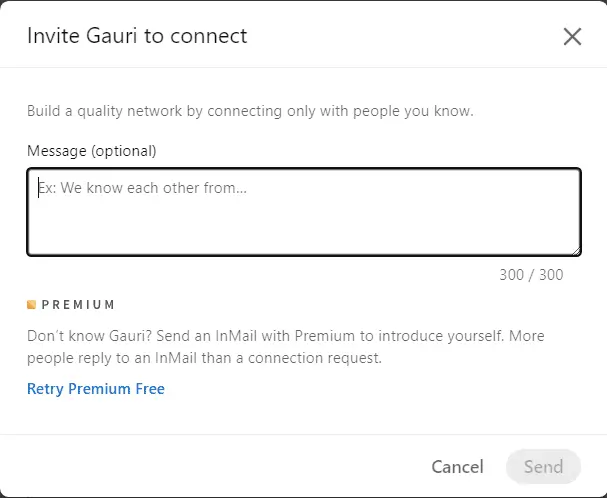
When you are sending a new invitation, a popup will appear to write your message. On the lower right corner, a character counter will be displayed. Here, you will be able to track how many characters are left for you to write.
Does the character limit include spaces and punctuation?
Yes, spaces are also considered as a separate character. Both punctuation and spaces are considered as a character while writing a message.
Are there different character limits for mobile and desktop versions of LinkedIn?
No. LinkedIn has no separate character limits for mobile and desktop versions for its users.
How does LinkedIn's character limit compare to other social media platforms?
Social media platforms often put limitations on writing posts or sending messages. For instance, social media platform X has a limit on how many characters you can type in a Tweet on the platform. Similarly, LinkedIn has this limitation on connection messages.
What are some tips for writing effective LinkedIn messages within the character limit?
You should consider keeping your messages short and to the point. This will help you make the receiver understand the context of your message in short text.
Can I use formatting (like bold or italics) in LinkedIn messages? Does this affect the character count?
No. You cannot format text in LinkedIn messages like bold or italics.