


Sales teams today operate in a hybrid ecosystem: part CRM, part social selling, and a lot of relationship-building. According to LinkedIn’s State of Sales Report, 89% of top-performing sales professionals say LinkedIn is a critical tool in closing deals. Meanwhile, CRMs like HubSpot help sales teams automate and track every stage of the customer journey. But here’s the real challenge: How do you make these two powerful platforms talk to each other, seamlessly?
That’s where HubSpot LinkedIn integration comes into play. Specifically, overlaying HubSpot deals data directly onto LinkedIn activity allows sales reps to see real-time CRM insights while engaging with prospects, turning cold outreach into intelligent, context-rich conversations.
In this blog, we’ll explore how to overlay HubSpot Deals data on LinkedIn, especially using LinkedIn Sales Navigator.
Why Overlay HubSpot Deals Data on LinkedIn?
Imagine scrolling through a prospect’s LinkedIn profile and seeing their current deal stage, deal size, and last touchpoint without switching tabs. This capability doesn’t just save time, it improves conversion rates. HubSpot’s internal data shows that using enriched contact data can increase sales productivity by up to 25%.
Overlaying HubSpot deals data on LinkedIn allows you to:
- Prioritize leads who are already in your pipeline.
- Personalize outreach using deal context.
- Shorten sales cycles with data-driven decisions.
Reddit users say filtering HubSpot Deals and accessing associations via API is powerful but tricky—expect to use multiple endpoints and loop through results to get complete relational data.
Step-by-Step: How to Overlay HubSpot Deals on LinkedIn
While there is no direct button in HubSpot that overlays deals data onto LinkedIn profiles, you can achieve this functionality using HubSpot LinkedIn Sales Navigator integration and some strategic setup.
Step 1: Enable LinkedIn Sales Navigator in HubSpot
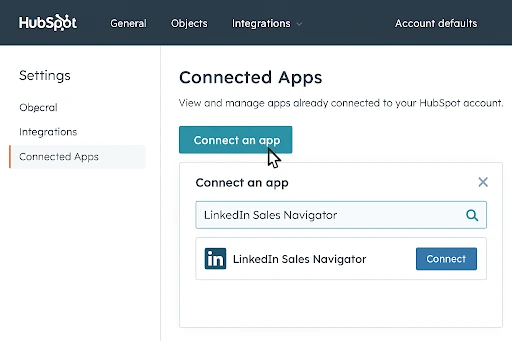
- Navigate to Settings > Integrations > Connected Apps in HubSpot.
- Click Connect an app, and search for LinkedIn Sales Navigator.
- Follow the prompts popping on the screen to authenticate your LinkedIn account.
This allows you to view LinkedIn insights from within HubSpot contact and company records.
Step 2: Install HubSpot’s Chrome Extension
- Download the HubSpot Sales Chrome Extension.
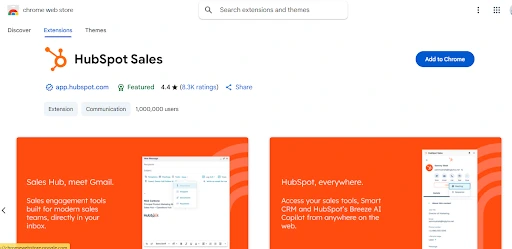
- When browsing LinkedIn, this extension pulls in CRM data (including Deals) into your sidebar view.
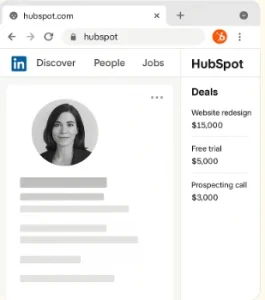
This is the closest way to “overlay” HubSpot deals data onto LinkedIn without switching platforms.
Step 3: Use the LinkedIn Sales Navigator Panel in HubSpot
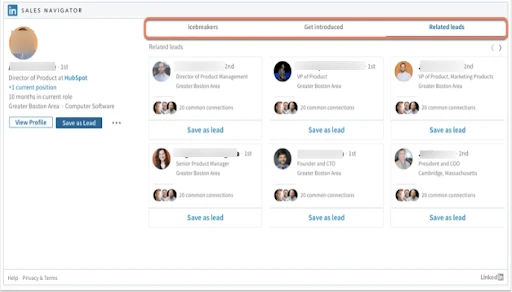
Once integration is active, you’ll see the LinkedIn Sales Navigator panel in contact and company records.
- From here, view shared connections, mutual interests, and send InMails.
- Most importantly, match LinkedIn profiles with existing HubSpot deals for contextual outreach.
Step 4: Sync LinkedIn Messages to HubSpot
One of the vital challenges sales teams face is the lack of visibility into LinkedIn conversations within their CRM. While HubSpot excels at tracking email interactions, calls, and deal stages, it doesn’t natively log LinkedIn messages, which can leave a significant portion of your sales engagement data siloed. This is where LinkedFusion steps in as a game-changer.
LinkedFusion is a powerful LinkedIn automation tool that not only helps with lead generation but also offers seamless HubSpot integration. With this tool, you can automatically sync your LinkedIn conversations to HubSpot ensuring that every touchpoint with a prospect is tracked and centralized within the contact’s CRM timeline.
Reddit users say you should create a Deal in HubSpot as soon as a lead shows clear buying intent—like booking a demo or requesting a quote—to keep workflows timely and pipelines accurate.
Posts from the hubspot
community on Reddit
How LinkedFusion Helps You Sync LinkedIn Messages to HubSpot:
- Native Integration with HubSpot: LinkedFusion connects directly with your HubSpot CRM. Once integrated, it maps your LinkedIn prospects to existing HubSpot contacts or creates new HubSpot deals data records automatically.
- Automated Message Logging: As you exchange messages with leads on LinkedIn, LinkedFusion captures and logs those conversations under the corresponding contact in HubSpot. This includes timestamps, message content, and sender information.
- Lead Context in One Place: With LinkedIn conversations synced, your sales reps can view a complete history of outreach, including LinkedIn messages alongside emails, calls, and notes, all from the HubSpot contact timeline. This improves deal visibility and makes handovers between SDRs and AEs smoother.
- Real-Time Engagement Tracking: LinkedFusion not only logs past conversations but also updates HubSpot deals data records in real-time. This means your team can respond promptly, stay aligned with deal progress, and avoid redundant outreach.
- Workflow Automation: You can set up workflows in HubSpot to trigger actions (like assigning lead scores, sending follow-up emails, or alerting reps) based on LinkedIn message activity synced via LinkedFusion.
Bonus Tips
Yes, you can. HubSpot’s Marketing Hub allows you to schedule and post content on LinkedIn Company Pages directly from the social tool. For personal LinkedIn profiles, however, you’ll need to use manual posting or third-party scheduling tools.
To import leads:
- Export lead data from LinkedIn Campaign Manager (if running ads).
- Use LinkedIn Lead Gen Forms and integrate them directly with HubSpot using native or Zapier-based workflows.
- For Sales Navigator users, tools like Linkedfusion allow one-click syncing of LinkedIn prospects into HubSpot.
Yes, HubSpot, Salesforce, and Zoho CRM all offer integrations with LinkedIn Sales Navigator. Among them, HubSpot stands out for its user-friendly UI and marketing capabilities.
Reddit users say setting up a one-way sync from your website to HubSpot works best using custom APIs or tools like Zapier, ensuring clean, structured data flows into your Deals pipeline.
- Go to your LinkedIn profile.
- Click Work > Sales Navigator.
- Choose from Core, Advanced, or Advanced Plus plans.
Sales Navigator is essential for those wanting in-depth insights, lead recommendations, and integrations with CRMs like HubSpot for HubSpot deals data.
Final Thoughts
Overlaying HubSpot deals data on LinkedIn is no longer a luxury; it’s a sales necessity. By integrating these platforms using LinkedIn Sales Navigator, Chrome extensions, and third-party apps, you can bridge the gap between data and engagement. With personalized outreach, real-time context, and smart deal tracking, your LinkedIn outreach will no longer feel like a shot in the dark.
Want to take your LinkedIn selling game to the next level? Start with a HubSpot LinkedIn integration and bring your CRM data where it matters most: right into your conversations.