


Your public profile is an illustation of the simplified version of your LinkedIn profile. You can customize your public profile settings according to your wishes and allow limited access to the information that is displayed on your profile pages. If you’re wondering how to put your LinkedIn profile in private mode, LinkedIn enables its users to switch on and off their profile section and choose what appears on the public search engines. This is often referred to as the closest thing to a ghost mode on LinkedIn.
Even if you are not the members of LinkedIn, have not signed in to LinkedIn, and have not yet linked their LinkedIn account to their accounts can also view your public LinkedIn profile. But these factors are also subjected to the user’s visibility settings and privacy.
You can use LinkedIn visibility preferences on the settings page to hide your LinkedIn profile from other users. This will result in your profile not appearing in the search engines, as you have hidden your public profile. Even the non-LinkedIn members can view your profile. But still your LinkedIn profile can be viewed by people who have a LinkedIn account.
How Can you hide your LinkedIn Profile?
If you’re wondering whether can you hide LinkedIn profile from someone, the answer is yes, LinkedIn allows you to block specific individuals to prevent them from viewing your profile, sending messages, or interacting with you. To block someone, visit their profile, click the three dots in the top-right corner, select “Report/Block”, and then choose “Block [Name]”. This is an effective way to maintain privacy from specific users.
Additionally, if you’re looking for ways to manage your overall profile visibility, you might ask, how to hide my LinkedIn profile?To hide your LinkedIn profile, go to Settings & Privacy, select Visibility, and adjust your Profile’s public visibility to “Off.” This will prevent your profile from appearing in search engines and limit what non-LinkedIn users can see. You can also customize which sections of your profile are visible to others for maximum privacy.
To make it more easy for you we have provided you a step by step guide on how can you hide your public profile on LinkedIn or in other words ‘How Do I Put My LinkedIn Profile on Private Mode?’
- Click on the “Me” icon at the top of your LinkedIn homepage. A drop down menu will appear, click on “View Profile”.
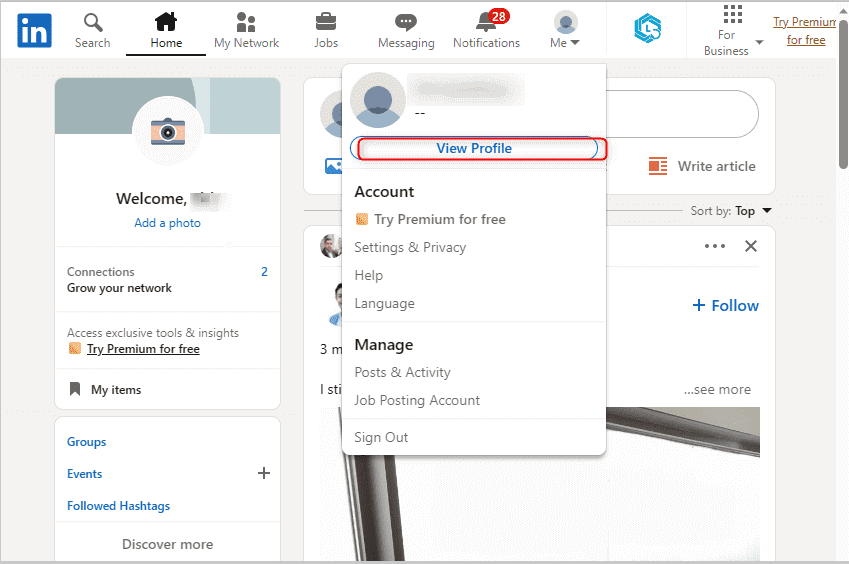
Clicking on the “View Profile” picture you will land on where you can edit your profile. There on the right side click on the “Public profile & URL”.
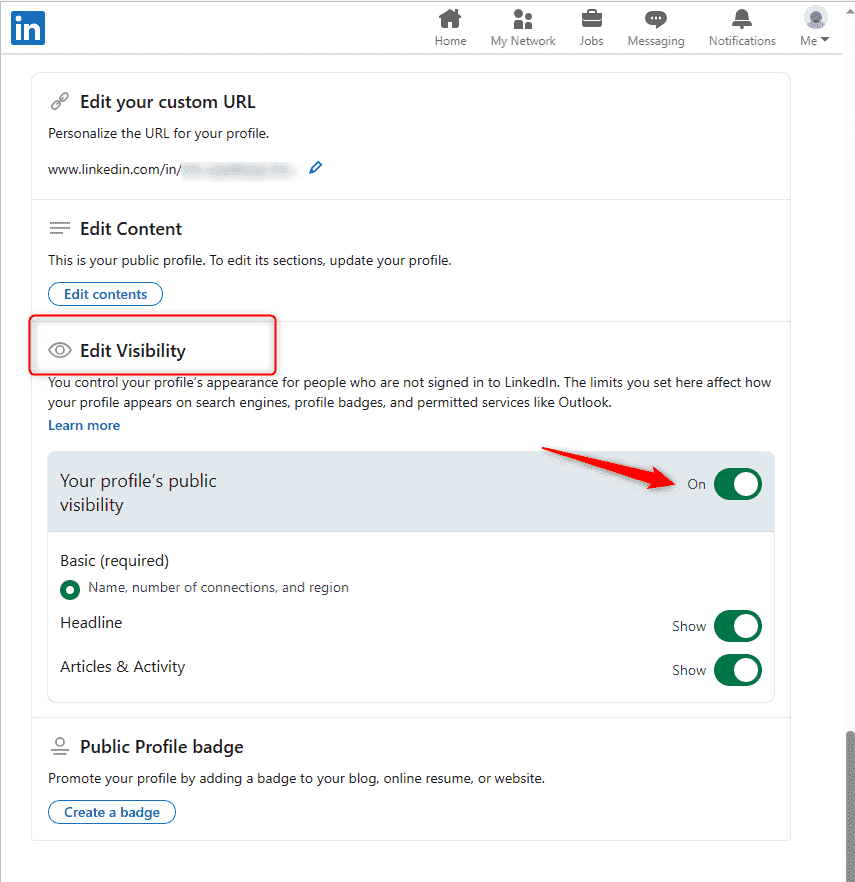
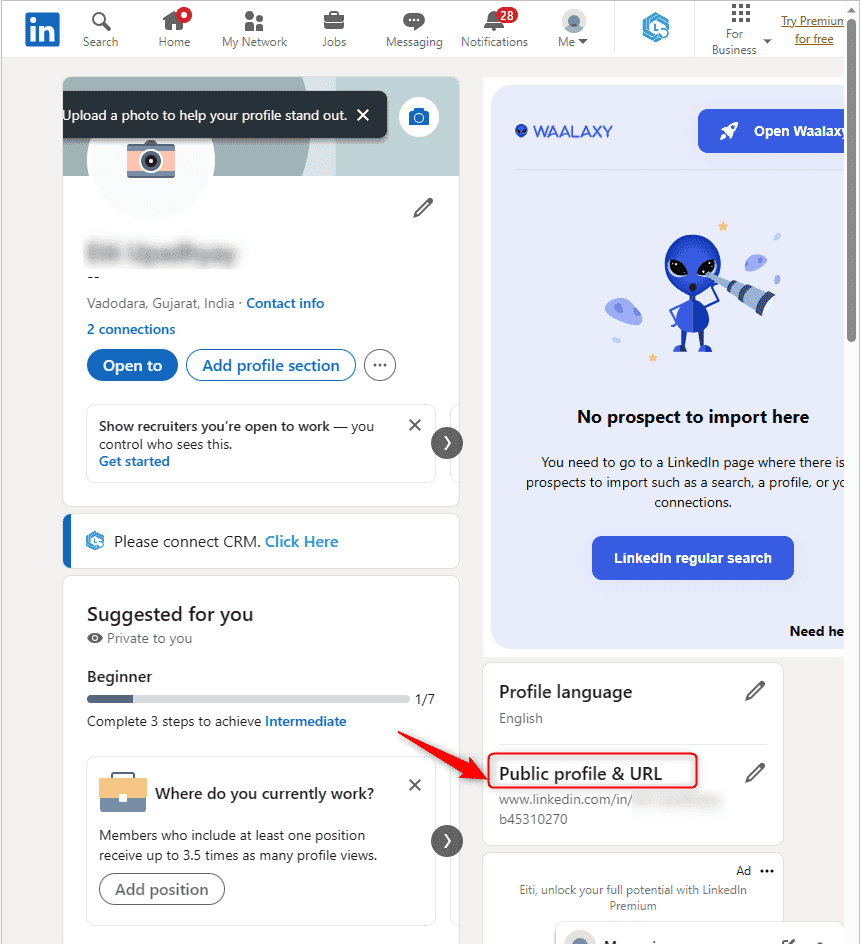
With the steps mentioned above, you hide your profile from the LinkedIn website. These steps answer the question: “How do I hibernate my LinkedIn profile?”. It’s not a complete deactivation, but it gives you maximum privacy.
How to Hide Your LinkedIn Profile on Mobile (iOS/Android)
There is a way you can hide your profile if you have your Android or iOS device. Here is how you can do that:
- Click on your profile picture and then “View Profile”.
- Go to the Settings icon
- Click on the “Privacy” tab, then “Edit your Public Profile”
- Now, from the “Edit Visibility” section, toggle “ Your profile’s visibility” to “off”.
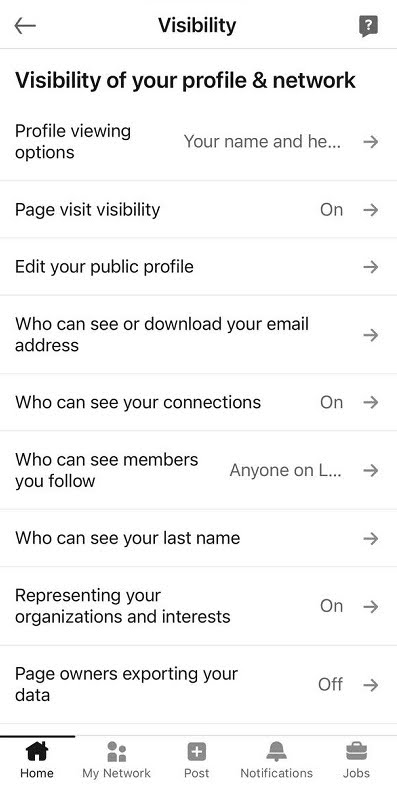
It is possible to edit your profile and allow the public exposure of a specific section if you want to change the language or text in that portion of your public profile.
More Facts About Hiding a LinkedIn Profile
After you have hidden your LinkedIn profile it’s possible that the search engines might take some time to detect the change and refresh. This is because LinkedIn has no control over it. Many times if someone wishes to view your public profile it’s possible that they might sign-up or login to your profile before they can view your public profile.
There are various places where your LinkedIn public profile can appear, like:
- In the search results of the LinkedIn profile
- When people search you on search engines like Google, Yahoo, Bing, etc your LinkedIn public profile appears.
- If you are affiliated with and approved for any third-party services like Outlook, Yahoo Mail, or Samsung phone mail. Then your public profile can also appear in their search results.
To optimize your lead generation process you can also set limits on the display of your information on your public profile. You can customize the information that is available to the public. Taking advantage of these features you can also generate more leads.
FAQs
If you want to view any LinkedIn profile anonymously you can activate the private mode. This would not affect the navigation of your profile, but if another person does not have the information about your name after viewing their profile the same will be applied to you. This means even you will not know who views your profile. This is not the case only if you have a premium account on LinkedIn.
There are various other tools and features that are available in the market that you can use to optimize your linkedIn profile and even generate clients from your LinkedIn profile. To know more you can read these blogs:
Conclusion:
Although you cannot hide your members from hiding their profiles from everyone, you, as a user, can always hide your public profile from those who are not members of LinkedIn. Now that you know how you can hide your public profile, don’t just limit yourself just to this information you can also explore more features that can help you to optimize your LinkedIn profile.