

If you’re in B2B sales or marketing, you already know that LinkedIn is a jackpot for lead generation. With over a billion professionals on the platform, it presents unparalleled access to decision-makers across industries. But here’s the catch: simply browsing through profiles won’t cut it.
If you have questions like, how do I increase lead generation on LinkedIn? To really accelerate your lead generation, you need to go beyond basic searches.
That’s where LinkedIn Advanced Search comes in.
This powerful feature lets you narrow your targeting, find the right prospects, and engage with them at the perfect moment, without wasting hours scrolling.
In this blog, we’ll break down how to use LinkedIn Advanced Search effectively, with pro tips and use cases that’ll make your lead gen efforts smarter, faster, and more effective.
What Is LinkedIn Advanced Search?
LinkedIn Advanced Search is a set of filters that help you pinpoint specific users based on job title, industry, location, company size, seniority level, and more. It’s built into the regular LinkedIn search bar and is even more powerful with LinkedIn Sales Navigator, which offers additional filters and visibility.
Whether you’re looking for CMOs in fintech, HR managers in New York, or founders of SaaS startups, LinkedIn advanced search helps you cut through the noise.
Why Use LinkedIn Advanced Search for Lead Generation?
-
- Precision targeting: You only see leads that match your ideal customer profile (ICP).
- Saves time: No more endless scrolling or cold-messaging irrelevant people.
- Better response rates: Messaging is more personalized and relevant.
- Fits into outreach tools: Easily export and plug into LinkedIn automation tools like LinkedFusion, LeadCRM, etc.
Before You Begin: Define Your Ideal Customer Profile (ICP)
Before using LinkedIn Advanced Search, get clear on your ICP. Ask yourself:
- What industries do they work in?
- What job titles and seniority levels do they hold?
- Where are they located?
- What size company do they work for?
- Are they decision-makers?
Once you have this profile, LinkedIn advanced search becomes 10x more effective.
How to Use LinkedIn Advanced Search (Free Version)?
Even if you’re using the free LinkedIn account, you still get access to some powerful filters. Here’s how to make the most of it.
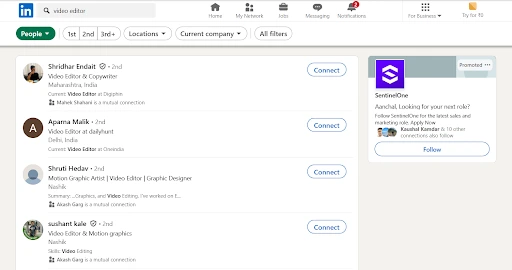
Step 1: Go to the Search Bar
Start by typing a general keyword, like “Marketing Director” or “IT Manager”.
Step 2: Click on “People”
Once the results appear, click “People” under the filter tabs to focus only on user profiles.
Step 3: Use Filters
On the left-hand side or top bar (depending on the device), use filters such as:
- Connections (1st, 2nd, 3rd)
- Locations
- Current companies
- Past companies
- Industry
- Profile language
- School
Example Use Case:
Let’s say you’re targeting 2nd-degree connections who are Product Managers in the SaaS industry and are located in San Francisco.
You can easily layer these filters and generate a list of hyper-relevant leads to connect with or message.
Supercharge Your Search with LinkedIn Sales Navigator
If you’re serious about outbound lead generation, LinkedIn Sales Navigator is where the real power lies. It offers more than 20+ advanced filters to zero in on your perfect prospect.
How to generate B2B leads on LinkedIn? Your answer is Sales Navigator. Here’s how to use it to your advantage:
Step 1: Log in to Sales Navigator
Go to https://www.linkedin.com/sales/ and select “Advanced Search” under the Leads tab.
Step 2: Choose Your Filters
You get access to highly granular filters like:
- Seniority level
- Company size
- Function (department)
- Years of experience
- Posted content keywords
- Group membership
- Spotlight filters (e.g., changed jobs in last 90 days, active on LinkedIn, mentioned in news)
Reddit users say you’ll need Sales Navigator’s date-range filters—standard LinkedIn search can’t pinpoint people by specific employment years at a company.
Step 3: Save Leads and Lists
Once you’ve refined your search, you can save leads into lists, making it easier to run targeted campaigns later.
LinkedIn Advanced Search Filters You Should Be Using
Here are some of the most effective LinkedIn advanced search filters for lead gen and how to use them:
1. Seniority Level
Want decision-makers only? Filter by:
- CXO
- VP
- Director
- Manager
Avoid targeting junior staff who can’t say “yes.”
2. Industry + Company Size
-
- Industry: Healthcare, Fintech, Manufacturing
- Company size: 11–50, 51–200, 201–500
3. Posted Content Keywords
This LinkedIn advanced search lets you find leads talking about topics like “AI in healthcare” or “remote work culture.” It’s ideal for contextual outreach.
4. Job Title (Keyword + Boolean Search)
Use Boolean search operators like:
- AND, OR, NOT
- “” for exact phrases
- () for grouping
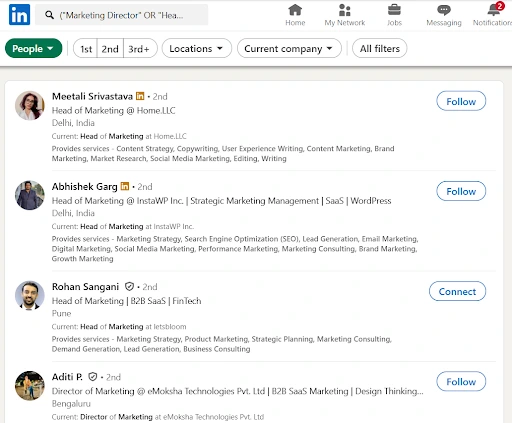
Example:
(“Marketing Director” OR “Head of Marketing”) AND SaaS AND NOT “Intern”
This will find only senior-level marketers in SaaS, excluding interns.
Reddit users say LinkedIn’s Boolean advanced search lets you combine roles, exclusions, and location filters in one go—saving time and eliminating the need for multiple searches.
5. Recent Job Change
Use the “Changed jobs in past 90 days” filter. These are warm leads:
- They’re more open to new solutions.
- They’re likely re-evaluating tools and vendors.
- They need to make a mark quickly.
Pro Tips for Faster Lead Gen
Tip 1: Use Lead Lists
Save your searches and leads into custom lists. It keeps your LinkedIn outreach organized and trackable.
Tip 1: Use Lead Lists
Use tools like LeadCRM, LinkedFusion, or Phantombuster to:
- Export leads
- Sync with your CRM
- Enrich profiles
- Automate outreach
Tip 3: Personalize Your Messaging
Use insights from the LinkedIn advanced search, like job change, company size, and location to write hyper-relevant messages.
Example:
“Hi Sarah, noticed you recently joined [Company] as Head of Ops. Congrats! Curious if you’re exploring tools to streamline onboarding?”
Tip 4: Monitor Saved Searches
LinkedIn lets you save searches and get alerts when new people match your criteria. This gives you fresh leads without searching manually every time.
LinkedIn Advanced Search vs. LinkedIn Automation
While LinkedIn advanced search helps find leads, automation tools help you reach out at scale. Use both together:
- Advanced search = Quality leads
- Automation = Speed and scalability
For example, you can use LinkedFusion’s Virtual Assistant to automate messaging to filtered leads while staying compliant with LinkedIn rules.
Reddit users recommend leveraging Sales Navigator or third-party AI tools to translate natural-language prompts into precise LinkedIn advanced searches.
Metrics to Track from Your Search-Based Campaigns
Tracking the right metrics is imperative to optimizing your LinkedIn lead generation strategy. Start with your connection acceptance rate. This shows how well your profile, headline, and connection message are working. A low acceptance rate often signals poor targeting or weak personalization.
Next, monitor your response rate to initial outreach messages. If people aren’t replying, your value proposition or timing might need improvement.
Your meeting booked rate (how many conversations turn into calls or demos) is a crucial mid-funnel metric, indicating how qualified and interested your leads are.
Don’t forget the lead-to-customer conversion rate, which tells you whether your search-based strategy is actually driving revenue. It’s the most important metric to align your LinkedIn efforts with business growth.
Also, consider tracking:
- Time-to-first response: How quickly leads reply.
- Pipeline velocity: How fast leads move through the funnel.
- Cost per lead (if using paid tools or VA support).
Regularly analyzing these metrics helps you refine your targeting, messaging, and overall approach. By doing so, you’ll ensure your LinkedIn Advanced Search campaigns consistently generate high-quality leads and deliver strong ROI.
Final Thoughts:
LinkedIn advanced search ain’t just a feature: it’s a superpower when used right. It lets you laser-target decision-makers, personalize your outreach, and generate more qualified leads in less time. Start today, and you’ll never go back to cold emailing random leads again.
Want to Go Faster?
If you’re using tools like LeadCRM, you can integrate your filtered LinkedIn leads directly into your outreach funnel, track interactions, and close deals faster—all while keeping your CRM synced and clean.
Ready to use LinkedIn for faster lead gen?
Whether you’re a solo founder or a sales team leader, mastering LinkedIn advanced search is step one toward scalable, smart B2B lead generation.