


How to Add a Promotion on LinkedIn
LinkedIn is the go-to platform for professionals to showcase their career achievements, network with peers, and attract new opportunities. One of the most important updates you can make to your profile is adding a promotion. Whether you’ve been promoted within your current company or moved to a higher position elsewhere, keeping your LinkedIn profile updated ensures your network stays informed about your career growth.
In this guide, we’ll walk you through the steps to add a promotion on LinkedIn, along with tips to optimize your profile for maximum visibility.
Why Should You Add a Promotion on LinkedIn?
Adding a promotion to your LinkedIn profile is more than just a formality. Here’s why it matters:
- Showcase Career Growth: Highlighting your promotions demonstrates your professional development and achievements.
- Attract Recruiters: Updated profiles rank higher in LinkedIn searches, making it easier for recruiters to find you.
- Build Credibility: A well-maintained profile reflects your commitment to your career and helps establish trust with your network.
- Expand Your Network: Promotions often spark engagement, leading to new connections and opportunities.
For more tips on optimizing your LinkedIn profile, check out our blog on LinkedIn Profile Optimization.
Step-by-Step Guide to Adding a Promotion on LinkedIn
Follow these simple steps to update your profile with your latest LinkedIn promotion:
Step 1: Navigate to Your LinkedIn Profile
- Log in to your LinkedIn account.
- Click on your profile picture or name in the top navigation bar to access your profile.
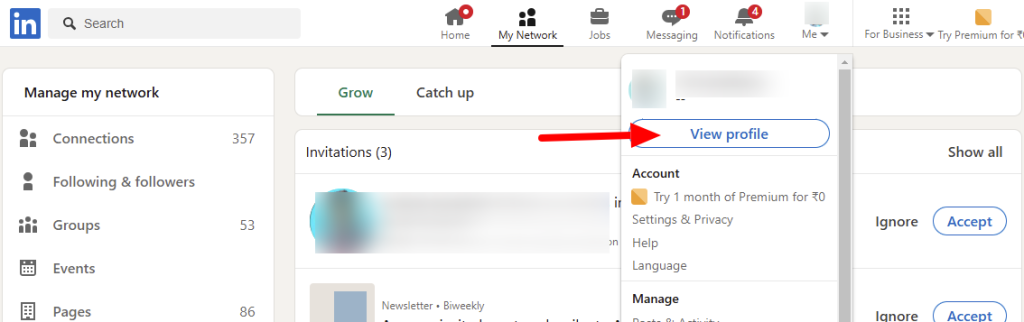
Step 2: Locate the Experience Section
- Scroll down to the Experience section of your profile.
- Find your current position or the job you want to update.
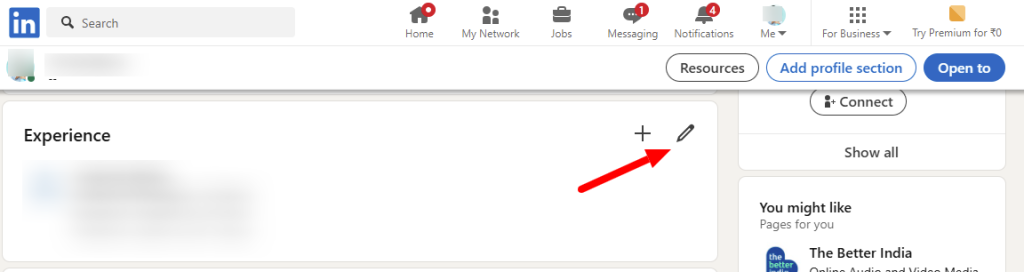
Step 3: Edit Your Current Position
- Click the pencil icon next to your current job title.
- Update the Title field to reflect your new role or promotion.
- Adjust the Start Date if applicable.
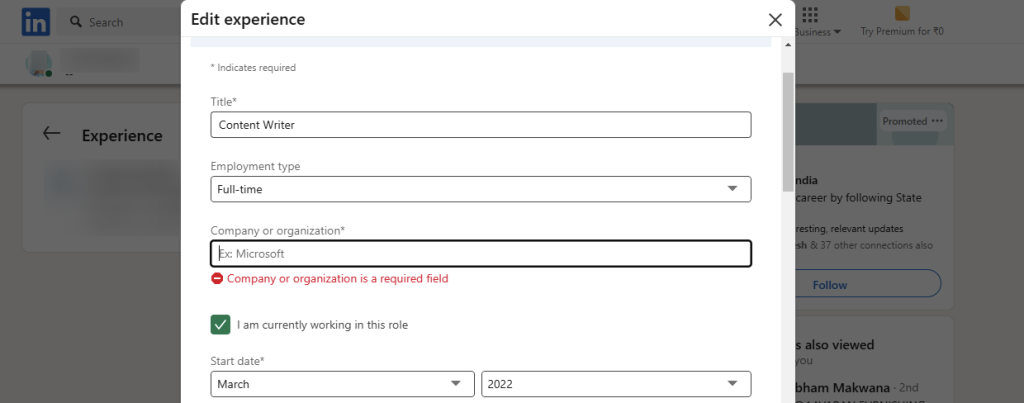
Step 4: Add a New Position (Optional)
If your promotion involves a new role within the same company, you can add a separate entry:
- Click the plus (+) icon in the Experience section.
- Fill in the details of your new role, including the title, company, location, and start date.
- Check the box for “I currently work here” if applicable.
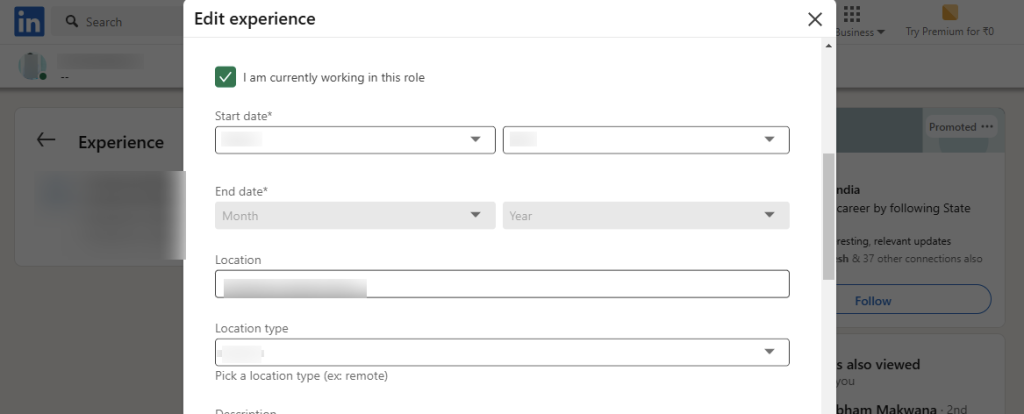
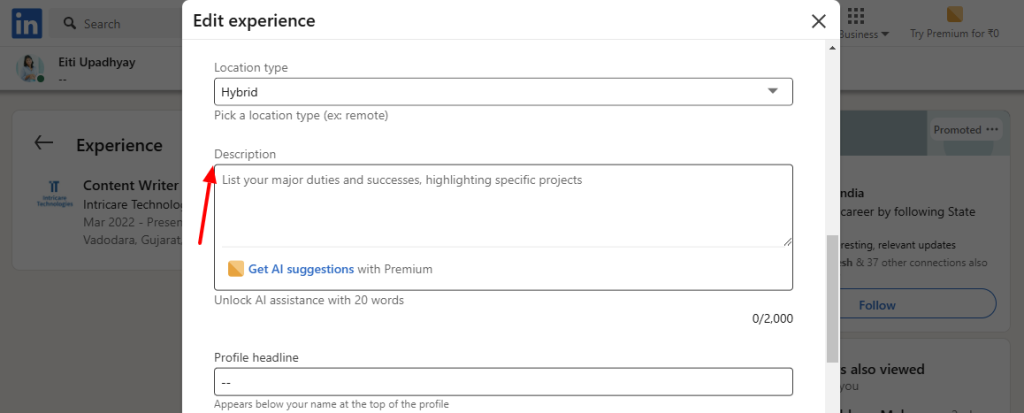
Step 5: Update Your Job Description
- Use this opportunity to update the Description field with your new responsibilities, achievements, and skills.
- Include relevant keywords to optimize your profile for LinkedIn searches.
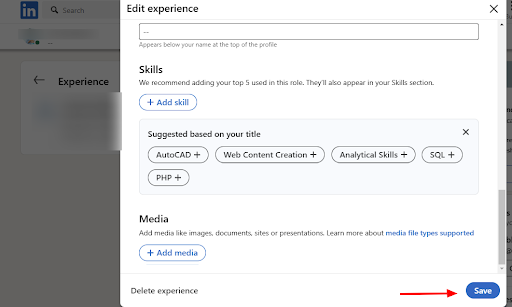
Step 6: Save Your Changes
- Once you’ve made all the updates, click Save to apply the changes to your profile.
Step 7: Create a LinkedIn Promotion Post
- Write a personalized post expressing gratitude, highlighting key achievements, and acknowledging those who supported your growth. Keep the tone authentic, concise, and positive to encourage engagement. This is also your answer to how to post a promotion on LinkedIn.
Tips to Optimize Your LinkedIn Profile After Adding a Promotion
1. Use Keywords Strategically
Incorporate relevant keywords in your job title and description to improve your profile’s visibility in LinkedIn searches. For example, if your new role is “Marketing Manager,” include terms like “digital marketing,” “campaign management,” or “SEO strategy.”
2. Highlight Achievements
Focus on measurable results and accomplishments in your job description. For example:
- “Increased sales by 30% through targeted marketing campaigns.”
- “Led a team of 10 to successfully launch a new product line.”
3. Update Your Skills Section
Add new skills relevant to your promotion. Endorsements for these skills can further boost your profile’s credibility.
4. Share the News with Your Network
After updating your profile, share a post announcing your promotion. This increases engagement and visibility. Example:
“Excited to share that I’ve been promoted to [New Role] at [Company]! Grateful for the support of my amazing team and mentors.”
5. Request Recommendations
Ask colleagues or supervisors to write recommendations that highlight your contributions in your previous role and your potential in your new position.
For more tips on LinkedIn engagement, explore our article on How to Increase LinkedIn Engagement.
Common Mistakes to Avoid When Adding a Promotion
- Forgetting to Update Dates: Ensure the dates for your previous and current roles are accurate to avoid confusion.
- Leaving Descriptions Blank: A blank description misses the opportunity to showcase your achievements and skills.
- Overloading with Keywords: While keywords are important, avoid stuffing them unnaturally into your profile.
Conclusion
Keeping your LinkedIn profile updated with your latest promotion is essential for showcasing your career growth and attracting new opportunities. By following the steps outlined in this guide, you can easily add a promotion to your profile and optimize it for maximum visibility. Remember to highlight your achievements, use relevant keywords, and engage with your network to make the most of your LinkedIn presence.
For more LinkedIn tips and strategies, visit our LinkedIn Automation Blog.
FAQ's
1. Can I Add a Promotion Without Notifying My Network?
Yes, you can. Before making changes, toggle off the Share with Network option in your profile settings. This ensures your updates remain private.
2. Should I Add a New Position or Edit My Current One?
If your promotion involves a significant change in responsibilities or a new title, it’s better to add a new position. For minor updates, editing your current role is sufficient.
3. How Can I Make My Promotion Stand Out?
Use action-oriented language and highlight measurable achievements in your job description. For example:
“Promoted to Senior Project Manager after successfully leading a $1M project to completion ahead of schedule.”