

LinkedIn Sales Navigator is a powerful tool for lead generation, offering advanced search filters and insights to help you find your ideal prospects. However, exporting leads from LinkedIn Sales Navigator to Excel or other formats isn’t a native feature, which can make managing your data challenging. In this guide, we’ll show you how to export LinkedIn Sales Navigator leads step-by-step, using both manual methods and third-party tools.
If you’re looking for a LinkedIn automation tool to streamline your lead generation and outreach, check out LinkedFusion’s LinkedIn automation features. It’s designed to simplify your LinkedIn workflows and maximize your results.
Why Exporting Leads from LinkedIn Sales Navigator is Important?
Exporting leads from LinkedIn Sales Navigator allows you to:
- Organize and manage your lead data in one place.
- Integrate lead lists into your CRM for streamlined outreach.
- Use the data for multichannel campaigns, including email and phone outreach.
While LinkedIn doesn’t provide a built-in export feature, there are several workarounds to help you extract and utilize your lead lists effectively.
How to Export Lead List from Sales Navigator?
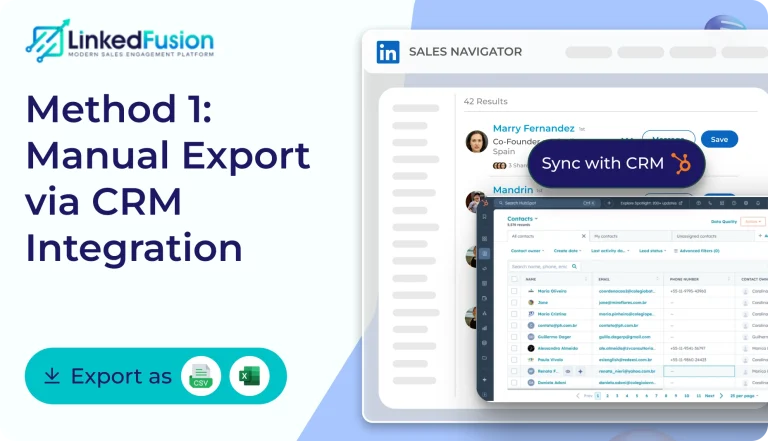
Method 1: Manual Export via CRM Integration
LinkedIn Sales Navigator integrates with popular CRMs like Salesforce and HubSpot. Here’s how you can use this feature:
- Connect Your CRM: Go to Sales Navigator settings and select “Integrations.”
- Sync Leads: Save leads to a list in Sales Navigator and sync them with your CRM.
- Export from CRM: Once synced, export the data from your CRM into an Excel or CSV file.
Limitations: This method requires a CRM subscription and doesn’t allow direct export from Sales Navigator.
For a more efficient solution, consider using LinkedFusion’s LinkedIn lead generation tool to automate your lead management process.
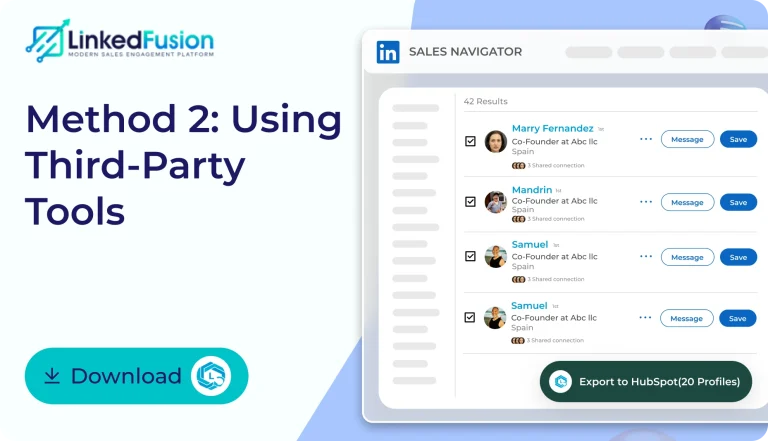
Method 2: Using Third-Party Tools
Third-party tools like LeadCRM, Wiza, and SalesRobot make exporting leads from LinkedIn Sales Navigator seamless.
Steps to Export Using LeadCRM:
- Install the LeadCRM Chrome Extension: Download and install the extension from the Chrome Web Store.
- Search for Leads: Use Sales Navigator to create a lead list.
- Click “Export with LeadCRM”: A button will appear at the top of your lead list. Click it to export your data.
- Download the CSV File: Save the file, which includes LinkedIn profile URLs, job titles, company names, and more.
Advantages:
- Extracts clean, organized data.
- Includes email enrichment for multichannel outreach.
- Saves time compared to manual methods.
For a comprehensive LinkedIn automation solution, explore LinkedFusion’s advanced features, which include lead export and outreach automation.
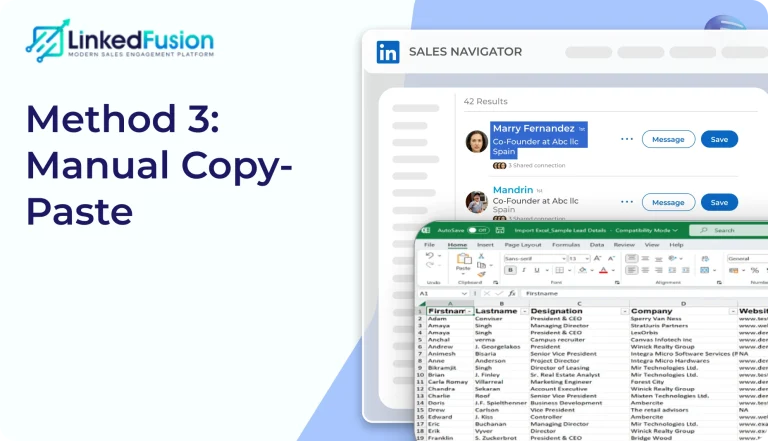
Method 3: Manual Copy-Paste (Not Recommended)
If you don’t want to use third-party tools, you can manually copy lead details from Sales Navigator into a spreadsheet.
- Open your lead list in Sales Navigator.
- Copy the relevant details (e.g., name, job title, company).
- Paste them into an Excel or Google Sheets file.
Drawbacks: This method is time-consuming and prone to errors, especially for large lead lists.
Tools Comparison for Exporting Leads
| Tool | Features | Pricing |
|---|---|---|
|
LinkedFusion |
Automates lead export and outreach. |
Subscription-based. |
|
Evaboot |
Exports leads with email enrichment. |
Free trial, then paid. |
|
LeadCRM.io |
CRM integration and lead management. |
Subscription-based. |
|
UberFox.io |
Lead export and email automation. |
Subscription-based. |
|
Wiza |
Extracts 40+ data points per lead. |
Subscription-based. |
For more details on how LinkedFusion can help you automate LinkedIn lead generation, visit the LinkedFusion homepage.
Best Practices to Export Sales Navigator Leads
- Refine Your Search Filters: Use advanced filters like geography, industry, and seniority to narrow down your lead list.
- Avoid LinkedIn’s Export Limits: LinkedIn restricts search results to 2,500 leads per search. Split your searches into smaller segments to capture all leads.
- Ensure GDPR Compliance: Use tools that follow data privacy regulations to avoid legal issues.
For more tips on LinkedIn lead generation, check out our LinkedFusion blog.
FAQs About Exporting LinkedIn Sales Navigator Leads
No, LinkedIn Sales Navigator doesn’t have a native export feature. You’ll need to use CRM integrations or third-party tools like Evaboot or Wiza.
Yes, as long as you comply with LinkedIn’s terms of service and data privacy regulations like GDPR.
Use tools like Evaboot to export your lead list directly into an Excel or CSV file.
For a seamless experience, try LinkedFusion’s LinkedIn automation software, which simplifies lead export and outreach.
Conclusion
Exporting leads from LinkedIn Sales Navigator doesn’t have to be a hassle. By using tools like Evaboot or CRM integrations, you can efficiently manage your lead data and supercharge your outreach campaigns. Start optimizing your LinkedIn lead generation process today!
🚀 Try LinkedFusion for Seamless LinkedIn Automation
Simplify your LinkedIn outreach and lead management with LinkedFusion.