


If you want to view a LinkedIn profile without the person seeing your name, change your profile-viewing setting before you open it. LinkedIn’s Private Mode hides your identifying details in the profile-view record. You can also try to read public profile information while signed out, although LinkedIn may limit what guests can see. This guide covers the desktop and mobile steps, exactly what private viewing hides and what it does not, the limits of browsing without an account, and the trade-off for your own viewer history.
Here, “anonymous” means LinkedIn does not show the profile owner your name and identifying profile details in the profile-view record. It does not mean every action you take on LinkedIn is anonymous. Comments, reactions, follows, connection requests, and messages can still identify you.
Short answer
To view a LinkedIn profile anonymously, sign in to LinkedIn, open Settings & Privacy, choose Visibility, open Profile viewing options, and select Private mode before opening the profile. The profile owner may see an anonymous LinkedIn Member entry, but not your name and headline.
Turn on Private Mode before opening the profile. Changing the setting afterward does not retroactively change how an earlier visit was recorded. Menu names can differ slightly between desktop, mobile, and account versions, so confirm the selected option before browsing.
Which method should you use?
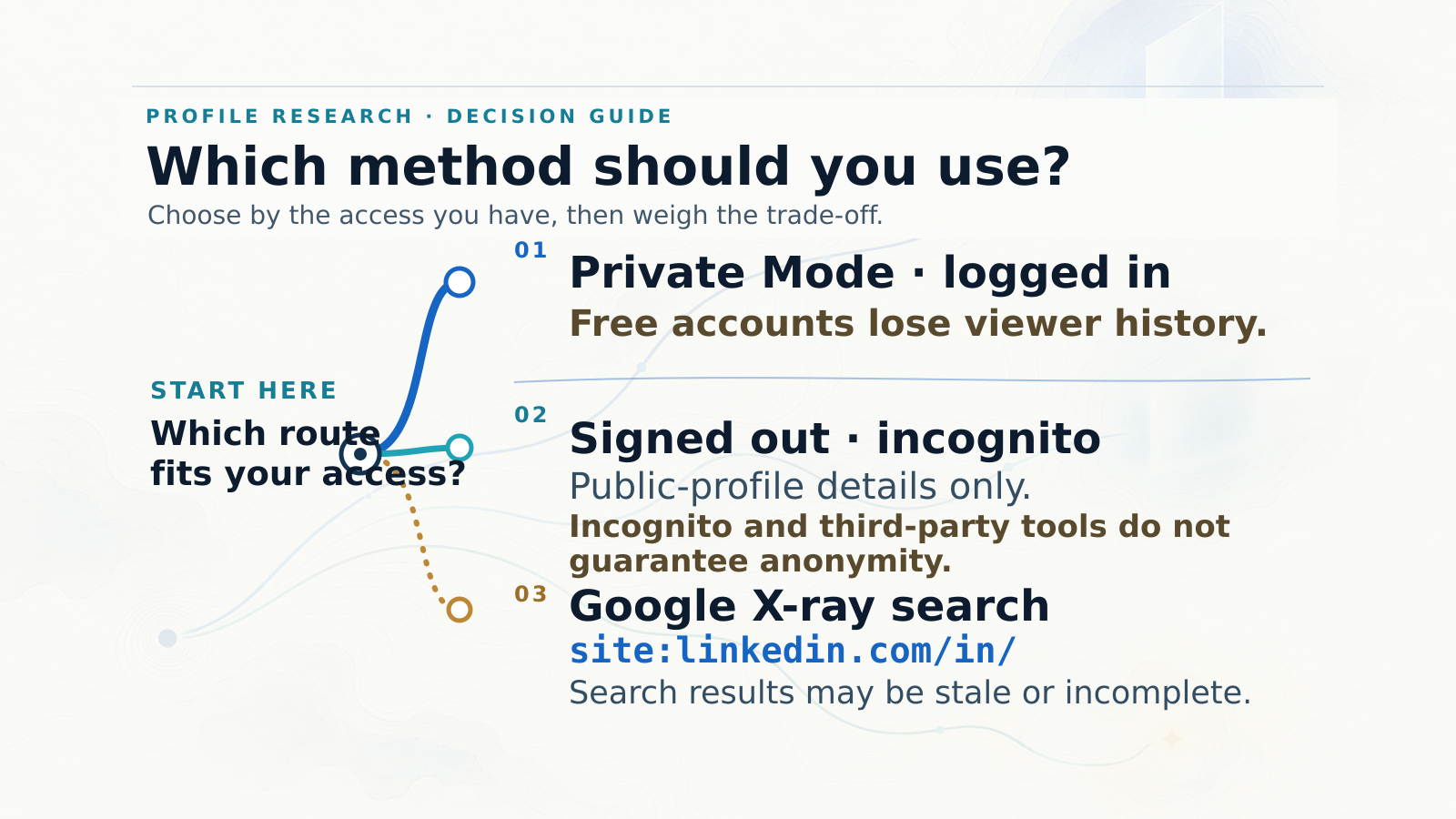
| Your situation | Best option | What you can see | Main limitation |
|---|---|---|---|
| You have a LinkedIn account | LinkedIn Private Mode | The profile information available to your account | Your visit may appear as an anonymous LinkedIn Member entry |
| You do not have a LinkedIn account | Signed-out browsing or a search-engine result | Public profile information | LinkedIn may require sign-in or show only limited details |
| You want to inspect your own public profile | A signed-out or private browser window | The public version of your profile | It does not show everything logged-in members can see |
| You are considering a third-party viewer | Prefer LinkedIn’s own settings instead | Possibly public information | Security, accuracy, privacy, and account risks |
If you are signed in, use LinkedIn’s own Private Mode. If you do not have an account, look for the person’s public profile URL or search result, and expect to see only information LinkedIn makes available to logged-out visitors.
What LinkedIn Private Mode shows
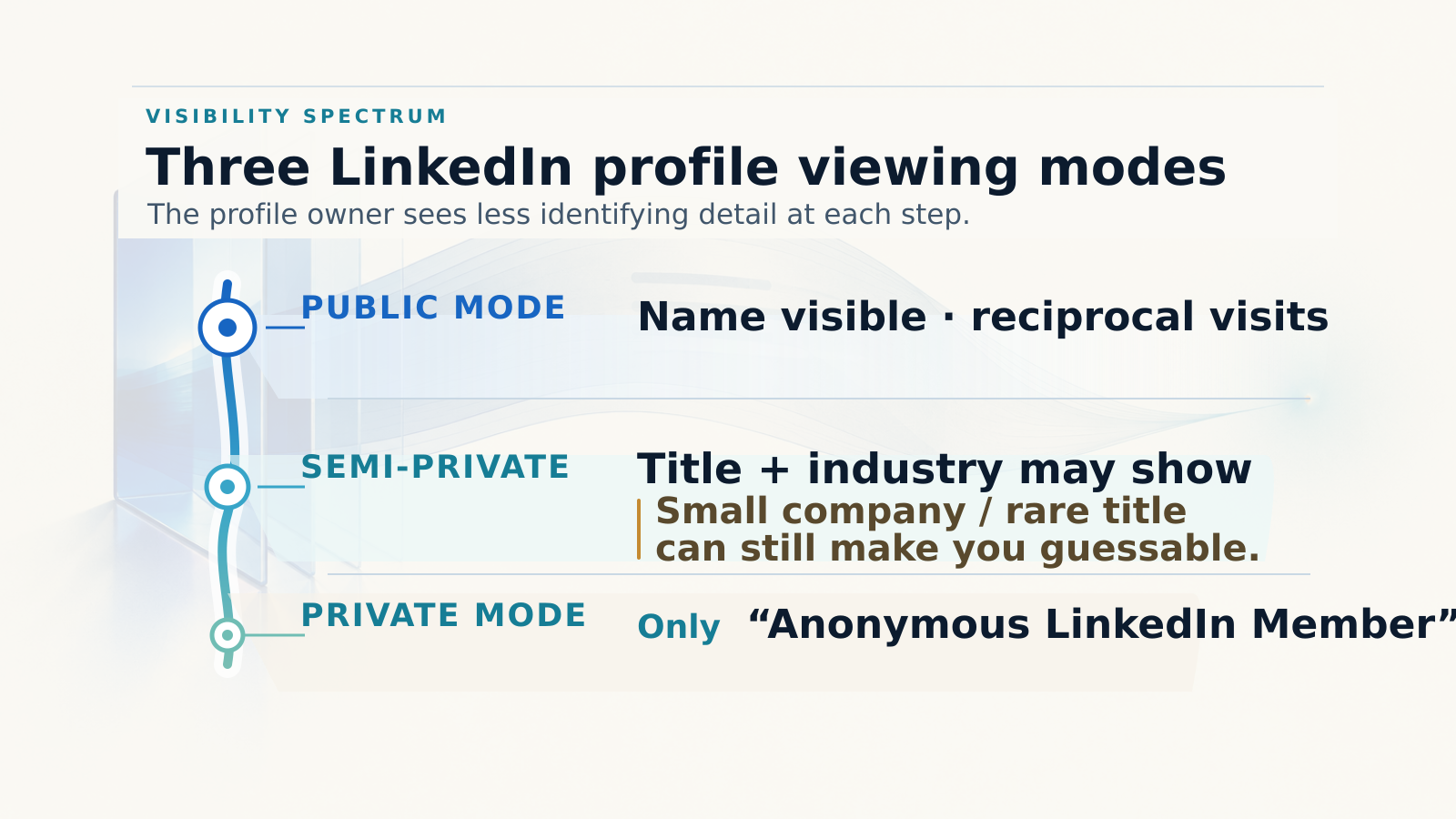
LinkedIn provides three profile-viewing options that control how your visit appears to the person whose profile you open. The exact labels may vary as LinkedIn updates its interface.
| Viewing option | What the other member can see | What to consider |
|---|---|---|
| Your name and headline | Your identifying profile details, such as your name and headline | The visit is shown as a named profile view |
| Private profile characteristics | Limited characteristics such as your role, industry, or organization | You may still be recognizable in a small company or specialized field |
| Private mode | An anonymous entry such as “LinkedIn Member – This person is viewing profiles in private mode” | Your name and identifying profile details are not shown |
If you need the strongest identity protection available through LinkedIn’s own settings, choose full Private mode, not Private profile characteristics. The middle option hides some details but may still make you recognizable.
How to view a LinkedIn profile anonymously on desktop
- Sign in to LinkedIn.
- Select your profile photo or the Me menu.
- Open Settings & Privacy.
- Select Visibility.
- Open Profile viewing options.
- Select Private mode.
- Open the profile you want to view.
Important: Set Private Mode before opening the profile. Do not open the profile first and change the setting afterward.
To show your identity on future profile visits again, return to Profile viewing options and select Your name and headline. This affects future visits; it does not change how earlier visits were recorded.
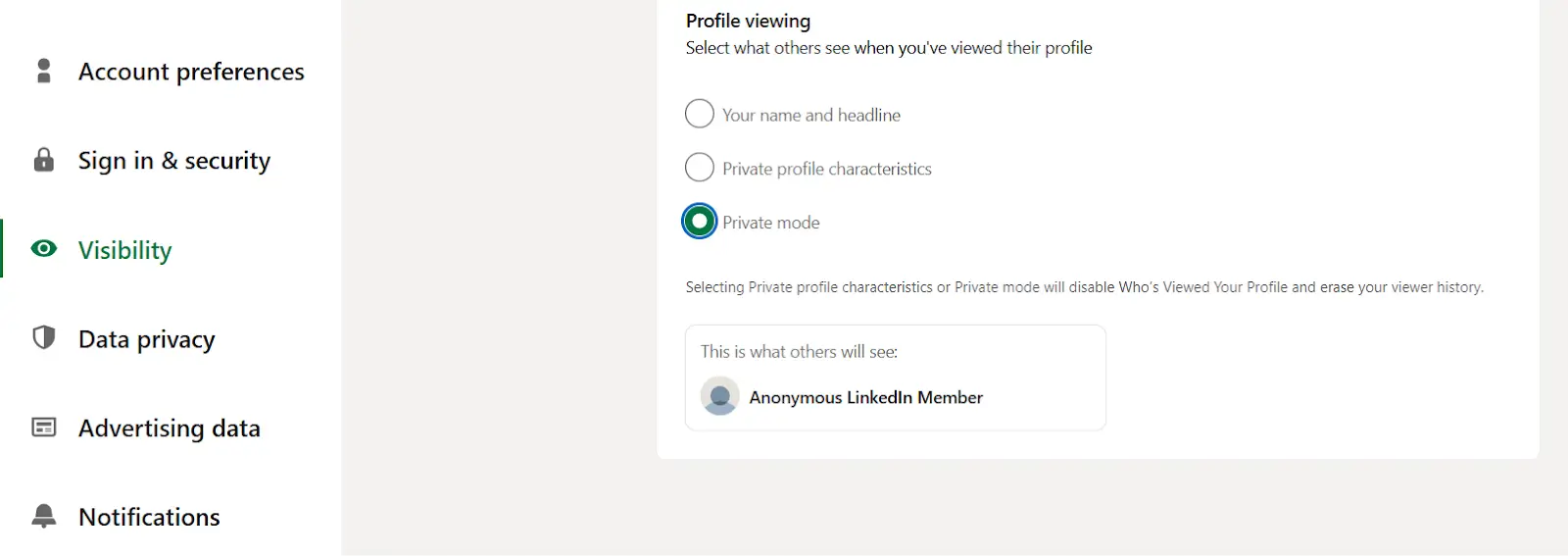
The Profile viewing options area in LinkedIn settings, where Private Mode is selected.
How to turn on Private Mode in the LinkedIn mobile app
- Open the LinkedIn app.
- Tap your profile photo.
- Open Settings & Privacy or Settings, depending on the current app version.
- Tap Visibility.
- Open Profile viewing options.
- Select Private mode.
- Return to LinkedIn and open the profile.
LinkedIn can move or rename controls as the app changes. Confirm that Private mode is selected before opening the profile. The preference is associated with your account, so check it on every device where you are signed in.
What Private Mode hides, and what it does not
Private Mode changes how your profile visit is represented to the person whose profile you open. It hides your name, headline, and identifying profile details from that profile-view record. The person may still see an anonymous LinkedIn Member entry.
Private Mode does not make every activity on LinkedIn invisible. The following actions can identify you or show your account separately from the profile-view record:
- Commenting on a post.
- Reacting to a post.
- Following the person.
- Sending a connection request.
- Sending a message.
- Sharing or interacting with content in a way that displays your account.
Profile-view privacy and activity privacy are separate things.
Does searching for someone on LinkedIn notify them?
A search by itself is different from opening someone’s profile. However, selecting a person, profile card, or mini profile from search can count as a profile-view action depending on how LinkedIn records that interaction.
If you want to reduce the chance of appearing as a named viewer:
- Turn on Private Mode before selecting or opening the profile.
- Avoid interacting with the person’s posts or sending visible actions if you do not want to identify yourself.
- Remember that a message, connection request, comment, reaction, or follow is separate from a profile view and can reveal your identity.
Can you view a LinkedIn profile without an account?
Sometimes. You may be able to see a limited public version of a LinkedIn profile while signed out, but access depends on the member’s public-profile settings and LinkedIn’s current guest experience.
Try this:
- Open a private or incognito browser window.
- Make sure you are signed out of LinkedIn.
- Open the person’s public profile URL, if you have it.
- If you do not have the URL, search Google or another search engine for
site:linkedin.com/in/ "Person Name" "Company". - Read only the information shown publicly in the profile page or search result.
LinkedIn may ask you to sign in, redirect you to a login screen, or show only a small amount of information. Incognito mode separates the browser session from your normal cookies; it does not unlock restricted profile information.
Signed-out browsing is not the same as LinkedIn Private Mode. Private Mode controls how a logged-in LinkedIn account appears when viewing another profile. Signed-out browsing only gives you access to information LinkedIn has made public.
What can you see without a LinkedIn account?
Without an account, you can see only the public version of the profile. It may include:
- Name and profile photo.
- Headline.
- Location.
- About information.
- Selected work experience.
- Education, skills, or other sections the member has made public.
You may not see the complete profile, recent activity, contact details, or sections that require sign-in. LinkedIn can also show a sign-in prompt before displaying more information. The public profile is not necessarily the same as the full profile visible to a logged-in LinkedIn member. What appears depends on the member’s public visibility settings and LinkedIn’s guest-access rules.
What does not guarantee anonymity?
These actions do not automatically make LinkedIn browsing anonymous:
- Opening a normal LinkedIn profile while signed in.
- Using an incognito window while still signed in to LinkedIn.
- Selecting semi-private or private profile characteristics instead of full Private Mode.
- Changing to Private Mode after you already opened the profile.
- Commenting, reacting, following, connecting, or messaging after viewing a profile.
- Using a second account that contains identifying information.
- Using a third-party viewer that asks for your LinkedIn password, session cookie, or other login credentials.
Incognito mode changes the browser session. It does not change LinkedIn’s profile-view setting and does not expose restricted profile information.
Can LinkedIn Premium identify private viewers?
No. LinkedIn Premium does not reveal the name of someone who viewed a profile in full Private Mode. The profile owner may see an anonymous LinkedIn Member entry, but the visitor’s identity remains hidden.
Premium can affect what the private viewer sees about their own profile. Premium members may be able to browse in Private Mode and still access their own profile-view list for the previous 90 days. A Basic account may lose access to that viewer list when its owner browses privately.
These are two separate things:
- Premium may preserve your access to information about people who viewed your profile.
- Premium does not reveal the identities of people who viewed your profile in full Private Mode.
What happens to your own profile-view history?
Private browsing has a trade-off. When you choose a private viewing option, your access to your own “Who’s viewed your profile” information may be limited, especially on a Basic account. If seeing who viewed your profile matters, check the effect of the setting before switching. Premium may provide access to your own viewer history while you browse privately, but it does not make other members’ private views identifiable.
Returning to Your name and headline changes how future visits appear. It does not make earlier private visits identifiable. LinkedIn plan features and interface behavior can change, so confirm the current details for your account.
Should you use a third-party profile viewer or another account?
For a normal profile lookup, LinkedIn’s own Private Mode or public search results are safer and simpler than a third-party viewer.
Do not give a profile-viewer website your LinkedIn password, session cookie, authentication code, or browser login data. A third-party tool may be unable to access information that the member has not made public, and its results may be incomplete or outdated.
Creating another account solely for research can create account-management, identity, and policy risks. It also does not guarantee anonymity if the account contains identifying information or if you take visible actions.
When anonymous profile research is useful
Private browsing can help you review a prospective employer before an interview, research a company or competitor, prepare for a sales conversation, or check public career information before contacting someone. Use the time to prepare a relevant next step. Anonymous browsing itself does not start a relationship.
When research turns into follow-up, copying profile details and message history into a CRM by hand can slow the process. LinkedFusion captures LinkedIn profile and company information and syncs LinkedIn conversations into supported CRM workflows. See LinkedFusion features and supported CRM integrations.

Frequently asked questions
Does LinkedIn notify someone when I view their profile in Private Mode?
Private Mode hides your identifying profile details in the profile-view record. The profile owner may see an anonymous LinkedIn Member entry, but not your name and headline. This does not hide separate actions such as comments, reactions, follows, connection requests, or messages.
Can a LinkedIn Premium user see my name if I visit in Private Mode?
No. Premium does not reveal the identity of someone who viewed a profile in full Private Mode.
Can LinkedIn Premium users keep seeing who viewed their profile while browsing privately?
Premium may allow a private viewer to retain access to their own profile-view list for the previous 90 days. It does not reveal the identities of private viewers who visit their profile.
How do I turn Private Mode off?
Open Settings & Privacy or Settings, choose Visibility, open Profile viewing options, and select Your name and headline. Menu labels can change as LinkedIn updates its website and app.
Does Private Mode change visits I made earlier?
No. The setting controls how future profile visits appear. It does not change how earlier visits were recorded.
Can I view a LinkedIn profile without logging in?
You may be able to see public profile details while signed out through a public profile URL or a search-engine result. LinkedIn can require sign-in or limit what it displays.
Does incognito mode make LinkedIn browsing anonymous?
No. Incognito mode separates the browser session from your normal cookies, but it does not change LinkedIn’s profile-view setting. If you are signed in, LinkedIn can still associate the visit with your account unless you use the appropriate viewing option.
Can I see who viewed my profile while I browse privately?
Basic accounts may lose access to their own viewer history when using a private viewing option. Premium may preserve access to the viewer list for the previous 90 days. Neither plan reveals the identity of another member who viewed your profile in full Private Mode.
What does the profile owner see when I use Private Mode?
They may see an anonymous LinkedIn Member entry indicating that someone viewed the profile in Private Mode. They do not see your name, headline, or other identifying profile details in that viewer record.
Conclusion
To view a LinkedIn profile anonymously, select Private mode in Profile viewing options before opening the profile. The setting hides your name and identifying details in the profile-view record, but it does not hide comments, reactions, follows, messages, or other visible activity. If you are signed out, you may be able to see public profile information through a public URL or a search result, though LinkedIn can restrict what guests see. Keep the viewer-history trade-off in mind, especially on a Basic account, and treat third-party viewers that ask for your credentials as a last resort you should avoid.