Benefits of Integrating LinkedFusion with Google Sheets
Connecting LinkedFusion to Google Sheets creates a powerful data ecosystem that helps you:
Eliminate manual data entry by automatically exporting LinkedIn prospects to spreadsheets
Create centralized lead databases that update in real-time as you connect with new prospects
Build custom reporting dashboards to visualize your LinkedIn outreach performance
Develop collaborative workflows where team members can access and update prospect information
Trigger automated follow-ups based on prospect engagement data
Create segmentation systems using Google Sheets’ powerful filtering and sorting capabilities
Supercharge your LinkedIn prospecting efforts by connecting LinkedFusion with Google Sheets. This powerful integration allows you to seamlessly export LinkedIn data to spreadsheets, track campaign performance, and build sophisticated lead management systems without manual data entry.
Integration Steps
Follow these step-by-step instructions to connect LinkedFusion with Google Sheets and start automating your LinkedIn lead generation workflow.
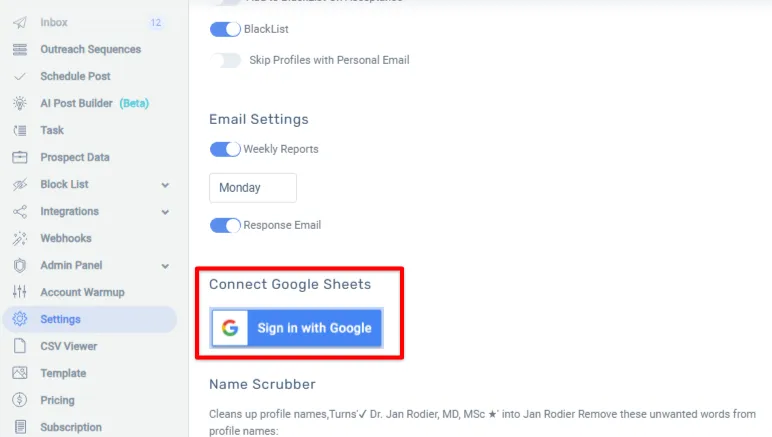
Step 1:Go to settings -→ Global settings
Click on Sign in with Google to connect the Google account with LinkedFusion
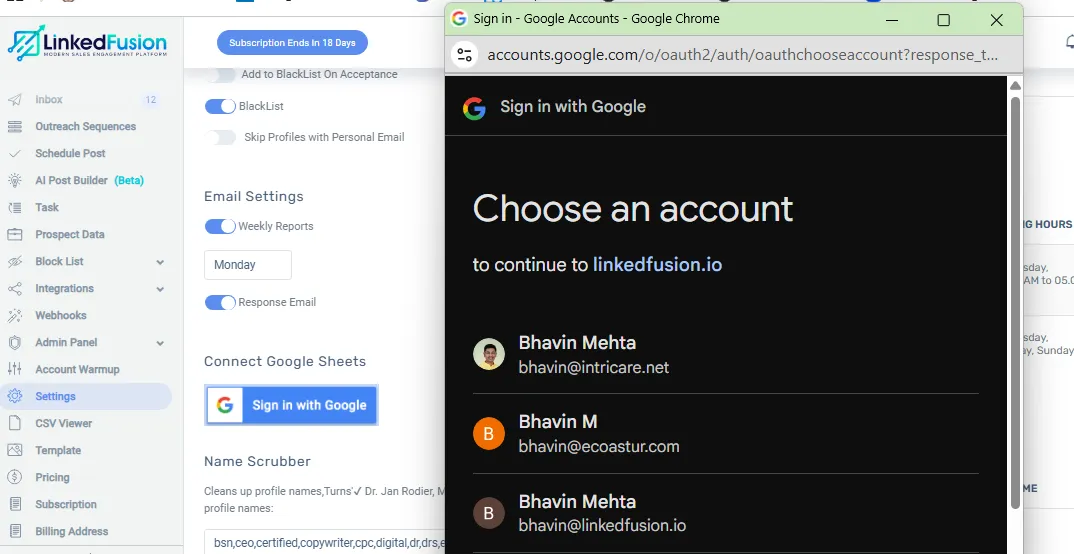
Step 2. Select the Google account that you wish to connect with LinkedFusion from the popup.
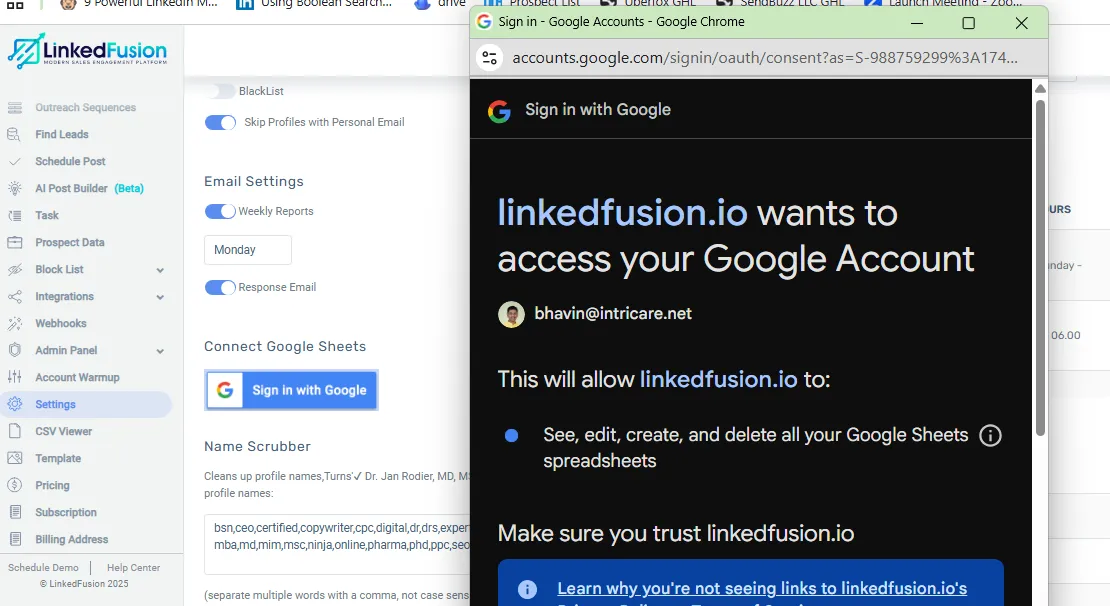
Step 3. Allow permission to LinkedFusion to access your Google Sheet data
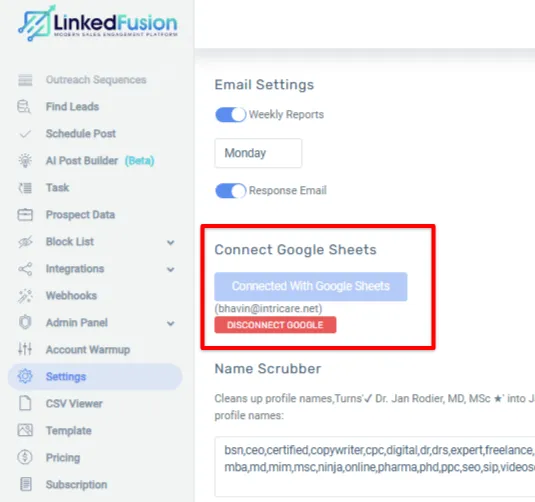
Step 4. Select the Google Account that you wish to connect from the popup.
Google Sheets can handle up to 10 million cells per spreadsheet, which is typically sufficient for most LinkedFusion campaigns. For extremely large datasets, we recommend using filtered exports or multiple destination sheets to maintain optimal performance.
Yes, you can export data to any Google Sheet, including templates. We also provide purpose-built templates designed specifically for LinkedFusion data that include pre-configured formulas and visualizations.
Absolutely! One of the key benefits of this integration is the ability to share LinkedIn data with your entire team through Google’s collaborative features. Simply share your Google Sheet with team members according to your organization’s permissions requirements.
If you’ve enabled two-way synchronization, changes made in Google Sheets can update the corresponding data in LinkedFusion (depending on your configuration settings). This allows for collaborative prospect management across platforms.
Yes, once data is in Google Sheets, you can use all standard spreadsheet functions including formulas, conditional formatting, charts, and pivot tables to analyze and visualize your LinkedIn campaign data.