

How to Integrate LinkedFusion with Zoho CRM
Benefits of Integrating LinkedFusion with Zoho CRM
Connecting LinkedFusion with Zoho CRM creates a powerful lead generation ecosystem that:
- Eliminates manual data entry – Automatically create Zoho CRM contacts from LinkedIn connections
- Centralizes prospect data – View all LinkedIn interactions alongside other communication channels
- Streamlines follow-up processes – Create automated sequences spanning both platforms
- Enhances lead qualification – Enrich prospect profiles with data from both platforms
- Improves conversion tracking – Monitor the entire journey from LinkedIn connection to customer
- Provides comprehensive analytics – Measure campaign performance across platforms
Integration Prerequisites
Before beginning the integration process, ensure you have:
- An active LinkedFusion account with admin access
- An active Zoho CRM account with admin privileges
- API access enabled in both platforms
- Necessary permissions to create integrations
Step-by-Step Integration Guide
Transform your LinkedIn prospecting and lead management with the powerful LinkedFusion and Zoho CRM integration. This comprehensive guide walks you through the setup process, configuration options, and best practices to seamlessly connect your LinkedIn automation with your customer relationship management system.
Step 1: Generate API Credentials in Zoho CRM
- Log in to your Zoho CRM account
- Navigate to Setup > Developer Space > API Keys
- Click Create New to generate a new client ID and client secret
- Set the appropriate scope permissions:
- Leads (Read and Write)
- Contacts (Read and Write)
- Accounts (Read and Write)
- Tasks (Read and Write)
- Note down your Client ID, Client Secret, and Domain URL
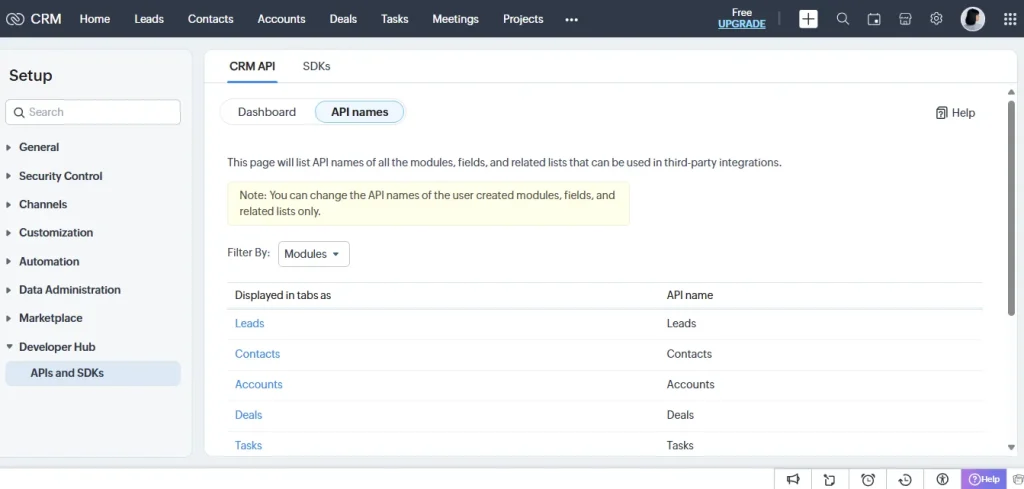
Step 2: Configure OAuth in Zoho
- In Zoho CRM, go to Setup > Developer Space > OAuth and Authorized Apps
- Click Add Client
- Enter “LinkedFusion” as the Client Name
- Add the following as authorized redirect URIs:
- Generate the client ID and secret
- Save your configuration
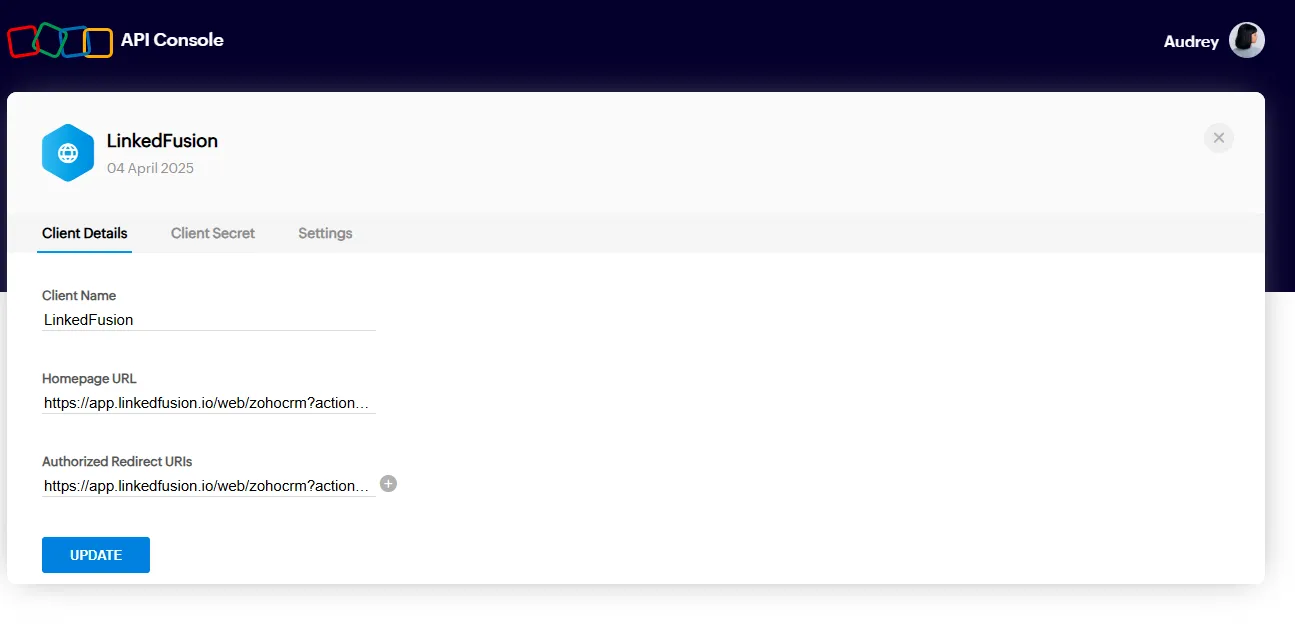
Step 3: Connect LinkedFusion to Zoho CRM
- Log in to your LinkedFusion account
- Navigate to Settings > Integrations
- Find and select Zoho CRM from the available integrations
- Click Connect

- Enter the following information:
- Zoho Client ID (from Step 1)
- Zoho Client Secret (from Step 1)
- Zoho Domain URL (e.g., https://crm.zoho.com or your custom domain)
- Click Authenticate with Zoho
- Log in to your Zoho account when prompted and authorize the connection
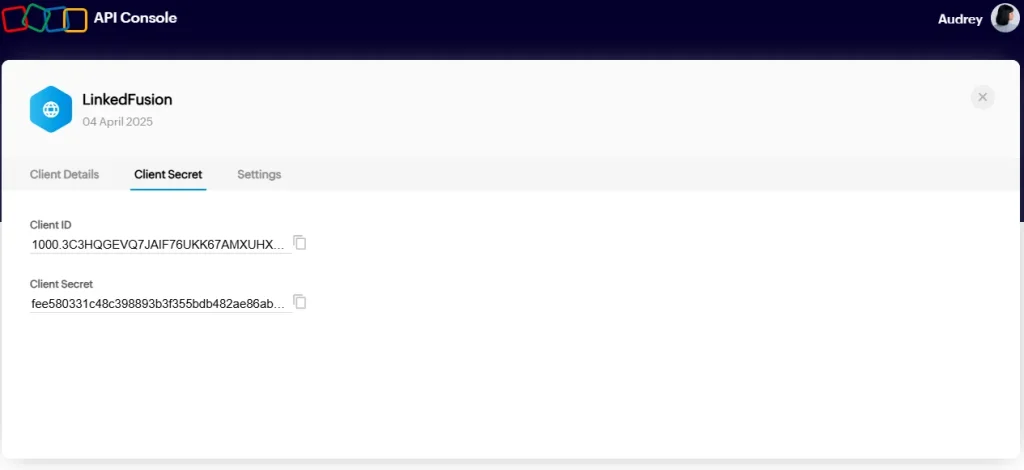
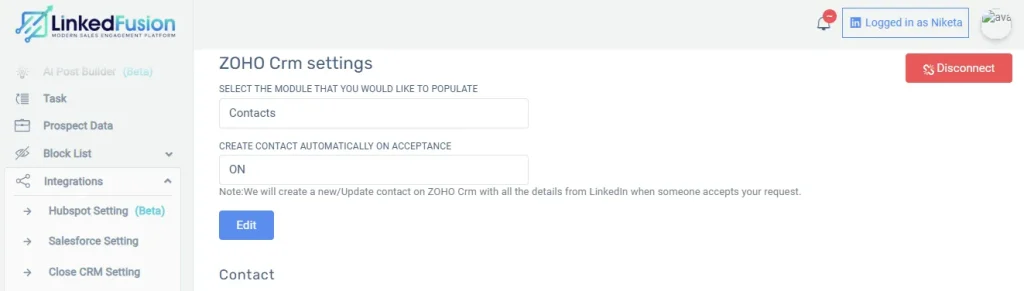
Step 4: Configure Field Mapping
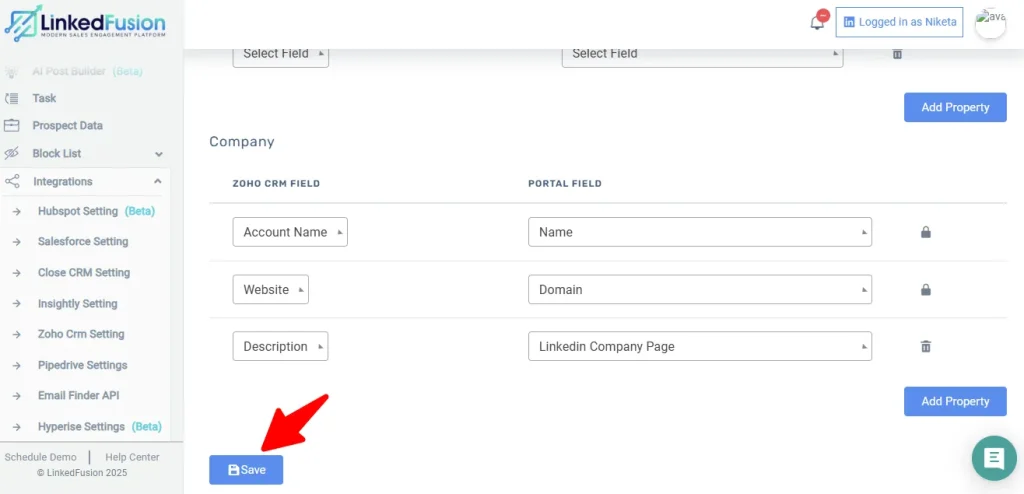
- After establishing the connection, you’ll be redirected to the field mapping screen
- Map LinkedFusion contact fields to their corresponding Zoho CRM fields:
- First Name → First Name
- Last Name → Last Name
- Company → Company/Account Name
- Position → Title
- Email → Email
- Phone → Phone
- LinkedIn URL → LinkedIn Profile URL
- Configure any custom field mappings as needed
- Click Save Mapping
Step 5: Set Up Synchronization Rules
- Navigate to the Sync Rules tab in the integration settings
-
Configure when data should sync between platforms:
- When new LinkedIn connections are made – Create new leads or contacts in Zoho CRM
- When contact data is updated – Update corresponding records in Zoho CRM
- When messages are exchanged – Record interactions in Zoho CRM
- Set the sync frequency (real-time, hourly, or daily)
- Configure how conflicts should be handled when data differs between platforms
- Click Save Rules
Step 6: Test the Integration
- Create a test connection in LinkedFusion
- Check that the contact appears in Zoho CRM
- Send a test message in LinkedFusion
- Verify the interaction is logged in Zoho CRM
- Update a contact in Zoho and check if changes sync back to LinkedFusion (if bidirectional sync is enabled)
Advanced Configuration Options
Customizing Lead Assignment Rules
- In Zoho CRM, go to Setup > Automation > Assignment Rules
- Create rules to assign LinkedIn-sourced leads to specific team members
- Configure rules based on industry, company size, or other criteria
- Save your assignment rules
Setting Up Workflow Automation
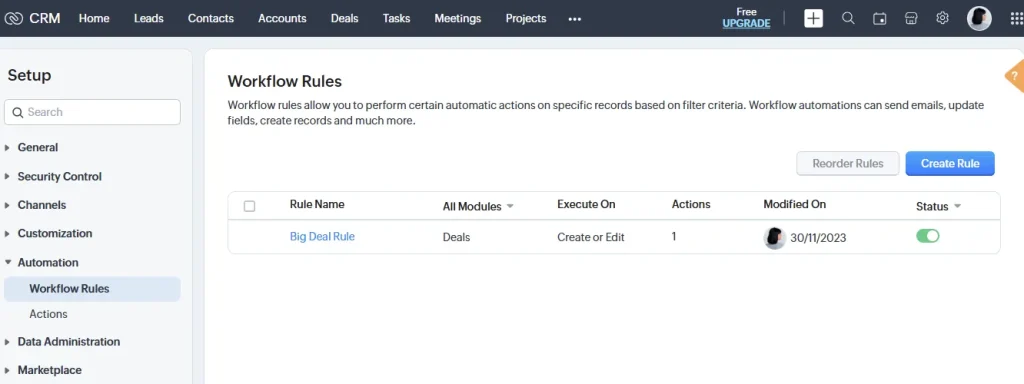
- In Zoho CRM, navigate to Setup > Automation > Workflow Rules
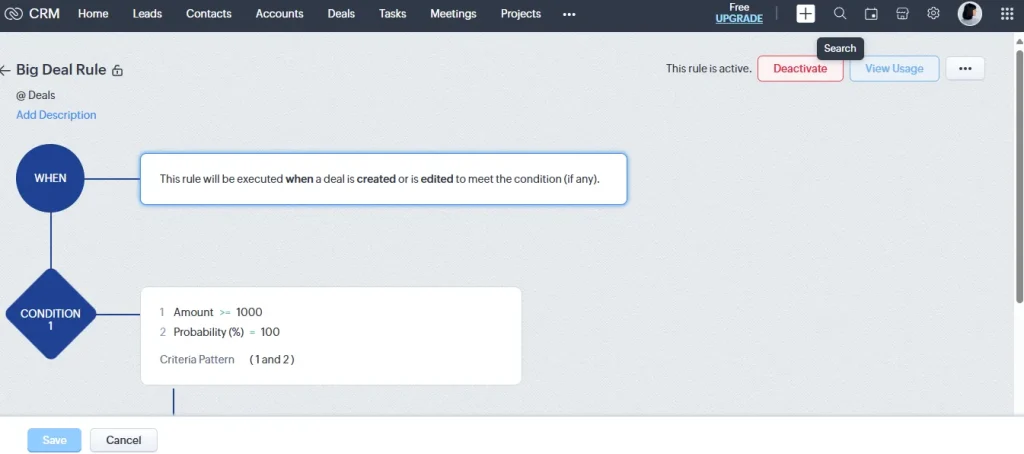
- Create workflows triggered by LinkedIn-sourced leads or contacts
-
Configure actions such as:
- Send email notifications to sales representatives
- Create follow-up tasks
- Update record status
- Activate your workflow rules
Creating Custom Views for LinkedIn Prospects
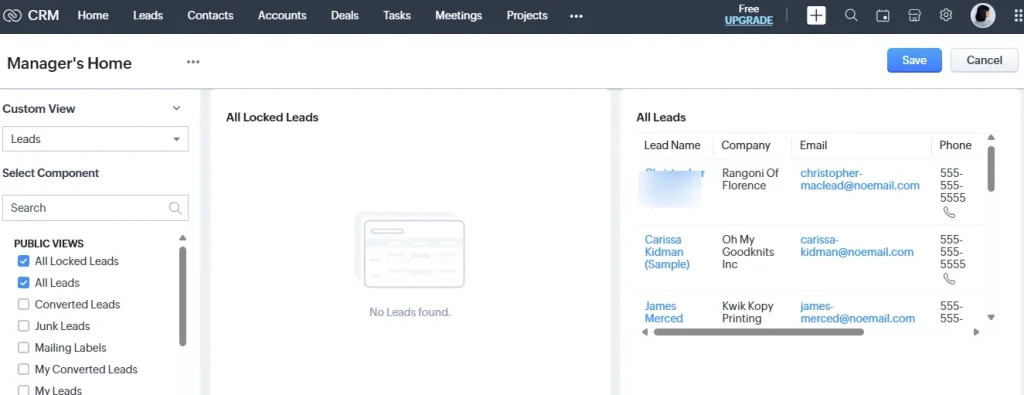
- In Zoho CRM, go to Setup > Customization > Views
- Create a new view for LinkedIn-sourced leads
- Set filter criteria (e.g., Lead Source = LinkedIn)
- Configure columns to display relevant LinkedIn data
- Save your custom view
Use Cases for LinkedFusion + Zoho Integration
Sales Prospecting Automation
- Automatically create Zoho CRM leads from LinkedIn connection requests
- Track engagement with prospects across LinkedIn and email
- Prioritize follow-ups based on engagement scores
- Create multi-channel sequences that start on LinkedIn and continue via email
Account-Based Marketing
- Identify key decision-makers at target accounts on LinkedIn
- Sync organizational data between platforms for complete account views
- Coordinate outreach across team members using Zoho CRM tasks
- Track campaign performance across LinkedIn and other channels
Event Follow-Up Management
- Import event connections from LinkedIn to Zoho CRM
- Categorize prospects based on event interest
- Automate follow-up sequences after events
- Track conversion rates from event connections to opportunities
Troubleshooting Common Integration Issues
Connection Failures
If you encounter connection issues:
- Verify API credentials are correct
- Ensure API access is enabled in Zoho CRM
- Check that your Zoho subscription includes API access
- Confirm redirect URIs are correctly configured
- Try regenerating and replacing API credentials
Data Not Syncing
If data isn’t appearing in Zoho CRM:
- Verify field mapping configurations
- Check sync frequency settings
- Ensure required fields are completed in LinkedFusion
- Review sync logs for specific error messages
- Test with a new contact to isolate the issue
Duplicate Records
If you’re seeing duplicate records:
- Review duplicate handling settings
- Check if email matching is configured correctly
- Consider running a one-time cleanup of duplicate records
- Enable Zoho CRM’s duplicate detection features
Frequently Asked Questions
By default, data syncs every 30 minutes. You can adjust this in your integration settings to occur in real-time, hourly, or daily, depending on your business needs and API usage limits.
Yes, during setup you can choose to import your existing LinkedIn connections as leads or contacts in Zoho CRM. You can filter which connections to import based on criteria such as date connected, industry, or company size.
If bidirectional sync is enabled, changes made to contacts in Zoho CRM will be reflected in LinkedFusion at the next sync interval. You can configure which fields should sync bidirectionally and which should only sync one way.
Yes, you can configure the integration to link LinkedIn interactions to existing deals or automatically create new opportunities based on specific LinkedIn engagement triggers. This provides sales teams with full context when working opportunities.
Sync limits depend on your LinkedFusion and Zoho CRM subscription tiers. Most plans support unlimited contact syncing, but API call limits may affect how frequently data is updated between systems.
LinkedIn messages can be logged as activities, notes, or custom objects in Zoho CRM, depending on your configuration. You can choose to include message content, timestamps, and engagement metrics.
Yes, the field mapping screen allows you to precisely control which fields are synchronized between LinkedFusion and Zoho CRM. You can map standard fields and custom fields in both directions.
All data transferred between LinkedFusion and Zoho CRM is encrypted using industry-standard protocols. Both platforms implement OAuth 2.0 for secure authentication without sharing passwords.
The integration works with Zoho CRM Professional, Enterprise, and Ultimate editions. Some features may be limited with Zoho CRM Standard edition due to API restrictions.
Next Steps for Success
After completing your LinkedFusion and Zoho CRM integration:
- Train your team on how to use the integrated systems effectively
- Create standard operating procedures for managing LinkedIn prospects
- Set up dashboards in Zoho CRM to track LinkedIn campaign performance
- Review and optimize your integration settings regularly
- Keep both platforms updated to benefit from new integration features