

Ever felt like the whole “here’s my business card, call me later” routine is outdated? That’s where the LinkedIn QR code steps in and saves the day. It’s like a magic key to your professional life, available at the snap of a scan. A LinkedIn QR links straight to your LinkedIn profile, giving you the ultimate edge when networking, especially in today’s digital-first world.
But here’s the real kicker: it’s recommended by LinkedIn themselves. They’ve made networking faster, smoother, and much cooler by giving you an easy way to share your profile. Gone are the days of typing URLs or searching for connections. With a simple scan, anyone can view your profile instantly.
Key Takeaways
- Instant Connections: A LinkedIn member’s QR code allows others to instantly connect with you on LinkedIn by scanning your code, whether online or offline.
- Boost Your Job Hunt: Adding a QR code to your resume or profile can increase your chances of getting an interview and make it easier for employers to find you.
- Customizable & Versatile: Your code can be modified to fit your brand and also be used in both digital and physical formats, like business cards or brochures.
- Privacy in Control: With privacy policy and cookie policy controls in place, you can ensure your information is shared only when you want it to be.
- Seamless Networking: QR codes make it easy to meet new people, stay in touch, and grow your professional circle quickly, without the hassle of sharing long URLs or email addresses.
What Is a LinkedIn QR Code and How Does It Work?
So, let’s break it down. A QR code is a scannable image that takes people directly to your LinkedIn profile. Think of it as your digital business card, except way more convenient (and environmentally friendly, right?).
Here’s the deal: you show someone your code, they scan it with their phone, and boom—they’ve got your LinkedIn profile open, ready to connect. No more awkward fumbling with URLs. And it doesn’t matter if you’re at a networking event, a conference, or just grabbing coffee with a new contact—this thing is a networking powerhouse.
Explore topics like how professionals across industries—from marketing to finance—are using the code to grow their circle. Whether you’re looking for a job, new clients, or collaborations, this QR code gets you one step closer with ease.
How to Create a QR Code: Step-by-Step Guide
Creating your very own QR is super easy, and I’m here to walk you through it step by step:
- Open the LinkedIn app on your phone. (Trust me, it’s easier from the app.)
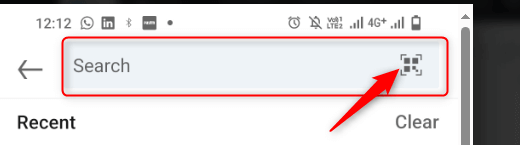
- Head to your profile and tap the QR code icon in the search bar.
- Your QR pops up, ready for action!
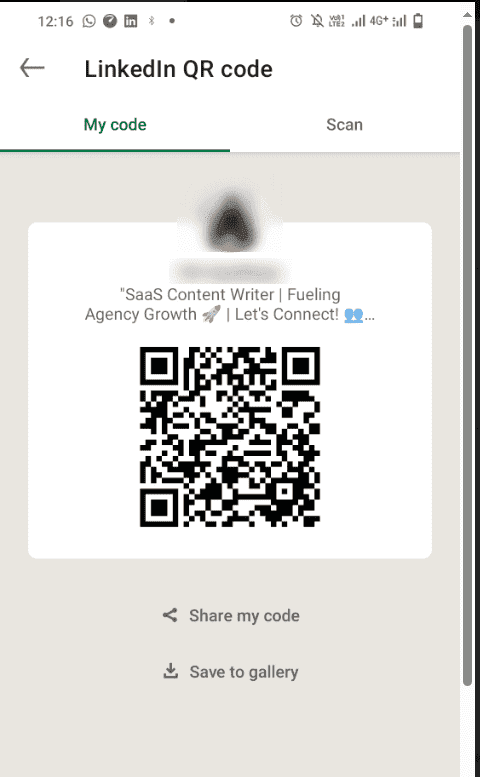
- Want to share it? Hit the share button, and you can send it via text, email, or even print it out.
Voila! That’s your ticket to easier networking.
How to Get Your LinkedIn URL for QR Code Creation
Okay, now if you’re more of a desktop person and want to create a QR code outside of the app, don’t sweat it. Here’s how you get your LinkedIn URL:
- Open LinkedIn on your browser and log in.
- Go to your profile and copy the URL from the address bar (this is your LinkedIn profile URL).
- Now, head to a QR code generator website—there are plenty that’ll do it for free.
- Paste your LinkedIn URL in, hit ‘generate,’ and there you have it—a scannable QR!
Why Should You Create a LinkedIn QR Code?
You know those moments when you meet someone interesting but don’t have time to exchange full details? That’s where the LinkedIn code flexes its muscle. You can make a solid connection in just seconds. Hand someone your phone or show them your QR code on your business card, and boom—they can view and connect with you right there. No follow-up emails with “What’s your LinkedIn URL again?”
The best part? It’s not just faster; it’s cleaner. You’re not juggling contact info, and they’re not scrambling to write down your details. Networking made easy!
Recommended by LinkedIn: Why Use a QR Code?
Why exactly does LinkedIn push the QR code feature so hard? Well, because it simplifies everything. It’s a tool recommended by LinkedIn to streamline your connections, especially in fast-paced environments like trade shows, networking events, or even casual meetups. Instead of asking someone to search for you on LinkedIn (let’s face it, no one wants to type long names or handle the dreaded “others also viewed” profiles), the QR code gets rid of all the unnecessary steps.
So if you’re serious about expanding your circle, this one’s a no-brainer.
How to Customize and Share Your QR Code
Now that you’ve got your QR code, why stop at the basics? You can level up your QR code game by modifying it. Here’s how:
- You can add a personal touch by choosing different colors or even slapping your company’s logo onto it. This helps with brand consistency and adds a professional vibe to your QR code for your LinkedIn profile.
- Some QR code generators allow you to shape it, giving you options to design a QR code that fits your style.
It’s not just about scanning a code; it’s about making an impression before they even scan it!
Creative Ways to Share Your QR code
- Business Cards: Forget those old-school business cards. Add your QR to make it way easier for people to connect with you.
- Resumes: You can now toss a QR code on your resume, giving potential employers direct access to your professional LinkedIn profile. Trust me, recruiters will love the ease!
- Email Signatures: Add the QR to your email signature, and every email becomes a chance to expand your circle.
Benefits of Using LinkedIn QR Codes for Businesses
LinkedIn QR Codes for Company Profiles
When you think about networking as a business, it’s all about making connections quick and easy. A QR code helps businesses do exactly that. Whether it’s for a specific LinkedIn profile like a company page or an employee’s LinkedIn profile, creating a QR code for your LinkedIn profile makes it easy for clients and partners to get in touch.
With just a scan, they’re directed to your company’s LinkedIn page—no more digging through search results or getting lost in the “others also viewed” section. This means they can instantly see who you are, what you do, and how they can connect with you.
If you’ve got multiple departments—say, marketing, HR, or sales—each can have its own QR code to streamline communication. You can even customize your QR code for specific teams or individuals within your company. Talk about putting your business on the fast track!
Flexible and Trackable QR Codes for LinkedIn Profiles
You can create a dynamic QR code that’s editable and trackable, which is great for businesses. Imagine being able to update your LinkedIn profile or company information without needing to make a whole new QR code. Simply put, it’s flexible.
And tracking? Yeah, that’s a huge win. A QR code generator lets you track how many people scanned your code, where they scanned it from, and even what device they used. This kind of insight can help you tailor your approach—whether it’s for networking events or sending out digital flyers.
By using these trackable QR codes, you get real-time feedback on who’s interacting with your LinkedIn page. It’s like getting a sneak peek into how well your QR code is working to promote your business.
Best Practices for Using QR Codes
To facilitate smoother interactions with you or your company, using a QR Code can simplify communication for others. However, it’s important to keep in mind some key principles to get the best results.
How to Double-Check Your LinkedIn URL Before Creating a QR Code
Before you create a QR code for your LinkedIn profile, you need to make sure your LinkedIn URL is accurate. This is a big deal because once your QR code is out there, you want it to work flawlessly. No one wants to scan a QR code only to land on a broken link, right?
Here’s a simple hack: Copy your LinkedIn URL from your browser and paste it into a new tab. If it takes you directly to your profile, you’re good to go. If not, double-check for any typos. Once you’re confident that everything is in order, plug that URL into your QR code generator, and you’re set!
This step may seem basic, but it’s essential. You’ll avoid any awkward networking moments where someone scans your code and ends up staring at an error page.
Step-by-Step Guide to Optimizing Your QR Code
Let’s face it: not all QR codes are created equal. If you want your QR code to shine, it needs to be optimized. Here’s a quick step-by-step guide to make sure it stands out:
Resize for Your Medium: Whether you’re adding your QR code to business cards, flyers, or brochures, size matters. Make sure it’s scannable and visible, whether it’s on a small card or a huge banner.
Customizing Your QR Code: This is where things get interesting. Use a LinkedIn QR code generator that allows customization. You can add your logo, change the color, or even add a frame to make it pop. Your brand is unique, so why shouldn’t your QR code be?
Test, Test, Test: Before you go live with your QR code, test it. Grab different phones, different apps, and make sure it works perfectly. This is a crucial step to avoid embarrassment later.
Track the Performance: If you’ve opted for a dynamic QR code, check its performance. You can track scans, see where they’re happening, and even update the link whenever you want.
Examples of QR Codes in Use Across Different Industries
Graphic Designers: Sharing Your LinkedIn Profile via QR Codes
Graphic designers are all about standing out, and a QR code is a perfect tool to make that happen. Imagine you’re at a design expo or networking event—you hand someone your visiting card, but instead of a basic card with just a website, they get a QR code that links directly to your LinkedIn profile.
They scan it and, within seconds, they’re looking at your portfolio, reading your endorsements, and connecting with you. It’s instant, it’s impressive, and it’s super easy.
This isn’t just about handing over a networking card; it’s about giving people immediate access to your work. No more “others also viewed” distractions—just your LinkedIn profile front and center. If you want to build connections in the design world, this is the way to do it.
Real Estate Agents: Creating QR Codes for LinkedIn Pages
For real estate agents, making a lasting impression is everything. Imagine placing a QR code on your flyers, yard signs, or even open house brochures. One scan, and potential clients are directed straight to your LinkedIn page, where they can check out your latest listings, view your credentials, and connect with you.
Having a QR code on your marketing materials gives your clients one less thing to worry about. They no longer have to type out your contact info or search for you on LinkedIn. It’s all about making it easier for them to reach you.
QR codes are a simple, effective way to keep your name top of mind with potential buyers and sellers. Plus, when you modify your QR code, it blends seamlessly with your brand, adding that extra layer of professionalism to your business.
Conclusion :
Networking has never been easier, thanks to the power of LinkedIn member’s QR code. Whether you’re trying to connect with a particular LinkedIn profile or a potential employer, a QR code offers a quick and seamless way to stay in touch and build meaningful connections.
With a simple scan, people can access your QR code and instantly view your LinkedIn profile, whether they are online or offline. This tool makes it easy to meet new contacts, offering a quick response that can be crucial, especially when you’re looking for the job that you want or increasing your chances of getting an interview.
FAQ's
1. How do I create a LinkedIn QR code?
Creating a QR code is simple and completely free. All you need to do is access your LinkedIn account via the app or website. Then, find your profile, copy and paste your LinkedIn URL into a QR code generator, and voilà—you’ve got your QR code ready to share!
2. Can I link a company page with a QR code?
Yes! If you’re managing a LinkedIn company page, you can easily create a QR code linking to your LinkedIn page. This makes it easier for clients, customers, or partners to connect with you instantly. It’s great for networking and promoting your business at events.
3. How do LinkedIn QR codes help with networking?
A LinkedIn QR code makes it easy to stay connected. Whether you’re sharing your LinkedIn personal profile or a particular LinkedIn profile from your company, a quick scan allows others to view or connect with you. It saves time and boosts your chances of making lasting professional connections.
4. Can I customize my LinkedIn QR code?
Absolutely! You can add logos, change colors, and even make your QR code trackable. Customizing your QR code to your business style adds a professional touch and ensures you never miss out on connecting with potential clients.
5. Are LinkedIn QR codes useful for job seekers?
Definitely! If you’re applying for jobs, including a LinkedIn QR code on your resume or CV allows hiring managers to view or connect with your LinkedIn profile instantly. It’s a great way to increase your chances of getting that interview and standing out from the crowd.
6. How can I share my QR code with others?
You can share your QR code digitally or physically. From visiting cards and flyers to emails and social media posts, LinkedIn users can easily connect with professionals by scanning your QR code. It’s all about giving them a quick, direct path to your profile.
7. Can LinkedIn QR codes be tracked?
Yes, if you use a dynamic QR code, you can track how many people scanned it and where. This data can help you improve your networking strategy, especially in b2b events, ensuring you’re connecting with the right people and following up with those new contacts.