

LinkedIn has become the premier platform for professional networking, with millions of connection requests sent daily. But what happens when someone declines your connection request? Can you tell if someone declined your LinkedIn request? This comprehensive guide answers this question and shows you how to track your connection request history effectively.
LinkedIn is a B2B social media platform for working professionals as they can connect with their prospects. Helping the professionals expand their business network and generate valuable leads is one of the main functions of every prospect. When compared with the other social media platform a LinkedIn relationship begins with one user sending a connection request to the other user that they want to connect with.
Prior to making the connection you have sent a connection request to the person with whom you want to connect. Now the recipient to whom you have sent the request can either accept or decline your request. There are two possible reasons that your request is being denied or ignored. One can be that your recipient is not interested in connecting with you. And another is that they don’t know who you are.
Wondering how to see declined LinkedIn requests? LinkedIn does not notify you when someone rejects your request, but there are simple ways to check. In this guide, you’ll learn how to find declined requests, track sent invitations, and improve your acceptance rate.
Why LinkedIn Doesn't Notify You About Declined Requests
LinkedIn deliberately chooses not to notify users when their connection requests are declined. This design decision protects users’ privacy and prevents potential awkwardness in professional relationships. When someone declines your connection request on LinkedIn, you won’t receive any official notification.
LinkedIn prioritizes creating a positive networking environment where professionals can control their connections without worrying about causing offense. As stated directly by experts, “LinkedIn does not notify the sender when their connection request is declined.”
If you’re looking to manage multiple LinkedIn connections efficiently, LinkedFusion’s LinkedIn automation tools can help streamline your networking process while respecting LinkedIn’s connection policies.
Can You See Rejected LinkedIn Requests?
No, LinkedIn does not notify you when a connection request is rejected. However, you can check if your request was likely declined by viewing your Sent Invitations under the “My Network” section—if the request is no longer listed, it was accepted or declined. Additionally, if the “Connect” button reappears on someone’s profile, it typically means they declined your request.
Step-by-Step Guide to Check for Declined Connection Requests
While LinkedIn doesn’t explicitly notify you about declined requests, there are several methods to view your sent invitations and determine if they’ve likely been declined:
Method 1: Check Your Sent Invitations

- Log into your LinkedIn account
- Click on the “My Network” icon in the top navigation bar
- Click on “See all” next to “Invitations”
- Select the “Sent” tab to view all your pending invitations
- If a previously sent invitation no longer appears here, it has either been accepted or declined
Note: LinkedIn only displays pending invitations in this section. Once an invitation is accepted or declined, it disappears from this list.
Method 2: Look for the "Connect" Button Reappearance
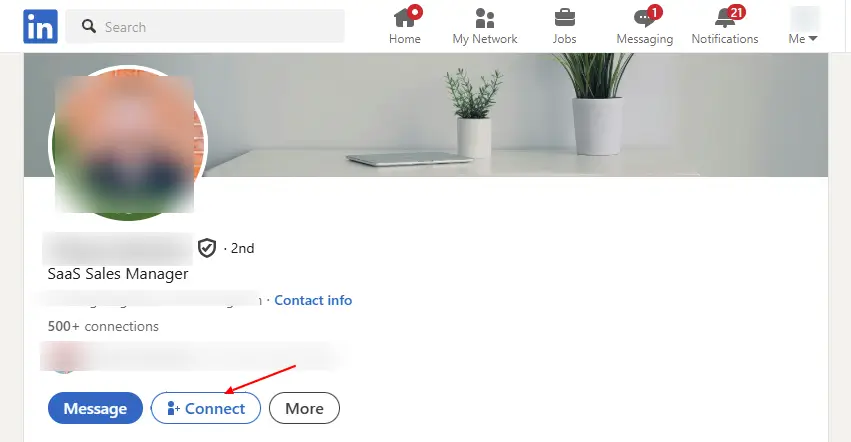
One of the most reliable indicators that your request was declined is when:
- Visit the profile of the person you sent a request to
- Check if the “Connect” button has reappeared and is clickable again
- This typically means they’ve declined your previous connection request
As confirmed by industry experts: “One of the most obvious signs that your LinkedIn connection request was likely rejected is if the ‘Connect’ button reappears on the person’s profile after you had already sent a request.”
Managing multiple connection requests can be challenging. LinkedFusion’s LinkedIn connection tracker can help you monitor the status of your connection requests more efficiently.
Understanding Your LinkedIn Connection Request History
LinkedIn’s connection request system works differently from many other social platforms:
- Pending invitations: LinkedIn keeps track of your sent invitations that haven’t received a response yet
- Weekly invitation limit: LinkedIn imposes limits on how many connection requests you can send (typically around 100 per week).
- Ignored requests: Recipients have options to either “Ignore” the request (soft rejection) or mark it as “I Don’t Know This Person” (which can impact your account if you receive too many).
For businesses and sales professionals managing many connections, LinkedFusion’s sales prospecting tools can help you organize and prioritize your LinkedIn networking efforts.
Signs That Your LinkedIn Request Was Rejected
Since LinkedIn doesn’t explicitly tell you when someone declines your request, look for these telltale signs:
- The “Connect” button reappears: If you can send another connection request to the same person, they likely declined your previous request.
- Missing from “Sent Invitations”: If someone disappears from your sent invitations list without becoming a connection, they’ve likely declined your request.
- InMail availability: If you previously sent a connection request and now see the option to send an InMail instead of “Pending,” your request was probably declined.
- Profile visibility changes: In some cases, if you suddenly can’t view certain elements of their profile, they may have declined your request.
- Button options change: As noted by users, “On their profile I can see message and follow, if I click the three dots, I can see connect and personal invite. Looks like it was rejected…”
Need help crafting more effective connection requests? LinkedFusion’s LinkedIn message templates can significantly improve your acceptance rates.
How to Improve Your Connection Request Acceptance Rate
With LinkedIn’s average connection request acceptance rate at only 21%, improving your approach is crucial. Here are proven strategies to increase your acceptance rate:
- Personalize your connection requests: Always include a custom message explaining why you want to connect.
- Establish common ground: Mention mutual connections, shared interests, or groups you both belong to.
- Provide value upfront: Explain how connecting might benefit them, not just you.
- Optimize your LinkedIn profile: Ensure your profile is complete and professional before sending requests.
- Connect with relevant people: Focus on quality connections relevant to your industry or goals rather than random connections.
- Follow up appropriately: As recommended by experts, “If you don’t receive a response to your initial connection request, it’s okay to follow up once after a week or two”.
- Respect LinkedIn’s limits: Stay within LinkedIn’s weekly invitation limits to maintain good standing.
For sales teams looking to improve their LinkedIn connection strategies, LinkedFusion’s sales enablement tools provide comprehensive solutions to enhance networking effectiveness.
How Can You Say That Someone Has Denied Your Linkedin Request?
Even if the connection request is not accepted by the recipient the sender does not get any notification. There are two scenarios: first is that the recipient clicked on the “Ignore Button” and second is that he simply did nothing after viewing your connection request.
In the second scenario where they did nothing about the connection request it will simply be sitting in his LinkedIn’s inbox as a new message in the “Invitations” section.
They might also get notified by LinkedIn via email about the request. And if they have clicked on the “Ignore” button then your connection request has been deleted for ever.
Another possibility is that your recipients can mark you as “I don’t know this person”. Now this may give LinkedIn a signal that you are spamming people by sending random requests to people. Even after marking you as some they don’t know your recipient can still accept your LinkedIn request. But, in case too many people mark you as spam then LinkedIn will either suspend your account or restrict your account. Therefore, LinkedIn suggests its user to send connection requests to only those people who they know.
One way that you can avoid these kinds of problems is by sending LinkedIn invites to people that are known to your recipient before sending them a connection request.
FAQ's
To know if someone declined your LinkedIn request, check your Sent Invitations under the “My Network” section—if the request is no longer listed, it was either accepted or declined. Another sign is if the “Connect” button reappears on their profile, indicating they declined your request. LinkedIn does not send notifications for declined requests to maintain user privacy.
If someone declines your connection request, you won’t get notified. The request simply disappears or stays pending. Too many declines or “I don’t know” responses can affect your ability to send future requests.
If you decline a LinkedIn request, the sender will not be notified. LinkedIn deliberately avoids sending notifications for declined requests to maintain user privacy and prevent awkwardness in professional interactions. However, the sender may notice that the “Pending” status is gone or that the “Connect” button has reappeared on your profile, which could indicate their request was declined.
Conclusion:
While LinkedIn doesn’t explicitly notify you when someone declines your connection request, there are several ways to tell if your request was likely rejected. By monitoring your sent invitations, looking for the reappearance of the “Connect” button, and paying attention to other subtle signs, you can get a good idea of your connection request status.
Remember that rejection on LinkedIn isn’t personal—many professionals limit their connections to people they know well or have direct business relationships with. Focus on building genuine connections and providing value in your invitation requests to improve your acceptance rate.
Want to optimize your LinkedIn networking strategy? Try LinkedFusion’s LinkedIn automation tools to streamline your connection management and improve your networking results.